Muffled AirPods playback often starts with debris covering a speaker mesh or, on AirPods Pro, an ear tip that doesn't seal well. Check the speaker openings and fit first.
If music turns dull only when a call app opens on your Mac, close the app so the headphones stop using their microphone.
Muffled sound in your ears is different from a caller saying your voice sounds muffled. Start with the playback checks for what you hear; if callers can't hear you clearly, use the microphone checks in the first section.
In this guide
1. Match the muffled sound to the right part
Play a familiar song or spoken recording, then compare the left and right earbuds at a comfortable volume. Notice whether one side is quieter, both sound dull, or the change begins only during a call.
If other people hear a muffled voice while your own audio is clear, use the AirPods microphone checks.
Changing the speaker balance won't make your voice clearer to callers.
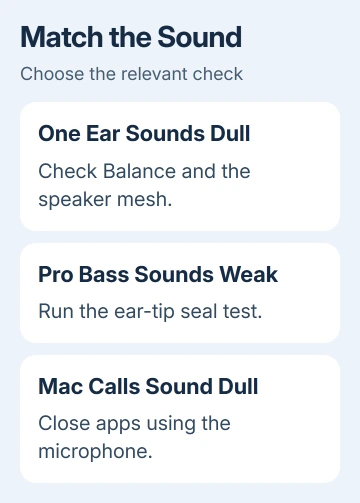
For one quiet earbud, check Settings > Accessibility > Audio & Visual > Balance on your iPhone or iPad. Put the slider in the middle.
Apple recommends checking for debris as well as centering the left-right balance.
With the slider centered, the balance setting isn't favoring one side. If one ear still sounds dull, continue with the cleaning check. If both earbuds sound normal until a meeting starts, go to the Mac microphone section.
Try another recording too. A poor recording stays poor through good headphones, while a blocked speaker affects everything played through that earbud. Keep the volume comfortable rather than turning it up to compensate for a quiet side.
2. Clean using the instructions for your AirPods model
Inspect the speaker openings in good light. On AirPods Pro, remove the ear tips by gripping their base and pulling firmly, so you can inspect the tips and the openings they cover. Don't push debris into the mesh with a pin.
For removable Pro ear tips, use plain water to rinse the detached tips. Leave out soap and household cleaner. Wipe them with a soft, dry, lint-free cloth and attach them again only after they have dried fully.
For the exterior of standard AirPods, the cleaning procedure uses a soft, dry, lint-free cloth. The newer wet mesh method doesn't cover AirPods 1 or 2.
AirPods 3, 4 and 5 have a different mesh-cleaning procedure. It uses a specified cleaning kit or micellar water with PEG-6 Caprylic/Capric Glycerides, distilled water, and a soft children's toothbrush.
Clean only the mesh areas marked for your model.
Pro 2 earbuds and their Pro 3 successors have a separate mesh-cleaning procedure.
It includes controlled brushing, blotting, a distilled-water rinse with the brush, and at least two hours of drying before use or charging.
Use that illustrated procedure when the meshes need more than a simple inspection. It shows which surfaces to clean and the order to follow. Don't apply one model's liquid-cleaning method to a different generation.
I'd check the model before buying cleaning supplies. A bottle labeled micellar water isn't enough by itself; the specified ingredient and the correct cleaning areas are part of the instructions.
AirPods Max need their own cushion and headband cleaning method. The earbud mesh procedure and Pro ear-tip test don't apply to those over-ear headphones.
Once everything is dry and reassembled, replay the same recording. Clearer voices or restored volume point to the debris you removed. If nothing changes, check the fit instead of cleaning more aggressively.
3. Restore the ear-tip seal on AirPods Pro
A loose seal can make music sound thin and reduce bass. AirPods Pro need a snug fit, and the best size can differ between your left and right ears. Ordinary AirPods don't have interchangeable Pro ear tips.
Put in both Pro earbuds, then check their connection to your iPhone or iPad. Open Settings > Bluetooth, use the information control for your AirPods, and start the fit test offered for that model.
For AirPods Pro 1 and Pro 2, choose Ear Tip Fit Test. Pro 3 uses Acoustic Seal Test on version 26 or a newer release of iOS or iPadOS. Follow the test and adjust an earbud's position if it asks you to improve the seal.
If adjustment keeps failing on that side, try another tip size and repeat the test. Use tips made for your generation; the ear-tip guidance distinguishes the different Pro models.
Seat each replacement tip until it clicks into place, then check that it stays attached. The goal is comfortable, secure listening, rather than pushing the earbud farther into your ear to force stronger bass.
If the seal test passes but audio still sounds dull, fit isn't the only thing to check. Compare normal music playback with the call-related behavior next, especially if you use the AirPods with a laptop.
4. Close microphone apps when music turns dull on a Mac
Bluetooth headphones can switch to a lower-quality audio mode when an app uses their microphone. That lets them carry both your voice and incoming sound. Music can become dull or quieter as soon as a meeting or chat app starts listening.
Quit the apps using the AirPods microphone, including conferencing and voice-chat apps. Also close System Settings or System Preferences if it's open to Sound. Then play your recording again.
If the sound still seems dull, click Control Center > Sound, select the Mac's internal speakers, then select the AirPods again.
This follows the reduced Bluetooth audio steps for returning to normal listening.
If sound returns when the microphone stops, the connection mode was the problem. More speaker cleaning won't fix that. During a call, choose the Mac's built-in microphone in the app's audio settings if that suits your setup.
If you're hearing gaps or brief dropouts instead of constant dullness, use the AirPods cutting-out checks. Broken-up playback and a consistently muffled speaker need different checks.
5. Get a persistent speaker problem assessed
Compare the AirPods with a second phone, tablet, or computer if one is available. Play familiar audio outside a call. If that earbud sounds dull on both devices, the problem probably isn't a setting in just one app.
If a speaker stays muffled after the right cleaning and fit checks, open Apple Support's AirPods service options. Give them the model, affected side, and whether it happens with music, calls, or both.
Mention any drop, liquid exposure, or sudden change after cleaning. Ask for a speaker and microphone assessment and the coverage or replacement cost for your exact model.
Repeated scraping can damage the mesh without fixing the sound.
The Short Version
Check a quiet side's balance and speaker mesh, use the cleaning method for that generation, and test the ear-tip seal on AirPods Pro. For music that turns dull only during Mac calls, close microphone apps and reselect the AirPods in Sound.
Checked November 11, 2026.