Microsoft supplies the Windows 11 26H2 ISO on its official download page. Choose x64 for an Intel or AMD PC, or the separate Arm64 image for an Arm-based PC, then save it for the computer you'll install it on.
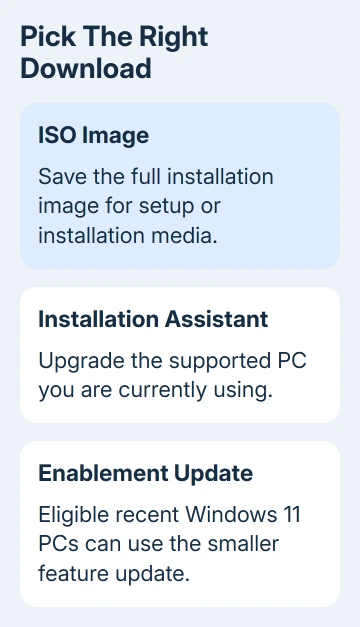
The ISO download is free, but it doesn't supply a Windows license. It also isn't the same download as the Installation Assistant or the small update used by an eligible PC that's already running a recent Windows 11 version.
In this guide
Choose an ISO only when you need the full image
An ISO is a disk image containing the Windows installation files. Save it when you need installation media, a supported virtual machine, or a file you can carry to another computer without downloading Windows there again.
On an eligible Windows 11 24H2 or 25H2 PC, the update to 26H2 can arrive as a small enablement package. This switches on the newer release using parts of Windows already installed through monthly updates.
The full ISO is a different route. It isn't necessary simply because Windows Update hasn't offered the feature update yet.
Before using installation media, check whether a compatibility hold, a block for a known problem on your PC, is keeping the update from appearing.
For a PC already reporting an update error, Windows Update error checks address that failure. Downloading another installer won't explain why the current update was blocked.
1. Check the target computer's processor and edition
On the computer where you'll install Windows, open Settings > System > About. Under Device specifications, read System type. An x64-based processor needs the x64 image; an ARM-based processor needs Arm64.
Don't choose the image based on the computer you're using to download it. A Windows laptop can save an image for a different PC, but the installer must match the machine that will run it.
Under Windows specifications, note Edition and Version. Match Home or Pro to the license for that device.
Check the display language too. On Windows 11, use Settings > Time & language > Language & region. Windows 10 has Settings > Time & Language > Language instead.
Windows 11 needs supported hardware, including a qualifying processor, TPM 2.0 and Secure Boot capability. The ISO doesn't remove those requirements. Check the PC maker's model information for an older machine.
2. Download the x64 image from the official form
Open the Windows 11 download page. Confirm that the current release label identifies Version 26H2, then find Download Windows 11 Disk Image (ISO) for x64 devices.
Select Windows 11 (multi-edition ISO for x64 devices), then choose Confirm. Select the product language, confirm it, and use the 64-bit Download button when the page generates the link.
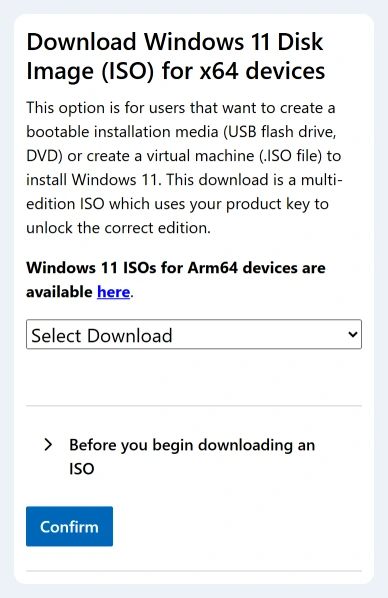
Choose the same language as the installed Windows copy when planning an upgrade that keeps apps. English and English International are separate selections, so check the existing installation rather than guessing from your keyboard layout.
Let the browser finish saving the .iso file before copying or opening it. The download page's Verify your download option lets you compare it with the official file information.
If the page later advertises a newer release, its main download may no longer give you the older 26H2 image. Recheck the version label instead of assuming that a bookmark always supplies the same Windows release.
3. Use the Arm64 download for an Arm PC
For a Snapdragon or other supported Arm-based Windows computer, use the separate Windows 11 Arm64 page. Its product selector identifies the Arm64 multi-edition ISO.
Follow that page's language and download choices. The fact that both x64 and Arm64 are 64-bit doesn't make their installers interchangeable. Match the processor type shown in the target PC's System type.
Arm installation media may need drivers supplied by the device maker before it can boot successfully. Read the device maker's Arm installation instructions before preparing that USB drive.
The Windows 11 Media Creation Tool on the main page creates x64 media. Don't use it as a substitute for the Arm64 image just because the PC also runs some ordinary Windows desktop apps.
4. Check the saved file before moving it
A finished download should have a filename ending in .iso, without the temporary ending the browser uses while downloading. If the transfer stopped, finish or repeat it before trying Setup.
To check the file's contents too, open PowerShell and run Get-FileHash with the path to your ISO. For example, after renaming your saved file to Windows11.iso in Downloads:
Get-FileHash "$env:USERPROFILE\Downloads\Windows11.iso" -Algorithm SHA256The command returns a hash, a fingerprint of the file's contents. Compare it with the value for that exact image and language in the download page's verification section. Different language images have different fingerprints.
If the values don't match, don't install from that copy. Download the correct image again and check it. If you copy it to another drive for the offline PC, you can repeat the hash check on the copied file.
5. Decide whether to start Setup or create bootable media
For an upgrade from a working Windows installation, right-click the ISO, choose Mount, open the virtual DVD that appears in File Explorer, and launch setup.exe. This starts Setup from inside Windows.
Before installing, make a backup of your important files. At Change what to keep, check whether Keep personal files and apps is selected and available. Stop if Setup proposes removing something you intend to keep.
Booting from installation media is the route for a clean installation. Microsoft's reinstallation guide explains how this differs from starting Setup inside Windows and what each option keeps.
For an x64 bootable USB, the Media Creation Tool needs a blank drive with 8 GB or more capacity. Creating the installation media erases that USB drive. Copying an ISO onto an ordinary USB drive doesn't prepare Windows installation media.
6. Know what still needs a connection
Keeping the ISO locally avoids downloading the full installation image again on the target PC. It doesn't remove every internet requirement from Windows setup, activation, updates or account setup.
Keep the PC's network and storage drivers available if the maker requires them. After installation, connect and check activation and Windows Update. When reinstalling on a licensed PC, select the edition that matches its digital license.
If Setup says the PC isn't compatible, keep that message and ask its maker about Windows 11 support. For media that won't boot, follow the model's boot-menu instructions before changing firmware settings.
For an existing installation that needs a fresh start, Windows reset and reinstall options explain the alternatives before you erase an installation.
The Short Version
Get the official 26H2 ISO for the target processor and language, then verify it. Start Setup inside Windows for an upgrade, or prepare installation media for a clean install. Keep your license and backup ready.
Checked November 11, 2026.