Plug your wired headphones into the Mac, then select them in Sound > Output. Choose Headphones for the round jack or the USB device's name for USB audio. Bluetooth pairing isn't involved.
Check your headphones' plug first. A round 3.5 mm plug, USB-C plug, USB-A plug, and Lightning plug aren't interchangeable. Check the cable end before buying an adapter or trying to make the headphones appear in Bluetooth settings.
In this guide
Match the headphone plug to the Mac's port
A 3.5 mm plug is the small round audio connector. Connect it to the Mac's headphone jack. Many MacBooks have USB-C ports and a separate headphone jack, so a USB-C adapter isn't automatically necessary.
Use the model's technical specifications if you can't identify the port. A tiny round microphone input on older equipment has a different purpose from the headphone output. Don't push a plug into a connector that doesn't fit.
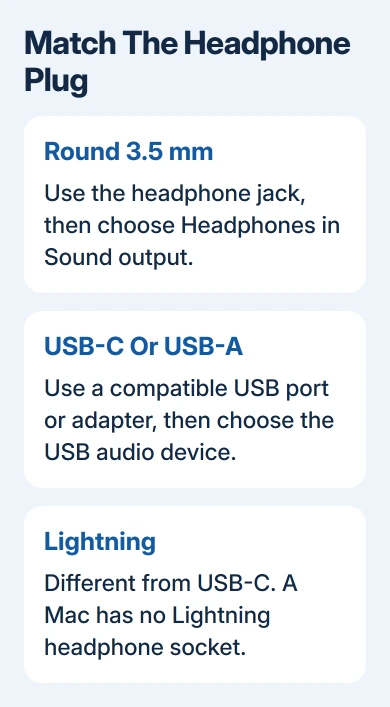
For USB-C headphones, connect directly to a compatible USB-C port. For USB-A headphones, use the rectangular USB-A port if available, or an adapter that connects the USB accessory to your Mac's USB-C port.
With a 3.5 mm headset and no usable headphone jack, a USB audio adapter is another route. It needs to handle audio, rather than just make the connector shape fit. Check Mac compatibility and microphone support when buying it for calls.
Lightning EarPods aren't USB-C EarPods. A Mac doesn't have a Lightning headphone socket. Apple's wired-headphone compatibility page lists Lightning EarPods for compatible iOS devices and gives USB-C and 3.5 mm options separately.
I'd use the direct headphone jack for a standard 3.5 mm pair when it's available. That avoids adding an adapter to a connection the Mac can already make.
Select the headphones as the sound output
After plugging in, start with the headphones off your ears or the volume low. Selecting the right output can make previously silent audio play immediately.
- Open Apple menu > System Settings.
- Select Sound in the sidebar.
- Click Output.
- For the round headphone jack, select Headphones.
- For USB audio equipment, select its device name in the output list.
- Adjust Output volume and clear Mute if those controls are available.
On macOS Monterey and earlier, open Apple menu > System Preferences > Sound > Output. The older window uses tabs rather than the newer Settings sidebar, but you still choose where the Mac sends sound.
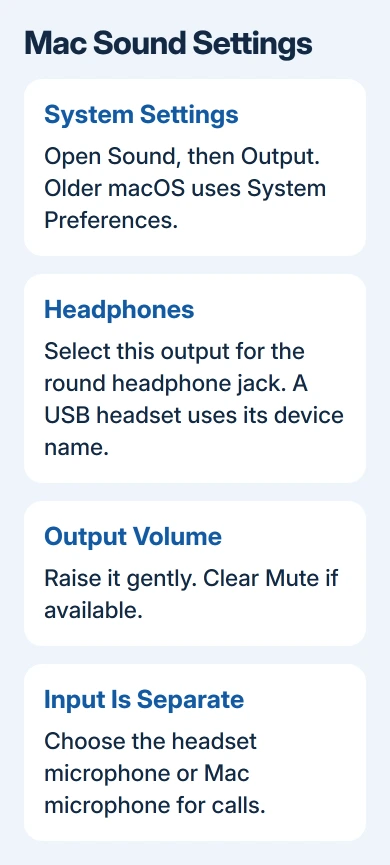
A USB device can appear under its maker's name or the adapter's name. Don't wait for a Headphones entry when you've plugged into a separate USB sound adapter; choose the adapter's audio device instead.
The Mac sound-output reference lists connected audio devices and their controls. Headphones, a display, and the built-in speakers can all be available while only one is selected for playback.
Check playback in an app before changing more settings
Play a familiar music track or recording and check that the player shows it playing. A paused player or a recording with no sound can't tell you whether the headphones are working.
Raise the app's volume gently if it has its own slider. Both the Mac's volume and the app's own volume need to be turned up. A selected headset can remain quiet while the app itself is muted.
Try a second app using the same headphones. Sound from the second app means the connection can play audio, so return to the first app's volume or speaker control rather than changing the cable immediately.
Your meeting app can also have its own speaker setting. Choose the wired headset inside that app if music plays correctly but a call doesn't. Use its speaker test when one is available.
If every output is silent, including the built-in speakers, use the MacBook sound checks. That needs more checks than a new wired pair that won't play.
Choose the microphone separately for calls
Headphone output and microphone input are separate settings. Hearing a call through the headset doesn't tell you which microphone is sending your voice.
Open System Settings > Sound > Input and select the microphone you want. The older System Preferences window has Sound > Input instead. Look for the headset or USB microphone if that accessory supports recording.
Some headphones have no microphone. Some adapters let you listen but can't connect a headset microphone. If no headset input appears, check those features before assuming macOS has hidden a switch.
Older Macs can have separate audio input and output ports. A newer single sound port can support headphone output and a compatible headset microphone, but check that the connector and headset work with your Mac model.
Choose the Mac's built-in microphone when you want to listen through the headphones but speak toward the computer. Then check the meeting app's own microphone choice and record a few words or place a test call.
If a call starts normally and then repeatedly changes its level, the Mac call-volume guide addresses that different behavior after the connection is working.
Check a missing device without pairing it
For a 3.5 mm connection, unplug and reconnect the plug fully. Remove an extension cable temporarily. If tilting the plug is the only way to get sound, stop bending it and try another pair or have the jack checked.
For USB, reconnect directly to the Mac instead of through a dock where possible. If the device uses a removable cable, check that the cable can carry audio rather than only charge the device.
Hold Option while opening the Apple menu, choose System Information, then look under Hardware > USB. If the accessory is listed, your Mac can see it through that USB connection; check Sound again for its audio output.
If the device is absent, try a different port or compatible adapter and check its Mac instructions. Dock connectors can have different functions. Use the labeled audio connection rather than assuming every socket supports a headset.
If the headset works elsewhere, tell support your Mac model, macOS version, plug and adapter types, plus the result of your USB-list check. Ask them to check software compatibility or the port rather than repeating Bluetooth setup.
The Short Version
Connect the matching plug and select it under Sound > Output. Calls also need the right Input microphone. If it's silent, try another app and a direct connection before deciding whether the headphones or adapter need replacing.
Checked November 11, 2026.