Adding a page in Microsoft Word starts with choosing what should happen to existing text. Use Insert > Blank Page for an empty page you want to fill separately. Use Insert > Page Break when the next paragraph should start on a new page.
Both commands work where your cursor is. Place it where you want the new page to begin, especially inside a finished document. Repeated Enter presses create space that shifts when earlier text changes.
In this guide
Decide whether the new page should be empty
Suppose a report needs a blank sheet between its introduction and the next chapter. That's a Blank Page job. If the next chapter simply needs to start at the top of a fresh page, that's a Page Break job.
The difference matters in the middle of a document. A page break moves the following content onto the next page; it doesn't reserve a separate empty page in addition to that content.
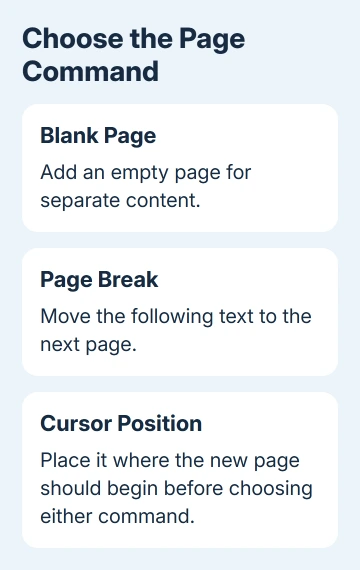
I'd choose the command before worrying about page numbers. Word lays out pages from the document's content and breaks, so typing a different page number doesn't create a sheet to write on.
If the goal is a second copy of an existing layout, use the Word page-duplication steps instead. An empty page won't copy the text, pictures, or formatting from another one.
Insert a blank page in Word for Windows
These controls apply to desktop Word, in the Microsoft 365 subscription and the 2024 or 2021 releases. Open the document for editing and click where the extra page should begin.
- Place the cursor where the new page should begin in the main document text.
- Open the Insert tab.
- Select Blank Page in the Pages group.
- Click on the new blank page and add the content it needs.
Microsoft says Blank Page inserts an entire empty page, while Page Break moves the content that follows. Check both neighboring pages after the command so you can see where the new space went.
For a page at the end, place the cursor after the document's last content first. For a page near the beginning, place it before the content that should follow the new page.
If the result lands in the wrong place, use Undo immediately. Move the cursor where you wanted the page to start and insert it again. That's easier to check than moving several paragraphs around to correct the mistake.
Don't judge the result from the current screen alone. In a long document, a view that shows the neighboring pages makes an unexpected extra blank page much easier to spot.
Start the next paragraph on a new page
Use a page break when you want a heading, chapter, or letter section to begin on a fresh page. Place the cursor directly before the paragraph you want to move, then select Insert > Page Break in Word for Windows.
The text after the break moves onto the new page. Earlier text can grow or shrink without requiring a stack of empty paragraphs to keep the heading near the top of its page.
Check that the heading and its first paragraph moved together as intended. If your cursor was partway through a sentence, Word split it there. Use Undo and move the cursor to the start of the paragraph.
This command isn't needed just because a paragraph reaches the bottom of an ordinary page. Word creates the next page automatically as text fills the available space.
For a document that needs different orientation on one page, follow the single-page landscape procedure. That involves section formatting, which a plain page break doesn't supply.
Add the page in Word for Mac
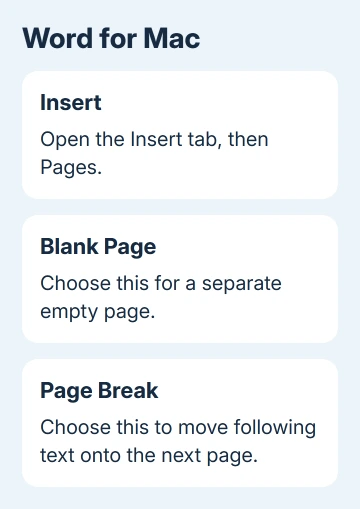
The Mac desktop route groups the commands under Pages on the Insert tab. Click where the new page should begin, open Insert > Pages, then choose Blank Page or Page Break for the result you need.
Selecting Page Break moves the text that follows to the next page. Selecting Blank Page adds the empty page. Check the next existing paragraph after either choice rather than assuming every new-looking page is a separate blank one.
The Mac page instructions also explain how to reveal paragraph marks if the result contains unwanted gaps. Press Command + 8 to show those marks.
These formatting marks show whether a gap comes from empty paragraphs or a break you inserted. Word displays them while you're editing; you don't type them into the document yourself.
Insert a break while editing in the browser
In the browser editor, click at the point where the next page should start. Select Insert > Page Break. This is the web procedure for moving the following text onto a fresh page.
If you need the desktop Blank Page command and don't see it in the browser, switch to the installed Word app and use the Windows or Mac route. Don't search through account settings for a document-layout command.
Check the page boundary after inserting the break. A browser window can make it awkward to compare pages, so review the document layout before sending or printing a finished report.
Check the page order and remove an accidental gap
On Windows, View > Navigation Pane > Pages helps review blank pages and page order. Use it to check that your new page is in the right place, rather than scrolling until you reach an empty screen.
If an unwanted page remains, use the blank-page removal checks. An empty paragraph at the end and an inserted manual break need different cleanup.
Once the layout is correct, add or review the automatic page numbers. Page numbering is a separate formatting step, including whether a title page displays a number.
For a persistent layout fault, tell the file's owner or Microsoft Support which Word version and command you used, and where the cursor was. If the file contains private information, show the problem in a copy with that information removed.
The Short Version
Choose Blank Page for an empty sheet or Page Break to move the text that follows to a fresh page. Place the cursor first, use the command for your Word version, then inspect the neighboring pages.
Checked November 11, 2026.