A passkey on a Mac desktop signs you into a supported website without typing that site's password. Approve the sign-in with Touch ID on a compatible keyboard, or use a nearby iPhone or iPad when your desktop doesn't have Touch ID.
What matters is where your passkey is saved. A passkey in your Mac's iCloud Keychain can sync between your Apple devices; choosing a nearby phone can instead use a passkey that phone already holds.
In this guide
Choose the sign-in method your desktop can use
An iMac, Mac mini, Mac Studio, or Mac Pro can use passkeys without a built-in fingerprint reader. The website must support passkeys, and how you approve the sign-in depends on your hardware and the passkey you choose.
Touch ID is convenient with a compatible Mac and Magic Keyboard with Touch ID. The keyboard's fingerprint feature requires Apple silicon. A setting can't add Touch ID to an ordinary keyboard.
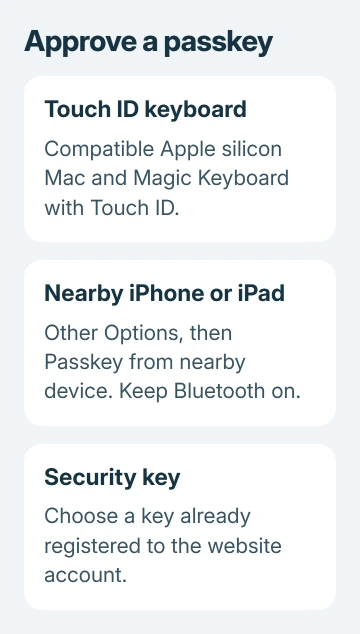
An Intel desktop needs another method instead of that keyboard's Touch ID feature. Use a nearby iPhone or iPad through the QR-code option, or a registered external security key when the account supports it.
I'd check the sign-in choices before buying a keyboard. A phone you already own may provide the approval method you need, and the website's own account settings determine whether you can create a passkey there.
The Mac login password, a FileVault recovery key, and a website passkey have different jobs. A website passkey doesn't replace the password you use to start your Mac or unlock its user account.
Set up syncing before creating a Mac passkey
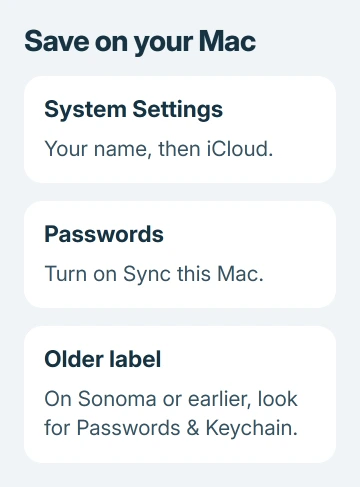
Open Apple menu > System Settings, click your name, then iCloud > Passwords. Enable Sync this Mac. On macOS Sonoma or earlier, the iCloud option is named Passwords & Keychain.
Sign into these devices with one Apple Account so your saved sign-ins can sync. iCloud Keychain also needs two-factor authentication. Complete setup's approval request on an existing device so syncing can start.
This matters when a passkey works on your iPhone but doesn't appear on the Mac. Having both devices beside each other doesn't automatically mean they're syncing the same saved account details.
The separate saved-password instructions for iPhone help you check the account entry on your phone. Confirm its website and username before deciding a missing Mac entry is a syncing failure.
If another password manager holds the passkey, look in that manager. Turning on iCloud syncing doesn't move a passkey from another password manager into Passwords. Follow the provider's own instructions for that situation.
Create the passkey inside the website's account settings
Sign into the genuine website with your existing account first. Open its account security or sign-in settings and look for Create a passkey or a similar option. Each website uses its own wording, so the option may have a different name.
Choose the account you intend to use, then follow the save prompt. With supported Touch ID hardware, place your registered finger on the sensor when asked. Other Options provides alternatives such as another device or a security key.
Apple says you can create a passkey for a new or existing account. Start on the website; typing a new password into Passwords won't create a passkey.
Once the service confirms creation, check that the passkey appears on the account's security page. On macOS Sequoia or later, the Passwords app is also where you can inspect saved website credentials.
Keep a working recovery method while you check your new sign-in. Whether adding a passkey removes a password depends on that service. Don't assume the old password disappears or that every account keeps the same fallback.
Sign in with Touch ID or a nearby phone
Return to the site's sign-in page. Enter your account name when needed and select the offered passkey. If the browser shows the saved account beside the username field, choose the correct entry before approving it.
For Touch ID, rest your registered finger on the keyboard's sensor when prompted. The account should open without its password. Your fingerprint approves use of the passkey; the website doesn't receive the fingerprint.
For an iPhone or iPad, select Other Options > Passkey from nearby device, then select the QR-code option. Scan the displayed code with that device and confirm your identity on that device.
Keep Bluetooth enabled on both the Mac and the nearby device. The phone needs to be nearby. Sending a screenshot of the QR code to a phone somewhere else won't work in place of having it beside your desktop.
If the phone has several accounts for that service, check the username in its approval prompt. Approving the wrong account won't sign you into the one you wanted.
For a registered external key, choose Other Options > Security key and follow the connection and touch prompts. The key must already be registered to that account, unless you're setting it up now.
Understand what the website receives
The passkey uses a pair of linked digital keys. The service holds the public part, and the service that stores your passkey protects the private part used to approve sign-ins. The private part isn't handed to the website during login.
That ties the passkey to its service and helps resist fake sign-in pages. It also means a passkey has no memorable text to read aloud, paste into a message, or send to someone claiming to be support.
For the Windows comparison, the passkey overview explains the role of Windows Hello. A Windows PIN and a Mac Touch ID prompt are different approval methods, even when the website accepts passkeys from both.
When the account or approval option is missing
Check the website, account name, and selected password provider first. Then confirm the Mac's iCloud syncing and the nearby device's Bluetooth state, for the route you're using. Which check helps depends on how you're trying to sign in.
If only one website refuses the credential, use its working recovery option and contact that service's account support. Ask them to check the passkey registration for the affected username before deleting your only usable sign-in method.
For an iCloud Keychain approval problem affecting several services, contact Apple Support about Passwords and iCloud Keychain syncing. Describe which device still has the entry and the exact approval message on the Mac.
The Short Version
Create a passkey on a supporting website, then approve sign-ins with a compatible Touch ID keyboard, nearby iPhone or iPad, or registered security key. Check where it's saved and keep account recovery working.
Checked November 12, 2026.