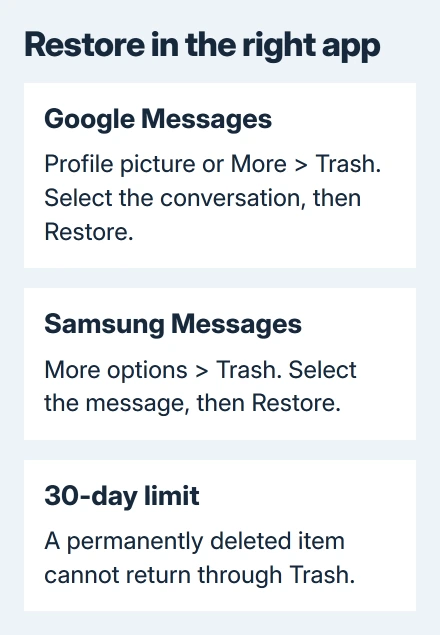
Deleted Android messages may still be in the app's Trash folder. In current Google Messages, open your profile picture or More > Trash, select the conversation, and tap Restore. Samsung Messages uses More options > Trash.
Both trash systems give you 30 days before permanent deletion. A conversation that was archived needs Unarchive instead, while messages already deleted permanently need an older backup or another copy.
In this guide
1. Check which Messages app holds the conversation
Open the app you used when the message disappeared. Samsung phones can run either app: Google Messages and Samsung Messages have different menus. Choose the recovery steps for the app, even on a Samsung phone.
To identify the app, press its icon until the shortcut menu opens, then select App info. Check the app's full name rather than guessing from the word Messages on the Home Screen.
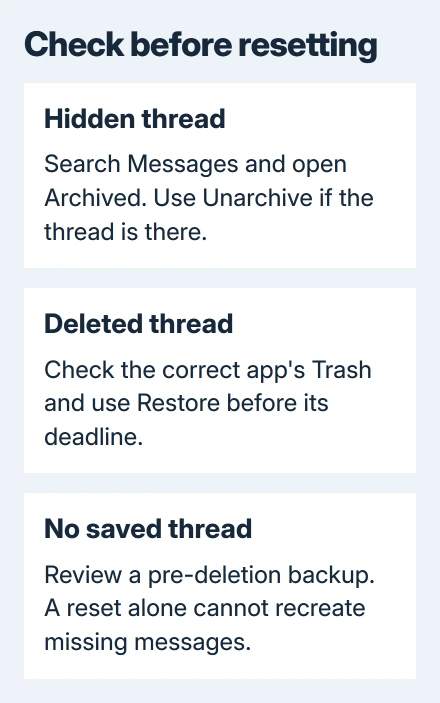
Before restoring anything, search the app for the person's name, phone number, or a memorable word. A thread that moved out of the main list may still exist, particularly if a swipe archived it instead of deleting it.
These steps are for phone text conversations. WhatsApp, Signal, and other chat apps use their own storage and recovery systems; an Android text-message backup isn't automatically a backup of every messaging app.
2. Restore a conversation from Google Messages Trash
Open Google Messages, tap your profile picture or More, and open Trash. Each conversation shows how many days remain before permanent deletion, so restore the conversation you need before its counter runs out.
Touch and hold the conversation, then tap Restore at the top. Select several conversations before tapping Restore if more than one needs to return. To read messages inside a trashed conversation, restore it first.
Google's current Trash instructions give a 30-day recovery window. Older advice about immediate permanent deletion predates this Trash feature.
If a new message arrived after you trashed the old conversation, it can appear as a new thread in the inbox. Receiving that new text doesn't restore the earlier conversation; check Trash for the history you wanted.
Be careful with the delete control inside Trash. Deleting there removes the conversation permanently, rather than returning it to the inbox. Use Restore for recovery, not the trash-can control.
If your installed app doesn't show Trash, check its store listing for an update and search its available menus. Don't assume Trash holds a conversation you deleted before the feature was available.
3. Use Samsung Messages Trash when that is your app
In Samsung Messages, open More options, the three-dot menu, then choose Trash. Select the needed message with a long press, then choose Restore or Restore all, depending on the choices shown.
Return to the Conversations or Inbox tab to check that the conversation is back. The labels can differ across versions, but the restore happens inside Samsung Messages rather than the phone's photo-gallery trash.
Samsung Messages also keeps deleted messages in Trash for 30 days. If you've emptied that folder or the retention period has passed, its Restore control can't bring those messages back.
Changing the default messaging app isn't a recovery method by itself. Check the recovery folder belonging to the app you actually used instead of installing several SMS apps and expecting a deleted conversation to reappear.
Before moving phones, check messages separately from your Android photo backup. Pictures saved in Google Photos don't confirm that texts are backed up too.
4. Unarchive a hidden Google Messages conversation
Open the More menu in Google Messages and choose Archived. Select the missing conversation with a long press, then tap Unarchive. Check for it among the main inbox threads.
Archiving keeps the conversation but removes it from the main list. That's why Unarchive can bring a missing thread back without restoring a backup or changing your phone's setup.
If you find the conversation there, check its older messages before doing anything else. You don't need the extra work and risk of restoring the whole phone when Unarchive has already brought the conversation back.
If the thread isn't in the main list, archive, or available Trash folder, look at backups next. A hidden conversation and a permanently deleted one have different recovery options.
5. Check whether a usable message backup exists
Open the phone's Settings > Google > All services > Backup. Under Backup details, review what data is included and the available backup information. The way these settings are grouped can differ by phone and Android version.
Android's Google backup includes SMS and MMS messages. For Google Messages, that backup also covers RCS conversations. RCS is the newer chat format for features such as higher-quality media and group conversations.
A useful recovery backup must contain the messages from before they disappeared. A backup created after deletion may contain only what's left after deletion, so enabling backup now doesn't create a recoverable earlier copy.
I'd check the backup account and date before even considering a reset. Confirm access to the backup account and read the manufacturer's restore procedure for that phone model.
On a new or reset phone, choose your existing Google backup during setup. The phone you're restoring to must run the same Android version as the backup or a newer one. Restoring a newer backup to an older version isn't supported.
Allow as long as 24 hours for restoration to finish. This restores a backup, not individual messages with an Undo button. Don't repeatedly reset the phone because every conversation hasn't appeared immediately after the first sign-in.
When Trash and backups don't contain the messages
Don't factory-reset the Android phone just to see whether messages return. A reset erases local data and needs a suitable backup to restore it; it doesn't create an older copy of your messages.
Ask the other participant whether they still have the conversation and can resend the needed information. That can recover the contents you need even when it can't put the original thread back on your phone.
For a backup you can't restore, contact the phone manufacturer with the model, Android version, messaging-app name, backup account, and backup date. Ask whether its supported restore process includes that message type.
Permanently deleted messages without a usable backup may be unrecoverable. Avoid giving an unfamiliar recovery app your account password or unrestricted phone access in exchange for a promise it can't verify.
The Short Version
Check the correct Messages app, restore from its 30-day Trash folder, and check Archived for hidden threads. Use an existing backup only when it contains the missing messages. A reset without that backup won't recover deleted history.
Checked November 12, 2026.