Outlook error 401 means the server hasn't accepted the request's sign-in information. Sign in again to the correct mailbox first. If company Exchange mail repeatedly rejects a correct password, IT may need to repair the server.
The same number can appear on an Outlook web page, in a desktop connection error, or in a calendar diagnostic. Save the words around 401 because those cases don't all have the same fix.
In this guide
1. Open the right mailbox with a fresh sign-in
Close the failed Outlook tab. For a private window, press Ctrl+Shift+N in Edge or Chrome on Windows, or Command+Shift+N on Mac. The private window lets you sign in separately from the normal window's saved session.
Personal Outlook.com, Hotmail and Live mail uses outlook.live.com. Company or school mail uses outlook.office.com or its own webmail address. If the account shown isn't yours, choose Use another account.
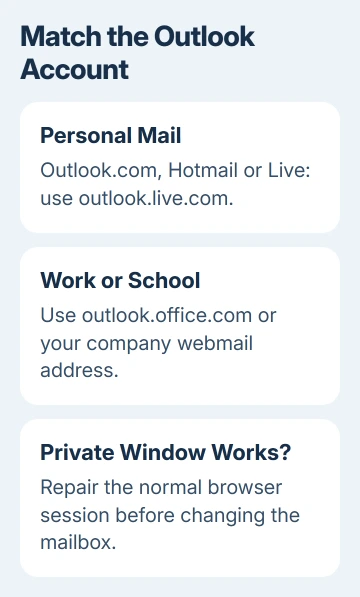
Enter the full address and complete verification. If asked to choose personal versus work or school, select the account that owns the mailbox. The same address can belong to different account types.
If the inbox opens in private mode, check the normal browser's saved session next. If neither window works, save the error and check the account and service. That result alone won't tell you what's wrong on the server.
Don't reset a working password simply because 401 appeared. A server-side authentication fault can reject correct credentials, and a password change won't repair that server.
2. Clear the affected browser session when private mode works
Sign out of Outlook in the normal browser, close its Outlook tabs, and sign back in with the intended account. If the private window still works while the normal session fails, remove the affected site's saved cookies.
In Edge, open Settings > Privacy, search, and services > Cookies, then See all cookies and site data when shown. Use the site's search to find the Outlook domain involved and delete that site's stored data.
Menu grouping can vary by Edge version. Microsoft says you can delete cookies for one site in its cookie-management instructions, which avoids clearing every unrelated website session.
Reopen the mailbox and complete a new sign-in. Removing cookies signs you out of the affected website; it doesn't delete email stored in the mailbox. Keep this repair focused on the browser where the failure occurs.
If a fresh normal session still fails while private mode works, try another supported browser. Tell support which browser succeeds. That gives support a specific browser result to work with, without changing your mailbox or its license.
3. Check account access and service health
For personal-account access, use Microsoft account sign-in helper from account support. Choose the route matching your message: forgotten password, locked account or unavailable verification method.
For work or school, ask IT whether the account is enabled, the mailbox is available and a sign-in policy is blocking access. A personal-account password tool can't change an organization's policy.
Check status.cloud.microsoft for a relevant service incident. Work-account administrators should also check Microsoft 365 admin center > Health > Service health, which can show incidents affecting their organization.
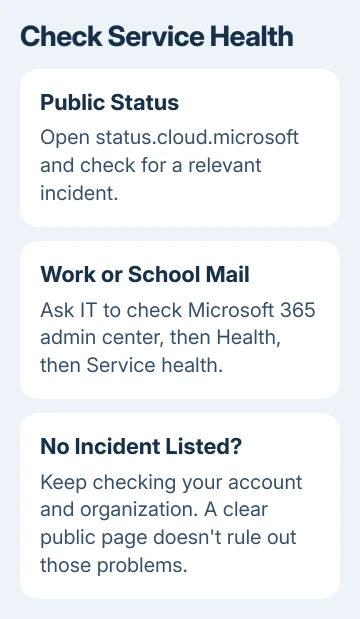
A reported incident is a reason to follow the service update rather than rebuild the desktop app. If no public incident appears, you'll still need to check for problems with your account or organization.
If the page displays 500 instead of 401, use the Outlook error 500 checks. The HTTP number matters, especially when the full page includes a separate mailbox or session error.
4. Use the Windows sign-in troubleshooter for an app-only failure
If webmail works but Windows Outlook won't sign in, find Get Help in Start. Open it, enter sign in to Microsoft Office in its search box, and follow the troubleshooting prompts.
This is the current Microsoft 365 sign-in troubleshooter for Windows 10 or later. Run it on the affected PC. It isn't a repair command for Outlook on Android, iPhone or Mac.
On those platforms, compare webmail with another account in the app. Tell app support which platform and app version you're using, along with the full error. Windows credential or registry repairs aren't steps for a phone or Mac.
If Outlook displays 657rx as well, the Windows Outlook sign-in guide covers that separate error and the Windows account components it can involve. Keep that code with the support details.
I'd leave profile deletion until support has checked the sign-in result. Tell support whether browser sign-in works; that helps them more than knowing how often you reinstalled Outlook.
5. Have IT check the documented Exchange server fault
One specific Exchange Server 2019 issue makes Outlook repeatedly request credentials even when users enter the correct details. Outlook records HTTP 401 in its logs. The KB5006999 repair is an Exchange server cumulative update.
The documented fix was Cumulative Update 11 for Exchange Server 2019, or a later cumulative update. This older guidance is for server administrators. It isn't an Outlook desktop update to download onto your laptop.
Ask IT whether this Exchange issue matches your mailbox. They should plan an update or migration that keeps the server supported. An old cumulative update mentioned in a past fix isn't enough to keep the server supported today.
For Scheduling Assistant or free/busy failures, ask IT to check the checks for calendar availability. The free/busy guide lists 401 variants involving authentication or certificates. An inbox can work while these calendar requests fail.
Send support the exact failure that remains
For personal mail, use Outlook.com support or the sign-in helper if the inbox is inaccessible. For work mail, give IT the error, time, account type, affected app and private-webmail result.
Include any request or correlation ID on the error page, but leave out passwords and sign-in codes. Ask support to check why the sign-in was rejected at that time. These details help more than a report that Outlook is broken.
The Short Version
Compare a private browser sign-in with the normal session before clearing site data. Use Get Help for Windows app-only failures. A repeating Exchange password prompt can need an administrator's server repair.
Checked November 12, 2026.