

Press F11 with Chrome active on Windows or Linux to hide the browser's tabs and address bar. On a Mac, use Control+Command+F; on a Chromebook, press the keyboard's Full screen key.
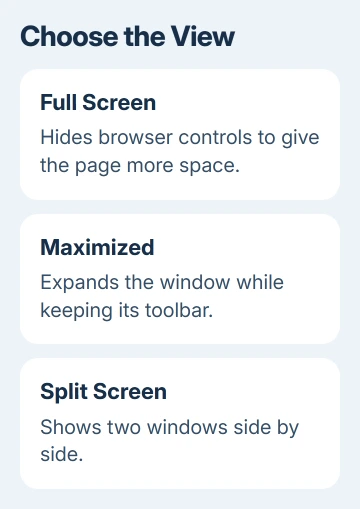
Full screen gives the page more space. Maximizing a window keeps Chrome's normal controls visible, while page zoom changes the size of the content. Pick the view you need.
In this guide
Open full screen from Chrome's menu
Open the page you want in Chrome. Select More, the three-dot menu near the top-right corner. Find the row labeled Zoom, then select its Full screen button, shown as a symbol with corners.
Google says this control opens full-screen mode in its Chrome zoom and display instructions. The plus and minus controls beside it change page zoom instead, so don't use those to hide the toolbar.
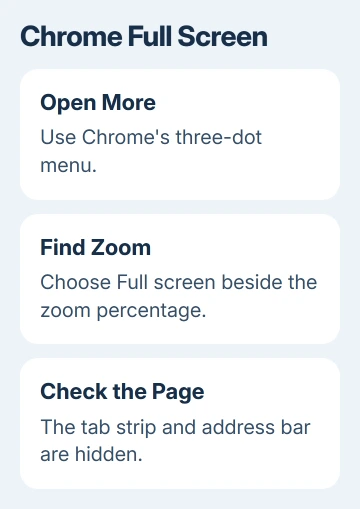
Check the top of Chrome after selecting it. The page should use the space normally occupied by tabs and the address bar. If those controls remain in their ordinary positions, you may have maximized the window instead.
Use this route when function keys handle media, the shortcut is awkward, or you prefer a mouse. It also lets you check whether Chrome responds when you select the command directly.
Use F11 on Windows or Linux
Activate Chrome with a click inside its window, then press F11. Press F11 again to return to the normal browser window. Your tabs stay open while their strip is hidden.
On some laptops, the function row controls volume, brightness or other hardware features. If pressing F11 changes one of those instead, try Fn+F11 or use the Chrome menu route. The Fn behavior depends on the keyboard.
Avoid changing the laptop's firmware settings just for this shortcut. The menu provides the same browser action without changing how every function key works in other apps.
Full screen applies to the Chrome window you chose. If you have several browser windows on different monitors, activate the intended one first. Other Chrome windows will keep their current size and view.
If a website captures keyboard input for a game or remote session, try the menu control before assuming Chrome is broken. The shortcut can reach the page instead of the browser when that page handles the key.
Choose the Mac shortcut or window control
With Chrome active on Mac, press Control+Command+F. That's the shortcut listed in the Chrome zoom guide. The browser's menu method is another way to enter full screen without depending on your keyboard setup.
Chrome's current keyboard reference also lists Fn+F on Mac for entering full screen and Fn+F or holding Esc for leaving it. Your keyboard settings can affect these shortcuts, so try the menu method if they don't work.
macOS also offers full screen through the green window control. In current macOS, resting the pointer there reveals window choices; choose Full Screen > Entire Screen when that menu is offered.
Once Chrome is full screen, moving the pointer to the top can reveal controls temporarily. That isn't the same as leaving full screen. Return to the page area to continue reading with the extra space.
For a Mac that won't leave that mode or whose window controls remain inaccessible, use the Mac full-screen recovery steps. They handle the stuck-window fault separately from entering full screen normally.
Press the Chromebook's dedicated key
On a Chromebook keyboard, use the top-row Full screen key. Its symbol represents a display with corners. Look for the symbol rather than counting along the row, since Chromebook keyboard layouts can differ.
This hides tabs and the launcher area so the page can fill the display. Press the same full-screen key again to restore the ordinary view. It is different from the Overview key, which shows your open windows.
With an external keyboard, the available keys can differ. Use Chrome's More > Zoom > Full screen control if the Chromebook shortcut isn't clear. You don't need to reconfigure the keyboard to use that visible button.
For two apps side by side, leave full screen and use the Chromebook split-screen controls. Full screen fills the display with one window; split screen keeps two windows visible together.
Keep page zoom separate from window size
Full screen doesn't set a new zoom percentage. A page that was enlarged before entering can still have oversized words, and a page with tiny text can still need a zoom adjustment afterward.
To fit the page, leave full screen temporarily and check Zoom in Chrome's menu. The percentage shows how much Chrome has enlarged or reduced the page. Use minus or plus to make the content itself smaller or larger.
Resetting page zoom with Ctrl+0 on Windows or Linux, or Command+0 on Mac, returns that page to its normal zoom. The digit zero is different from the letter O. This doesn't close the full-screen view.
I'd set comfortable text size before hiding the browser controls for a long read. A page that fits the entire display but is hard to read isn't an improvement.
These desktop shortcuts don't apply to Chrome on a phone. On Android or iPhone, a video's own full-screen button is a separate media control; F11 isn't a setting to look for in the phone's Chrome menu.
Check the window when the command doesn't work
Try the menu control on an ordinary page, then try it on the page where the shortcut failed. If only one site prevents the expected behavior, note the site and whether you were using its game, video or remote session at the time.
For a managed computer, ask IT about browser restrictions. If the menu fails across ordinary pages too, use More > Help > Report an issue. Include your operating system, Chrome version and results with both the menu and shortcut.
The Short Version
Use Chrome's Full screen control beside Zoom, or F11 on Windows and Linux. Mac and Chromebook have their own shortcuts. Full screen hides browser controls; maximize, page zoom and split screen each do a different job.
Checked November 12, 2026.
 If you have any business, I can build it online






