Android Auto can miss voice commands when the steering-wheel button isn't held until the listening tone. Try the car display's microphone first. If it works, check the button or Hey Google setup rather than reconnecting everything.
If the listening screen appears but replies are silent, check the voice volume. If listening never starts or a message says voice commands are unavailable, check the phone's assistant and connection.
In this guide
1. Start listening from the car's microphone button
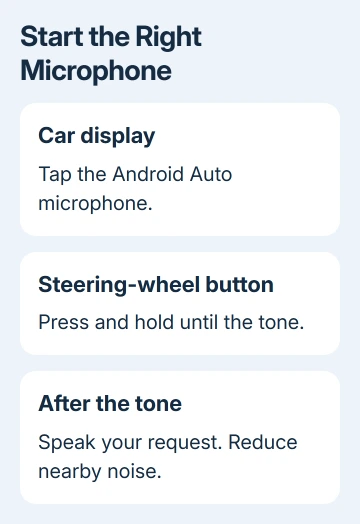
Park before changing settings. With Android Auto connected, select its microphone on the car display. Wait for the listening tone before asking a simple question. Keep the request the same as you try each method.
Google's voice-command troubleshooting also says to press and hold the steering-wheel voice button until the tone. A quick press can leave Android Auto rather than start its assistant.
If the on-screen microphone works but the steering-wheel button doesn't, check the car's manual for its smartphone voice-control action. Some controls have separate short-press and long-press functions.
Repeating a short press won't test the Android Auto action.
If both buttons work but saying Hey Google doesn't, go to the voice-activation check in section 3. That result means Android Auto can accept a request once listening starts.
If the assistant starts but mishears words, close the windows and reduce nearby noise. An aftermarket receiver needs its external microphone connected and positioned correctly.
Have the installer inspect the microphone when speech never reaches the system.
2. Turn up voice volume while a reply is playing
Watch the display after asking a question. If it shows a response while you hear nothing, adjust the car's volume while the assistant is speaking. Turning the knob during music playback may change media volume instead.
Some cars have separate volume levels for navigation, media, and voice. Use the vehicle manual to find the voice or prompt level if the knob doesn't adjust it. The names of those controls depend on your receiver.
Try another short question after changing that level. If you can hear the answer now, the assistant was getting your request but its reply was too quiet. You don't need to retrain your voice in that case.
If navigation directions are also silent, check navigation's volume separately. A spoken assistant answer and a Maps direction can use different controls. Adjust the control for the sound you can't hear.
When the listening screen never appears, a volume change won't help. Continue with the phone check rather than turning every audio channel up, which can leave music unexpectedly loud.
3. Repair Hey Google on the phone
Disconnect Android Auto and try the assistant directly on your phone. Open the installed Gemini or Google Assistant app, start voice input with its microphone, and ask the same simple question over a working internet connection.
If tapping works but voice activation doesn't, check Hey Google and Voice Match. Voice Match is the saved voice setup used to recognize your activation phrase. It isn't a microphone-volume setting.
For accounts with the newer account-level controls, open Google Account > Data & privacy > Voice Match. Use the offered setup or voice-model controls. Use the current Voice Match settings for your phone's active Google Account.
On Assistant versions with the older layout, open Assistant settings > Voice Match under Popular settings. Turn on Hey Google and complete the voice setup. Use Retrain voice model if recognition has stopped working.
The Assistant and Gemini settings aren't identical. Don't keep searching for an old Assistant switch in Gemini. Use the controls your installed assistant and Google Account offer, and confirm that the selected language supports Hey Google.
A school account can have voice activation disabled by its administrator. If the option is unavailable on that account, ask the administrator to check it. Reconnecting the car won't change an account restriction.
4. Check microphone access and app updates
If voice input also fails on the phone, open Settings > Apps > Google > Permissions > Microphone. Choose the microphone permission that allows access during use. Review the Gemini app's permission too if that's the app you're opening.
Phone makers arrange Settings differently. Search Settings for App permissions when Apps isn't in the same place, then select the relevant app.
On supported Android versions, also check that the phone's overall Microphone access control is on.
The Android permission controls distinguish an app's permission from device-wide access. Grant access to the assistant you're using rather than changing permissions for unrelated apps.
Open the Play Store, select your profile, and choose Manage apps & device. Install available updates for Google, Android Auto, and Gemini if installed. After restarting your phone, connect it to the car and try that request again.
I'd update the Google app before clearing its data. Voice features depend on more than the car interface, and updating keeps your account setup intact. A factory reset is a poor first response to one failed feature.
5. Separate an unavailable service from one failed command
For a Voice commands aren't available right now message, check whether the phone can load a fresh web page using its mobile connection. A saved map can still display while the assistant has no usable internet connection.
If your route leaves coverage, the Android Auto offline preparation explains what you can keep available. Offline maps don't make every assistant request work without a connection.
If general questions work but one calling or music request fails, test the same action manually in Android Auto. Even with a working microphone, the app can have trouble with your account, the content you requested, or its service.
For a car that disconnects or never opens Android Auto, use the cable and setup checks. That's a connection fault rather than a voice-only problem.
If voice still fails after these checks, use the Android Auto Help community's Send feedback about Android Auto instructions. Include the phone, Android version, receiver model, connection type, app versions, and exact message.
Tell support whether the screen microphone, holding the steering-wheel button, and Hey Google fail in the same way, and whether the assistant works on the disconnected phone.
For an aftermarket microphone that never picks up speech, ask the installer to inspect that microphone and its wiring.
The Short Version
Try the on-screen microphone, hold the steering-wheel button until the tone, and adjust voice volume during a reply. Then check Hey Google, microphone access, updates, and internet access on the phone. Report which activation methods fail.
Checked November 12, 2026.