Photomoji that keeps asking you to restart Messages can be an app fault rather than a problem with your photo. Install the latest Google Messages update first; an owner with that error reported that a later beta update restored the feature.
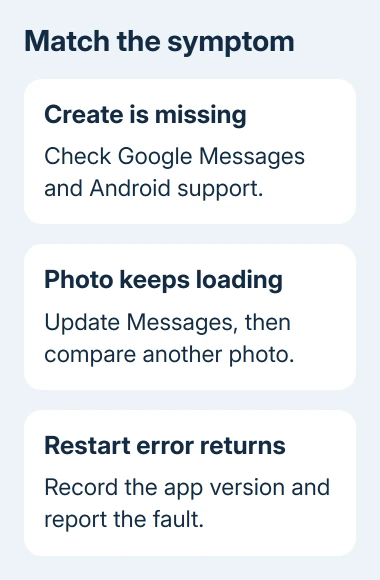
A missing Create button calls for different checks than an endless loading circle. Confirm that you're using Google Messages on a supported Android phone before clearing anything, because removing app data can leave the feature missing.
In this guide
1. Update the Messages app that has the problem
Open the Play Store, open your profile menu, then select Manage apps & device. Use the Android app-update controls to update Google Messages. Reopen the conversation and try creating one Photomoji again.
Check the app name carefully on a Samsung phone. Samsung Messages and Google Messages are different apps, even when both appear as messaging choices. Photomoji belongs to Google Messages, not to every app that sends texts.
An owner reported success with an April 7, 2026 beta update: messages.android_20260403_00_RC00.phone.openbeta_dynamic. That's the update that worked for them, not a version you need to install now.
Install the version currently offered to your phone. An old beta package from a download site isn't a sensible replacement for the current release, and that update won't necessarily fix every Photomoji problem.
I'd start with the update before changing photo permissions or reinstalling anything. It keeps your existing setup and follows the change that worked for that owner.
2. Check Android support when Create is missing
Open Settings > About phone > Android version on a Pixel, or Settings > About phone > Software information on a Galaxy. Confirm the Android version and whether the device runs Android Go.
Google's Photomoji instructions require Android 8.0 or later and exclude Android Go. A phone outside those requirements won't gain the feature through a cache reset.
On a supported phone, open Google Messages and a conversation. Tap the message box, then the emoji button inside Messages. Look for Create there, rather than in the keyboard's own emoji panel.
Those panels are easy to confuse. Gboard's stickers and emoji controls aren't the same as Messages' Photomoji collection. If you need a keyboard sticker instead, the Android photo-sticker guide explains those separate choices.
If Google Messages is up to date and Create is still missing, note that when you ask for help. Support needs to know whether the button is missing or the feature opens and crashes while processing a picture.
3. Try the sticker and reaction paths separately
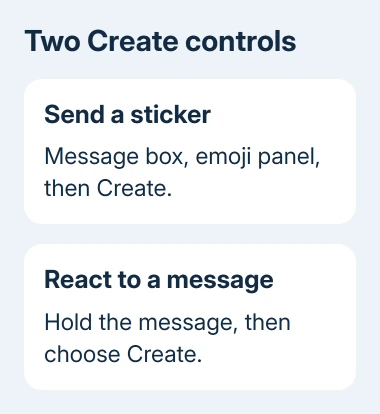
For a sticker, tap the message box in a conversation, open its emoji panel and choose Create. Select a photo from the gallery. If it contains several subjects, tap the one you want to use, then check the result before sending.
For a reaction, touch and hold a received message and select Create. Choose the photo and its subject from that route. This adds your Photomoji to the message as a reaction instead of sending it as a separate sticker.
Try one clearly recognizable subject when creation keeps loading. That gives you a simpler comparison than a crowded group photo. This hasn't been confirmed as a fix for the app error, but it helps you describe which photos fail.
If one photo works and another doesn't, keep the working result and report the difference. If every selected image stops at the same loading screen, continue with the app checks instead of repeatedly editing the photo.
Saved Photomoji have their own collection. For a sticker, open the message-box emoji panel and choose Photomoji. For a reaction, hold a message, open the reaction emoji choices and select Photomoji.
4. Restart Messages without removing its stored data
Open the phone's app information for Google Messages. On a Pixel, use Settings > Apps > See all apps > Messages. On a Galaxy, use Settings > Apps > Messages, choosing the Google app if both are installed.
Tap Force stop, confirm, and open Messages again. If the phone itself is unresponsive or several apps are failing, restart it through its power menu before repeating the same Photomoji attempt.
Force stop closes the current Messages session. If the restart error returns immediately, its suggested restart hasn't fixed your case. Restarting it after every failed attempt won't help explain the problem.
Keep ordinary messaging separate from the photo feature. Send a normal text in that conversation. If texts also fail, use the app's messaging support options and describe the delivery failure as well as the Photomoji error.
When normal texts and other features work, describe the problem as Photomoji creation rather than a general messaging failure. That keeps the report focused on the error you can reproduce.
5. Treat cache clearing as a limited app check
On a Pixel, open Settings > Apps > See all apps > Messages > Storage & cache and choose Clear cache. On a Galaxy, open Settings > Apps > Messages > Storage, then choose Clear cache.
Reopen Messages and retry the same image. Cache clearing removes temporary app files; it isn't the same command as Clear storage or Clear data. Leave those stronger options alone while preserving the current Photomoji setup.
An owner with the restart error said clearing Messages and Gboard caches didn't help. Installing Carrier Services and clearing its data also failed for them. Skip that chain of resets, since it didn't fix their error.
Another owner reported that rolling back a Messages update made Photomoji disappear entirely. Don't remove updates just to chase an old version with a different set of problems.
If the cache clear changes nothing, include that result when reporting the error. Support can move past a check you've already tried without another round of identical instructions.
6. Report a persistent fault with the app version
In Google Messages, tap your profile picture, then select Help & feedback > Send feedback when available. Include the phone model, Android version, Messages version and whether you're enrolled in its beta program.
Describe what happens in order: whether Create appears, whether the photo picker opens, and whether the error starts before or after choosing a subject. Add whether a saved Photomoji still works and ordinary messages still send.
The April beta update worked for that owner, but I wouldn't join the beta just for this problem. If the current stable app still fails, send the report and use a normal picture attachment or text reaction while waiting for a repair.
The Short Version
Update Google Messages, confirm Android support and use its own Create control. Restart the app and try cache clearing once. Keep stored app data intact, and report a repeatable crash or loading loop with the exact version.
Checked November 12, 2026.