

Windows 11 ARM can crawl in UTM when it uses emulation. On Apple silicon, create the ARM64 machine with Virtualize and install Windows Guest Tools. Extra cores won't help if Windows is built for a different processor type than your Mac.
If the Windows desktop feels fine but a game or one older app crawls, that's a different problem. Check graphics support and the app's processor version before giving the virtual machine more memory.
In this guide
1. Match Windows and the virtual machine to your Mac
Open Apple menu > About This Mac. An entry labeled Chip, such as Apple M1 or M4, means Apple silicon. An entry labeled Processor with an Intel name means an Intel Mac.
For Apple silicon, use an ARM64 Windows installer and choose aarch64 as the architecture in UTM. For Intel Macs, use x64 Windows with x86_64. Windows ARM on Intel requires emulation.
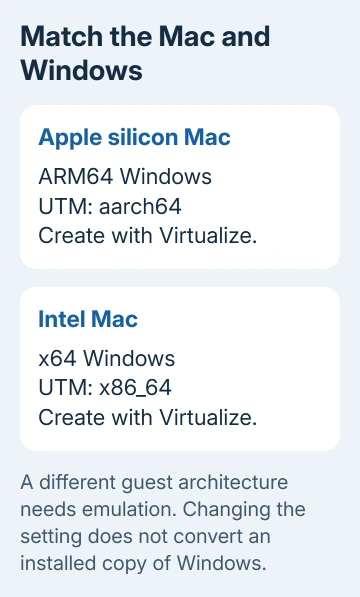
UTM's system settings documentation explains that virtualization needs Windows and your Mac to use the same processor architecture. Turning on virtualization can't make different processor types match.
Shut Windows down through its own power menu before inspecting the VM's settings. In UTM's main window, select the machine, choose Edit, and check its architecture under System. Note the current setting before changing anything.
An existing Windows installation won't turn into ARM Windows just because you change x86_64 to aarch64. The installation itself has to match. Keep the old VM while preparing a separate, correctly configured one.
In the new-machine wizard, choose Virtualize > Windows and the matching Windows installer. Enable Install Windows 10 or higher and Install drivers and SPICE tools. Complete setup before comparing the two machines.
I'd fix a processor mismatch before tuning anything else. It affects everything Windows does; more memory won't spare UTM the work of translating instructions for a different processor.
2. Install the tools inside Windows
The guest tools install drivers that help Windows work with UTM. Reaching the Windows desktop doesn't mean those tools have finished installing.
Start the VM. In the Mac window's toolbar, click the CD icon and choose Install Windows Guest Tools. After the download completes, check that Windows has mounted the virtual CD.
In Windows, open File Explorer and select This PC. Open the CD drive labeled UTM, run spice-guest-tools-xxx.exe, and follow the installer. The number in the filename changes with the tools version.
Restart Windows when the installer requests it. Then compare ordinary desktop actions: dragging a window, moving the pointer, opening Settings, and resizing the VM window. Those are more useful checks than a demanding game at this stage.
If no UTM CD appears, return to the toolbar's CD menu and check that the tools CD is loaded. Don't repeatedly run an installer downloaded for a different virtualization app. UTM needs its own guest tools.
3. Give Windows memory without starving macOS
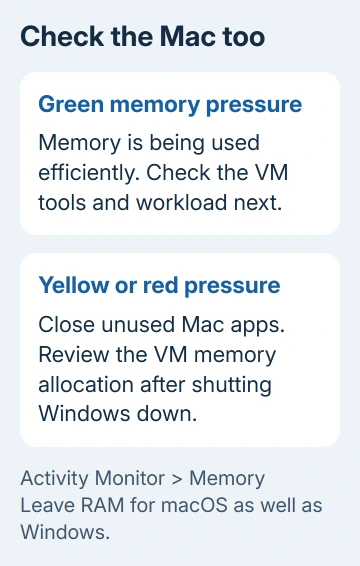
Open Activity Monitor on the Mac and choose Memory while the VM is running. Look at Memory Pressure, rather than judging performance from how much free memory is left.
A green graph means the Mac is using memory efficiently. If it's yellow or red, close unused Mac apps and check whether you've given the VM too much of the Mac's RAM.
Apple's memory pressure explanation also accounts for swapping and compressed memory. A Mac using its RAM isn't automatically short of RAM.
Shut Windows down, then adjust UTM's System > Memory setting if needed. Leave room for macOS and the apps you're actually using. Don't allocate the Mac's entire memory to Windows.
Change one setting, start Windows, and repeat your desktop task. If giving Windows less memory makes the Mac respond normally again, the Mac was short of memory. If macOS responds but Windows stays slow, check its CPU and apps next.
For slowdown outside the VM as well, check the Mac's own performance. Windows can feel slow even with the right UTM settings if your Mac is busy or short of memory.
4. Leave CPU models and forced multicore alone
In UTM's System settings, leave the CPU model at its default unless a specific compatibility problem requires something else. A different model name isn't a general speed upgrade.
The default number of cores depends on your Mac and the system you're running in UTM. For a matching architecture, UTM can choose host cores automatically. When emulating some other processor types, it defaults to one core for a reason.
Emulating x86 Windows on an ARM host needs memory operations to happen in the right order. UTM warns that Force multicore can produce incorrect emulation and crashes. Treat that as an experimental tradeoff, not the next routine fix.
If the VM was imported with several custom CPU settings, compare it with a new VM made using the current Windows wizard. That gives you a practical comparison without guessing at every advanced QEMU option.
If the Windows desktop now runs smoothly, the slowdown isn't affecting the whole VM anymore. If only one application remains slow, keep the working VM settings and examine that application next.
5. Separate a slow app from graphics limitations
Try a built-in Windows app, then the app that struggles. A responsive Settings window alongside a slow game suggests the game is too demanding or has a compatibility problem, rather than all of Windows being slow.
Check whether the app maker offers an ARM64 edition for Windows ARM. Use that edition when available. Keep the exact app version and installer architecture in any support report.
Current UTM guest tools include an experimental accelerated DirectX graphics driver for Windows 11 on the QEMU backend. Advice that UTM never supports accelerated Windows graphics misses this newer option.
The guest tools instructions still describe limited game compatibility and possible instability. The requirements include a GPU-accelerated display card whose name ends in -gl, plus supported renderer settings.
Don't replace a working display driver just to fix slow typing or slow file access. If experimenting with 3D support, keep a backup of the VM and follow the current guest-tools instructions for your macOS and UTM version.
An Intel-only Windows installation on a different Mac has its own driver problems. The MacBook Windows sound guide covers that separate case; Boot Camp driver advice doesn't replace UTM guest tools.
What to send when the VM is still unusable
Use the issue-reporting link in UTM's documentation. Include the Mac chip, installed RAM, macOS and UTM versions, VM architecture, Windows build, and whether the machine was created with Virtualize or Emulate.
Also say whether ordinary desktop work is slow or only a named app. Include the guest-tools version and any custom display settings. That gives the maintainer something concrete to reproduce before suggesting a new configuration.
The Short Version
Match ARM64 Windows to Apple silicon and use virtualization. Install UTM's guest tools, check host memory pressure, and keep CPU defaults. If just one game is slow, check graphics support and compatibility before adding memory or cores.
Checked November 12, 2026.
 If you have any business, I can build it online






