

Crunchyroll playback in Chrome can fail because of an extension, stored site data, or blocked protected content. Update Chrome and try the episode in Incognito. If that works, check extensions and saved site data in your regular window.
An episode that won't start is different from a video that starts and repeatedly buffers. If the whole site fails across devices, check whether your connection can reach the service before changing playback permissions on one computer.
In this guide
1. Compare one episode in a clean Chrome window
Note what fails: loading the site, signing in, opening the player, or continuing playback. Save any error code and note the episode title. Try a different episode so you can tell a single-title failure from a general browser problem.
Open More > Help > About Google Chrome, install an offered update, and select Relaunch when prompted. Retry the episode after the browser restarts. A tab left open during an update can still need a fresh load.
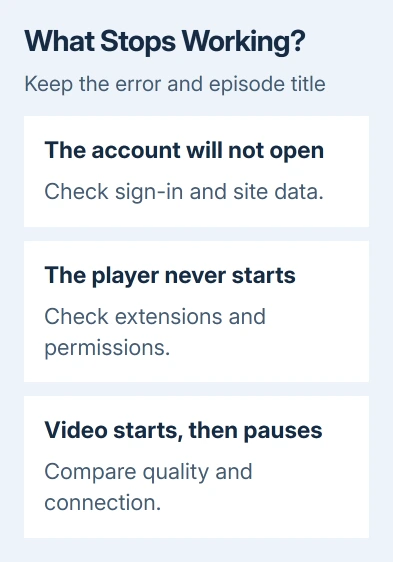
Next, choose More > New Incognito window and open Crunchyroll. Sign in with your usual account and try the same episode. You don't need to create another account or purchase another subscription for this comparison.
If playback works there, focus on extensions and stored data in the usual window. If it fails there too, keep working through the playback and connection checks rather than assuming private browsing is a permanent fix.
Google's video troubleshooting steps use this comparison for extension and browser-data problems. Incognito has its own cookie behavior, so a failed sign-in there isn't the same result as an episode refusing to play.
2. Pause extensions that change the player or page
Open More > Extensions > Manage extensions. Temporarily turn off ad blockers, privacy filters, video-speed controls, and other extensions that alter the streaming page. Reload the episode in a normal window after making the change.
Some extensions are allowed in Incognito, so check their Details page if the Incognito test didn't give you a clear answer. An extension enabled in both windows can affect both tests.
If video starts with those tools off, restore one extension, retry playback, then restore the next. Adjust the settings of whichever extension stops playback when you enable it. You can keep using the others.
Use the extension's own site exception or permissions controls if you want to keep it for other browsing. If its rules still interrupt playback, leave it off for that session or ask its developer about the affected page.
I'd try this before deleting cookies. It keeps you signed in while quickly checking the tools that change the player. For browser tools that need more attention, use the Chrome extension checks.
3. Clear Crunchyroll's site data and sign in again
Use this step if the clean window works but your regular session doesn't, or the site keeps looping back to sign-in or failing to sign you in. Deleting site data signs you out, so have your account's sign-in method ready first.
Open Settings > Privacy and security > Third-party cookies. Select See all site data and permissions. Search for crunchyroll, remove the matching site entries, and close the affected tabs.
Load Crunchyroll in a fresh tab, then sign back in. Try the same episode before restoring any player-changing extensions. If playback works before you turn extensions back on, the saved site data you removed was likely involved.
If the video still fails, don't keep clearing the same cookies. Move to the protected-content check. Repeating the reset only makes you sign in again without giving you a different answer.
A browser-wide cache reset affects more sites and is usually unnecessary for a one-service fault. The Chrome cache controls are useful when the problem affects several sites or damaged cached files affect more of your browsing.
4. Allow protected playback when the error mentions DRM
DRM means digital rights management, the protection used by some streaming video services. A protected-content error is about permission to play that video, rather than the ordinary volume, subtitle, or fullscreen controls.
In desktop Chrome, open Settings > Privacy and security > Site settings > Additional content settings > Protected content IDs. Check that sites are allowed to play protected content.
Review any separate protected content identifier setting too. Google explains that blocking identifiers can affect some protected video or its quality. The available options depend on your computer's operating system.
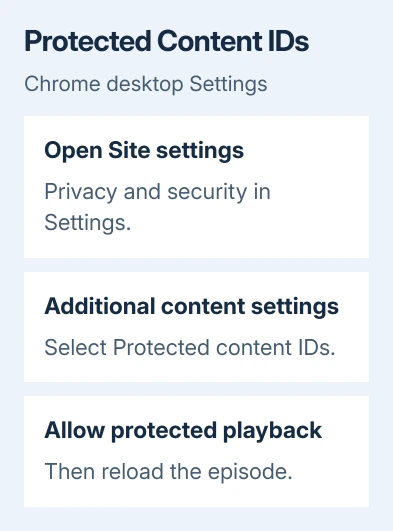
Reload the episode after changing a blocked permission. If the error becomes a different code, record the new wording. That tells support you've allowed protected playback but the video still won't play.
A company or school can control this setting through browser policy. Give its IT team the playback error and ask whether protected content is allowed; leave its required browser controls in place.
5. Compare the connection and another supported browser
For a video that starts and keeps pausing, stop large downloads and other streams on the same connection. Then retry the episode. If the player's quality menu is available, select a lower quality and see whether playback stays steady.
If the picture plays steadily but looks soft, check Chrome quality separately from HEVC support before buying an extension.
Use another current desktop browser you already have to play the same episode with the same account. If that works on the same connection, you have a useful temporary way to watch while the Chrome-specific problem is being checked.
If another device on that Wi-Fi also fails, try a different trusted network if you can. A phone hotspot can help with the comparison, but video can consume a lot of its data allowance.
A VPN, filtered network, or security service can change the connection too. Try an approved personal connection while keeping work protections in place. That checks the network without changing business policies.
If the title fails across browsers and connections, request playback support through Crunchyroll's Help Center. Include the episode, failure time, error code, Chrome version, operating system, and your comparison results.
Describe a sign-in loop, a blank player, and buffering separately. Those details let the support team check the account, episode, or streaming connection without having you repeat an unrelated set of browser resets.
The Short Version
Compare Incognito with your regular window after updating Chrome. Check extensions, site data, and protected-content permissions as the results require. Compare another browser and network, then send support the error and episode details.
Checked November 12, 2026.
 If you have any business, I can build it online






