
A Logitech headset can play sound while its microphone is muted or the computer records from a different microphone. Check physical mute, select the headset in Sound settings, and test a recording there before changing the meeting app.
A USB headset and a headset with audio plugs need different connection checks. These steps cover wired Logitech headsets on Windows and Mac; a wireless model also needs its own receiver or Bluetooth connection working first.
In this guide
1. Unmute the headset and check its connection type
Find the microphone mute control on the headset or cable. Its position and indicator depend on the model, so use that model's control labels. A meeting app's Unmute button can't reverse a separate physical mute switch.
For a USB headset, disconnect its USB cable, then plug it into the computer itself. Disconnect any dock or hub for this test. Wait for the computer to recognize it before selecting its input.
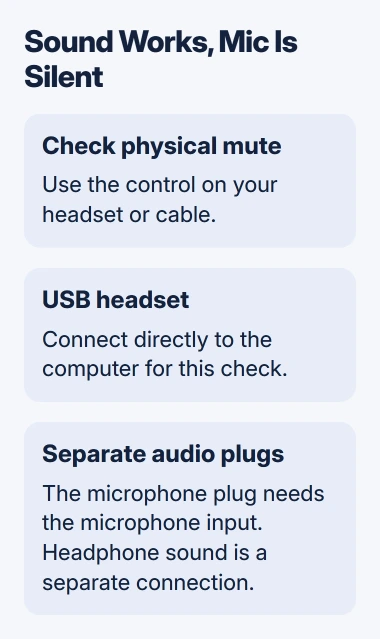
For an analog model with separate plugs, connect the microphone plug to the microphone socket. Logitech's analog-headset repair steps identify the microphone cable as pink on these split-plug models.
A laptop's single headset socket differs from separate headphone and microphone sockets. If your headset has two plugs but the laptop has one combined socket, check the laptop and headset connection requirements before buying an adapter.
Hearing sound tells you the headphones are connected. It doesn't confirm that the microphone plug is connected, that the selected input belongs to the headset, or that recording access is allowed for the app.
Place the microphone boom near your mouth using its normal adjustment. If it stays silent after these checks, keep the call app closed for the next test so you can check what the computer records on its own.
2. Record a sample with the Windows headset input
On Windows 11, open Settings > System > Sound. Under Input, choose the headset's microphone from Choose a device for speaking or recording. Select the headset input even if it is already selected under Output.
Open that microphone's properties, choose Start test, and speak normally. Select Stop test, then Play under the recorded sample when offered. Microsoft says to use this Windows microphone test to check the recording.
If the sample contains your voice, the headset is sending sound into Windows. Move to the app-permission and input-selection steps. Reinstalling an unrelated speaker driver isn't the next useful change when this recording already works.
If the sample is quiet, increase Input volume and try another short recording. Listen to the result rather than assuming the largest number gives the clearest voice. Keep the boom in the same position while comparing levels.
On Windows 10, use Settings > System > Sound > Input > Choose your input device. Select the headset, then speak while watching Test your microphone. A moving level bar shows that Windows receives a signal.
The microphone test guide helps compare that system-level result with an app recording. If the headset doesn't appear among input devices at all, continue with the connection and detection check in step 5.
3. Allow microphone access, then select it in the app
In Windows 11, open Settings > Privacy & security > Microphone. Enable Microphone access, followed by Let apps access your microphone. Enable the relevant app in the list when it has its own switch.
For a desktop program, also check Let desktop apps access your microphone. Desktop apps don't get individual switches in the list used for supported Store apps. That's why your program might be missing from that list.
In Windows 10, use Settings > Privacy > Microphone. Check access for the device, Allow apps to access your microphone, and Allow desktop apps to access your microphone as appropriate for the program you use.
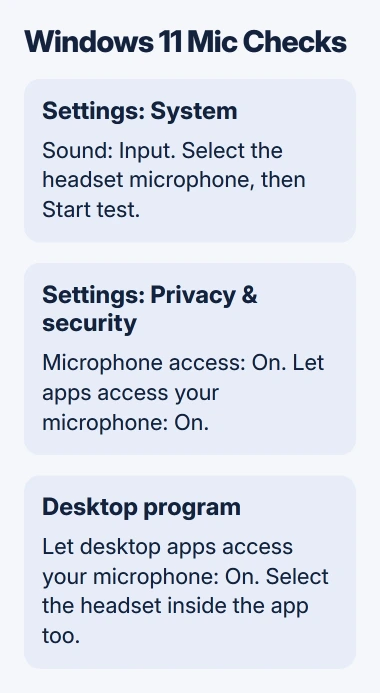
Select the Logitech microphone in your app's audio settings too. Choose the headset's speakers separately for listening, then run the app's test recording or test call.
I'd choose the named headset input for this comparison instead of leaving the app on Default. A laptop microphone can be the default while your headphones still play the call, which makes a working headset microphone look faulty.
If a Windows sample works while one app remains silent, work on that app's mute, input, and permissions. Give its support team that comparison if the controls are correct and a fresh test still fails.
4. Use Sound Input and privacy settings on a Mac
Open Apple menu > System Settings > Sound > Input on a Mac that uses System Settings. Select the headset microphone and watch the input meter as you speak. Adjust Input volume if it is present and the voice level is too low.
On macOS Monterey 12 or earlier, the route is System Preferences > Sound > Input. The name of the settings app changed, but Input remains separate from the device used for sound output.
For app permission on current macOS, open System Settings > Privacy & Security > Microphone and enable the app. The Mac microphone-access controls explain those switches.
Older macOS uses System Preferences > Security & Privacy > Privacy > Microphone. Quit and relaunch the affected app if macOS requests it after the permission change. Choose the headset inside the app's own audio settings afterward.
If the Mac input meter moves but the app doesn't record, check the app's settings next. If the headset is absent or the meter remains still, return to the physical connection and try another compatible computer.
5. Separate a headset fault from a computer fault
Try another USB port for a USB model, then test the headset on another compatible computer. For an analog model, use a device with the correct microphone connection. Compare a short recording, rather than headphone playback alone.
If the headset records on the second computer, return to the input settings on your first computer. For a Windows-wide problem, the general microphone repairs cover the remaining driver and system checks.
If neither computer records your voice, send Logitech Support the headset model, connection type, operating system, and recording results. Explain that mute and connection checks are complete, and ask about microphone or cable replacement.
The Short Version
Unmute and connect the microphone correctly. Test the selected Sound Input, then check app permissions and its audio selection. Testing on a second computer helps you decide whether to work on the headset or your original computer.
Checked November 12, 2026.






