

The iPhone's Could not activate cellular data network message can mean the wrong data line is selected. Turn on data for the line with your plan. If calls work but websites don't, check carrier settings and APN, the data connection details.
SOS or No Service needs a carrier-connection check too. A Wi-Fi failure is separate: test with Wi-Fi off so you're checking the mobile connection that produced the message.
In this guide
1. Enable data on the line that has your plan
Open Settings > Cellular. Regional menus can use Mobile Service instead; follow the cellular-service menu on your phone. Turn on cellular data, then open its line selector if your iPhone has more than one SIM or eSIM.
Choose the line with the active data plan. With two lines installed, the number used for calls doesn't necessarily tell you which line supplies internet access. Confirm the plan's name rather than selecting whichever number looks familiar.
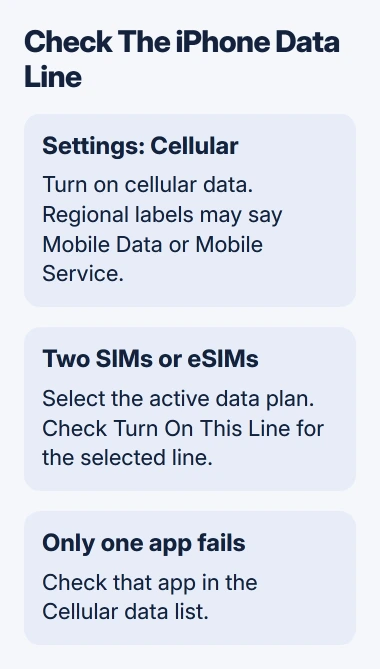
If the line is switched off, open its entry and enable Turn On This Line. If the plan doesn't appear at all, contact the carrier about the SIM or eSIM activation instead of trying to repair an APN for a missing plan.
Switch Wi-Fi off briefly and load a page in Safari. A working page confirms that the selected line can carry data. Re-enable Wi-Fi afterward to resume using that connection.
For a failure in only one app, look through Cellular settings for the affected app and enable its data access. An app's disabled switch doesn't explain every app failing on the same line.
When traveling, ask the carrier whether the plan requires Data Roaming and what it costs before enabling it. A travel eSIM and your home line can have different roaming instructions; apply the provider's directions to the intended line.
2. Reconnect to the carrier and separate SOS from data failure
Turn Airplane Mode on, leave it on for at least 15 seconds, then turn it off. Allow the carrier connection to return before trying the same webpage with Wi-Fi disabled.
Apple says to reconnect using Airplane Mode for SOS, No Service, and Searching. Those labels mean the phone isn't connected to its normal cellular network.
Restart the iPhone if service stays absent, then check in an area with normal carrier coverage. Tell the carrier about persistent SOS or No Service, even when the initial alert mentioned data activation.
If signal and calls work but internet access still fails, tell the carrier that distinction. Calls can work even when cellular data isn't enabled on your account or set up correctly for the SIM.
If service disappeared straight after installing iOS, the post-update cellular guide covers that separate history. Keep the current error and selected line in mind instead of treating all connection errors as one fault.
3. Install the carrier settings offered for that SIM
Connect to working Wi-Fi, then open Settings > General > About. Follow the prompt if a carrier settings update appears. An available update is separate from a full iOS update.
These settings help the phone connect to the carrier and can add network features. A newly inserted SIM or newly configured eSIM may need a carrier-settings download, even though the phone itself is already up to date.
An optional update offers Update. A mandatory one can show OK because it has already downloaded and installed. The carrier-update instructions explain that difference.
On the About page, find the version beside Carrier. Give that version to the carrier if no prompt appears and data still fails. They can confirm whether it matches what your line needs; guessing a newer version number won't help.
Retest the cellular connection after completing any offered update. If it works, leave the APN unchanged. If it fails, check whether your carrier lets you view or change the APN.
4. Check or restore the APN your carrier supplies
An APN, short for Access Point Name, tells the phone which network path to use for cellular data. Some carriers configure it automatically; others require their own values, especially for certain travel or independently supplied SIM plans.
Open Settings > Cellular > Cellular Data Network if available. Regional menus can use a different label for the cellular-service menu and its data options. The APN instructions list both routes.
Don't copy APN values from an unrelated plan. Incorrect values can stop data access or cause extra charges. Ask your carrier or device administrator for the exact entries before editing a field.
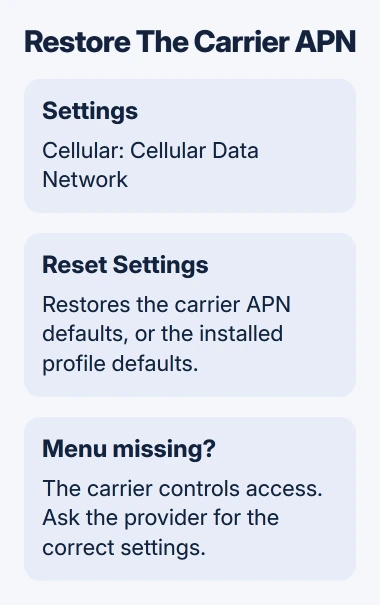
If the carrier directs you to restore its defaults, open Cellular Data Network > Reset Settings. This is the APN screen's reset control, rather than the phone-wide Reset Network Settings command elsewhere in Settings.
If a configuration profile supplies the APN, that reset uses the profile's defaults. It doesn't remove the profile or replace an organization's configuration with a different carrier's details.
Carrier-supplied entries should save automatically. Try loading a webpage over cellular data again. If the error stays, report the entered or restored APN and request a data-service check on that line.
5. Handle a missing APN menu without removing the eSIM
A carrier can hide the APN menu. Ask the provider whether it manages those settings or needs to supply a configuration profile. Resetting the phone repeatedly won't reveal a carrier-controlled menu.
Ask the administrator about a work phone's cellular profile before removing it. The work connection may depend on that profile, whose APN defaults can differ from consumer settings.
If the alert actually says Cellular Issue Detected, follow the specific cellular-alert checks. That message needs a different repair from ordinary data configuration.
If your custom APN stopped working after an iOS update, ask the carrier whether its values need entering again. Updates reset manually edited APN values unless a configuration profile provides them. Tell the carrier if this happened.
6. Ask the carrier to check activation and data provisioning
Contact the provider of the selected SIM or eSIM and give them the exact message, line number, location, and whether calls work. Ask them to check account status, the data plan, any service outage, and the APN required for that plan.
Say whether this began after a SIM transfer, a new eSIM, travel, or an iOS update. Ask whether the line is fully activated for cellular data before agreeing to replace hardware or erase the phone.
Once the carrier has checked your account and network and found no problem, contact Apple Support about the phone's continuing data failure. Give them the carrier's result and completed checks to avoid repeating activation work.
The Short Version
Select the active line and reconnect, then install offered carrier settings. Change APN values with provider guidance. Take a missing APN menu to the carrier, then take a persistent phone fault to Apple Support.
Checked November 12, 2026.
 If you have any business, I can build it online






