A Wi-Fi router can lose internet service while its wireless network keeps running. Restart the modem and router when every device stops loading pages. A missing network name or one laptop that can't connect needs different checks.
Watch what happens on a second device. If both join Wi-Fi but can't get online, check the incoming service. If neither can see the network, check router power and its wireless radio before changing computer settings.
In this guide
1. Restart the equipment in the right order
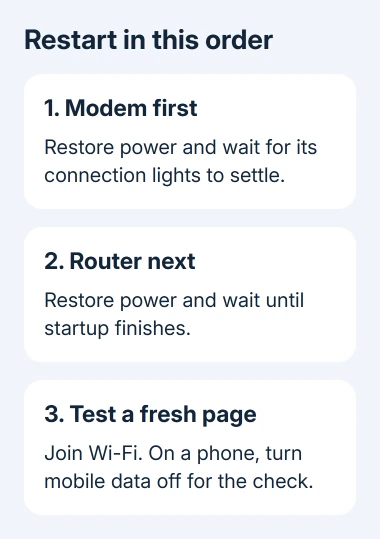
Unplug the router's power cable. If a separate modem connects it to your internet provider, unplug that modem too. Wait at least 30 seconds before reconnecting the modem. Give it time to reconnect, then plug the router back in.
Wait for startup to finish before trying a webpage. A combined modem-router needs just one power cycle. Equipment with a backup battery may stay on after unplugging, so follow the provider's instructions for restarting that unit.
Don't hold the recessed Reset control. Holding it can erase your network setup, including details your provider needs. A power restart keeps those settings and clears a temporary lockup without rebuilding the network.
Join the usual Wi-Fi network on your phone or laptop and load a fresh page. An old tab may show a saved page even when the connection is down. On a phone, switch cellular data off during the check so it can't replace the Wi-Fi connection.
If pages now load on both devices, your connection is back. If they don't, note whether the Wi-Fi name appears and whether the router's internet or WAN indicator has returned to its usual state. Continue with that symptom.
2. Check an absent Wi-Fi name or dark router
Check the power adapter at both ends and the router's power switch, if it has one. Try a working wall outlet. Keep your router's supplied adapter; another adapter can fit the socket yet supply the wrong power.
With both the lights and network still absent, have the router's power supply and hardware checked. Some models can disable their indicator lights, so a dark front panel alone isn't enough to decide the router is dead.
Stand near the router and reopen the Wi-Fi list on two devices. If your network is missing while neighboring networks appear, check whether the router's Wi-Fi button was pressed or its wireless radio was disabled in its app.
Use the model's manual to identify that button. A combined WPS/Reset control doesn't behave like a simple Wi-Fi switch, and holding the wrong button creates a much bigger setup job.
If the main router broadcasts but a distant room doesn't receive it, use the weak Wi-Fi signal checks. Moving the router or adding coverage can help there; restarting a working connection won't make its signal reach through another wall.
3. Separate a provider outage from a wireless fault
Check the modem's connection lights against its own label or manual. An internet, online or broadband light that won't settle after startup can mean the incoming connection hasn't returned. Light colors aren't universal across brands.
Use your phone's cellular connection to check the provider's outage notice, or call its service number. Give your address and ask whether the line is online. Local Wi-Fi can keep running during a provider outage.
Reseat the Ethernet cable between the modem and the router's WAN or Internet port. Use that port unless the provider's setup specifies another one. Try a working replacement cable if available.
For a wired comparison, connect a computer to a LAN port on the router and turn that computer's Wi-Fi off. If wired browsing works while two wireless devices fail nearby, focus on the router's wireless settings or radio.
If wired browsing fails too, it could still be the modem, router's internet setup or provider. Ask the provider to test the line and modem before buying a replacement router. That comparison helps you avoid replacing the wrong box.
4. Check the device when the rest of the house works
When another device loads pages normally on the same Wi-Fi, leave the household router settings alone. On the affected computer or phone, turn Wi-Fi off and back on, check airplane mode, then reconnect to the correct network name.
On Windows 11, open Settings > Network & internet > Wi-Fi > Manage known networks. Select the network and Forget, then reconnect using its password. Windows 10 puts Manage known networks under Network & Internet > Wi-Fi.
I'd check the saved password before forgetting a network. The router's admin password opens its settings; it isn't necessarily the password that connects your laptop to Wi-Fi.
If Windows joins the network but reports No Internet, open Command Prompt and run ipconfig. Find Default Gateway under the active wireless adapter. That address belongs to the router on your local network.
Run ping followed by that gateway address. For example, use ping 192.168.1.1 only if that is the gateway shown on your computer. Replies mean your computer can reach the router, though they don't confirm that the internet service works.
Microsoft recommends this Wi-Fi connection check. If the router doesn't reply, check the wireless connection; if it replies but every device is offline, return to the incoming service.
5. Repair the router only after narrowing the failure
When Ethernet works but Wi-Fi repeatedly fails, check for firmware updates through the router's supported app or its model-specific instructions. Use the exact model and hardware revision from the label when looking up an update.
For a network that connects but drops or slows down, follow the router interference fixes. They cover nearby electronics, wireless bands and channel settings without treating every slowdown as a broken router.
Before factory-resetting an ISP-supplied unit, ask how to restore service. Ask whether you'll need your account login details during setup or whether it happens automatically. Erasing the router won't repair a disconnected incoming line.
Tell the router's maker whether it powers on, broadcasts Wi-Fi and passes wired internet. Describe the modem's lights and restart result. Ask them to check the power adapter, wireless radio or WAN port based on those results.
The Short Version
For a whole-network outage, restart the modem before the router. Check power if the network disappears, and compare wired access with Wi-Fi. Repair a single failing device separately; tell support which connection failed.
Checked November 12, 2026.
 If you have any business, I can build it online