Yes. A website's video, upload, or download can temporarily slow other internet activity. Pause the transfer first, including any download that continued after its tab closed.
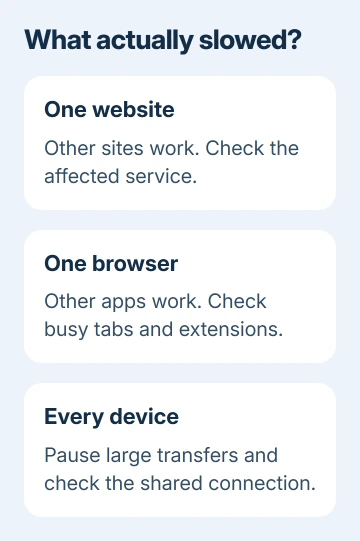
One slow page, a sluggish browser, and a slowdown across all devices point to different causes. Visiting a page doesn't normally leave Wi-Fi permanently slower; ongoing activity or another fault needs checking.
In this guide
1. Stop the site's transfers first
Pause any video, audio stream, cloud upload, or download running from that page. Then try an unrelated site. For a live call or cloud document, finish or save your work before closing its tab.
Check the browser's downloads list as well. Closing the tab that started a download doesn't necessarily stop that download. In desktop Chrome, open the menu and select Downloads, then pause an active transfer you don't need.
If other pages load normally as soon as the transfer stops, that activity was taking up part of your connection. Your router hasn't lost speed because it encountered a particular web address.
That leaves less capacity for everything else you're doing online.
Google's slow internet guidance explains that streaming, downloading, and other high-bandwidth activities compete for the same connection. That applies even when they run on different devices.
Lower the stream's quality or schedule a large transfer for later if you need both activities. A video call can also use the upload side of your connection, so a large cloud backup can interfere even when you're not downloading anything.
If pausing the site's activity makes no difference, keep the page closed and continue. You don't need to clear saved passwords or change your router setup for this comparison.
2. See whether only that website is slow
Open two unrelated sites that normally load quickly. If those work and the original page still crawls, the trouble is with that site or the connection along the way to it. Your whole Wi-Fi connection isn't necessarily slow.
A page that waits and then displays quickly differs from a file that downloads slowly throughout. The slow website loading guide covers the address-lookup delay that can make a fast connection feel unresponsive.
For a failed page, note the actual error. ERR_CONNECTION_TIMED_OUT means Chrome couldn't complete the connection in time. That error alone can't show that the site damaged your network or installed anything.
Open that address using a different browser. If it works there, focus on the original browser's tabs, extensions, or stored site data. If it fails in both while other sites work, wait and retry the affected service later.
Don't use one slow site's download as the only measurement of your internet plan. The website's own server, distance, and current load also affect how fast it can send that file.
3. Free a browser that's struggling with the page
Video, animations, ads, or a web app can use a lot of your device's memory or processing power. The result can feel like slow Wi-Fi because tabs respond late, even though other devices remain fast.
In desktop Chrome, open Menu > More tools > Task Manager. Select Memory to sort its tasks, then look for a page or extension using a large share. A busy page isn't automatically malicious.
Save work in that page before using End Process. The selected task stops and unsaved work in it is lost. Reopen the page only when you're ready to check whether the slowdown returns.
On a phone, close the troublesome tab through the browser's tab switcher, then reopen the browser if it stays sluggish. Desktop Chrome's Task Manager instructions don't apply to its Android or iPhone app.
If a particular extension makes the problem return, open Menu > Extensions > Manage extensions in desktop Chrome and turn that extension off. Compare the same page again before removing anything else.
I'd try this before a network reset when only one browser is slow. Restarting the router won't free the memory that page is using in your browser.
4. Check whether the slowdown reaches other devices
With the original site closed, check a second device connected to this router. Keep its cellular data off for this comparison so it doesn't silently use a different connection. Test from a similar location near the router.
If both devices are slow, look for another ongoing transfer: another device streaming, a game update, or a computer syncing files. Pausing one large transfer is more useful than disconnecting every device at random.
If only one device is slow, take it into the router's room and repeat the comparison. Walls, distance, and wireless interference affect the connection between that device and the router. A website doesn't change those physical conditions.
For a whole-house slowdown that continues after transfers stop, restart the modem or router using its maker's procedure. This briefly interrupts the network connections.
Don't press its factory-reset button, which can erase the network setup.
If the router reports a good incoming connection but one distant device is slow, focus on coverage. If the incoming connection is also slow, the internet provider has a more useful starting point than the website's address.
5. Deal with changes that remain after the visit
Persistent redirects, an unwanted extension that returns, or a homepage that changes without permission call for a browser security check. Those aren't the usual signs of apps sharing your connection.
Keep Chrome's Safe Browsing protection enabled. Use the device's trusted security tools and review software or extensions recently added before the slowdown. Don't install a cleaner offered by a warning on the suspect page.
Website notifications are a separate permission. Repeated alerts after closing a page don't mean that page is still downloading a movie.
In desktop Chrome, open Settings > Privacy and security > Site settings > Notifications. Review the allowed sites and block the unwanted sender. This stops its notifications without removing your other saved site data.
After blocking the unwanted alerts, check whether browsing is actually slow too.
If the problem continues, give your provider the results from two devices, whether wired Ethernet is also slow, and the times it happens. Ask them to check the line and local service issues before changing your plan.
When the problem is a particular file transfer rather than browsing, the slow download speed guide explains why a speed test and a download can show different results.
The Short Version
A website can temporarily use enough bandwidth to slow other activity. Stop its streams, uploads, and downloads, then compare other sites and another device.
Browser-only lag needs browser checks; continued slowness across devices needs network or provider checks.
Checked November 12, 2026.