A Lenovo can lose Wi-Fi when wireless is off, its saved password is old, or the network has no internet access. Turn off Airplane mode and turn on Wi-Fi first. If your network still won't connect, forget it and enter its current password.
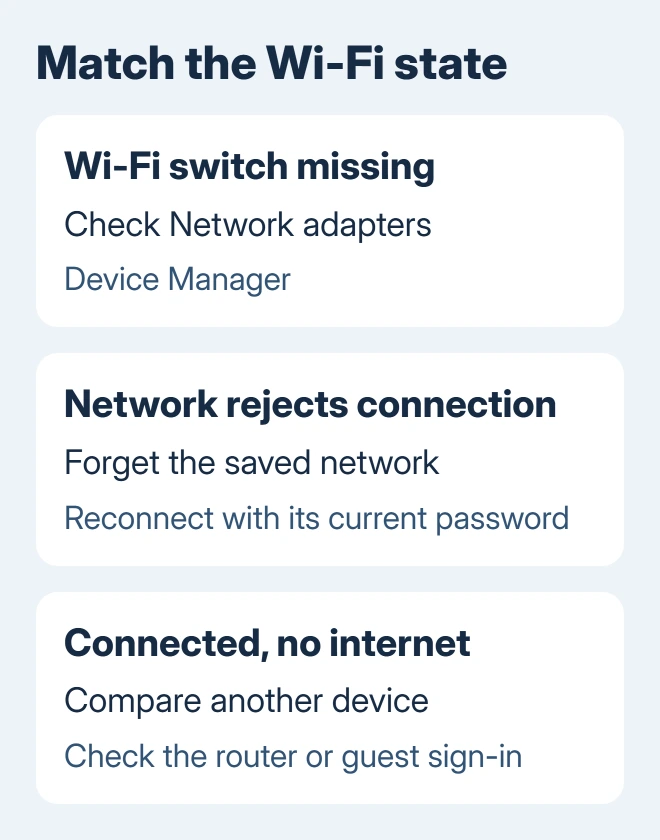
A missing Wi-Fi switch points toward the adapter or its driver. A connection labeled No Internet points toward the router, internet service, or a sign-in requirement. Follow the branch that matches your screen.
In this guide
1. Enable Wi-Fi using the controls your Lenovo has
On Windows 11, click the combined network-and-volume area on the taskbar to open Quick Settings. Turn off Airplane mode, turn on Wi-Fi, then open the available-network list beside the Wi-Fi control.
On Windows 10, select the taskbar's network icon and enable Wi-Fi. Its settings route is Settings > Network & Internet > Wi-Fi. Windows 11 uses Settings > Network & internet > Wi-Fi.
Some Lenovo models also have a wireless or airplane key, and older models may have a physical wireless switch. Use the markings and your model's manual.
Don't assume that one Lenovo's F-key number applies to every ThinkPad, IdeaPad, or Yoga.
Once enabled, nearby network names should appear. Select your network and choose Connect. If the Wi-Fi control is missing entirely, skip the password checks and go to the adapter section.
If a restart has already restored the switch but it later vanishes again, note whether that happens after sleep or an update. That timing is useful when checking the Lenovo driver rather than repeating the same toggle all day.
2. Remove an old network password and reconnect
Open Settings > Network & internet > Wi-Fi > Manage known networks on Windows 11. Find the saved connection you need and select Forget. For Windows 10, look under Network & Internet for Wi-Fi, then Manage known networks.
Return to the available-network list, select the correct network name, and enter its current password. Check the router label or ask the network owner if the password changed recently.
Forgetting a network removes its saved connection details. Have the password ready first, especially if this is your only available connection. Ask the administrator for instructions on a school or company network.
Try connecting again and watch whether Windows changes to Connected. If Windows says the password is wrong, check it with the network owner. Reinstalling a driver won't fix an incorrect password.
If your home network alone is absent, try your phone's hotspot. If other networks appear, the laptop's wireless radio is working. Your router's band or settings can still keep your own network from appearing.
3. Compare the router with another connection
Try browsing on a second device using that router. If you're using a phone, disable cellular data for this check. That keeps the phone from quietly using its cellular connection to load the page.
If every device is offline, restart the modem and router using their normal power-off and power-on steps. Wait for them to reconnect before trying the Lenovo again. This disconnects other people using that network while it restarts.
If other devices work, try the Lenovo with a phone hotspot. It doesn't need a long download: opening a normal page is enough to see whether this laptop can use a different wireless connection.
A working hotspot points you toward the home network's password, signal, or router settings. If the laptop can't connect to any network, check its adapter and driver next.
For a connection labeled No Internet, follow the connected-but-offline Windows checks. That state is different from a Lenovo that can't see its wireless adapter at all.
On hotel or guest Wi-Fi, complete the network's sign-in prompt if Windows offers one. Get the guest sign-in instructions from the network operator if you need approval to get online.
4. Check the wireless adapter in Device Manager
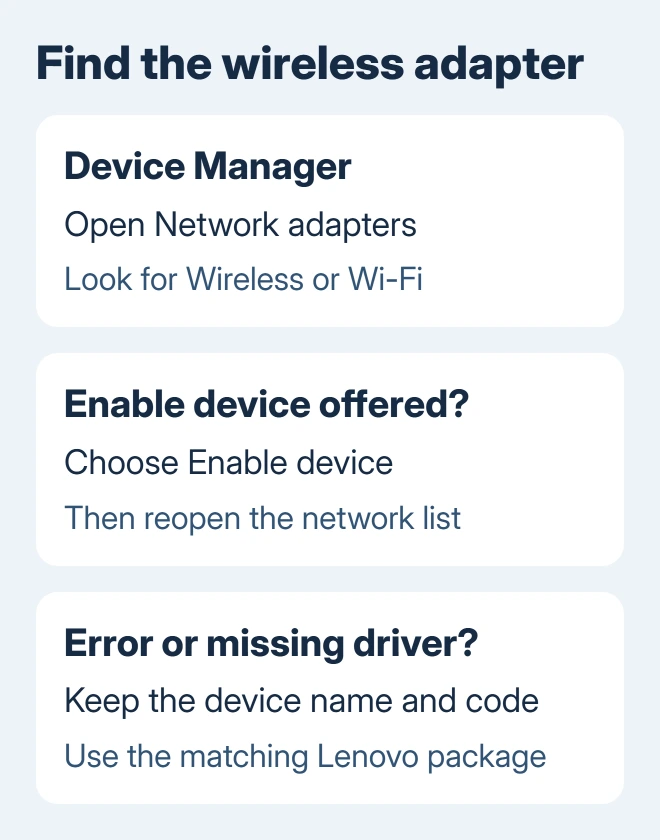
Right-click Start and choose Device Manager. Open Network adapters and find the wireless adapter. Its name may include Intel, Realtek, MediaTek, Qualcomm, Wireless, or Wi-Fi; an Ethernet entry isn't the same device.
If its menu offers Enable device, select that. An adapter that's already enabled will offer Disable device instead. Open Properties and read Device status for an error code if it still won't work.
When no wireless entry appears, Windows isn't detecting it in that list. Check for an unknown network device under Other devices, particularly after reinstalling Windows, when the correct driver may be missing.
Microsoft says Windows isn't detecting an adapter when it's absent from Device Manager. Keep the adapter name and any error code for the next step.
If Wi-Fi fails mainly after sleep and the adapter has a Power Management tab, clear Allow the computer to turn off this device to save power. Not every adapter has that tab; skip this step if yours doesn't.
5. Match the Lenovo model to its wireless driver
Use an Ethernet connection or a working hotspot if available. Open Lenovo Vantage and check its system updates for the wireless driver offered for your computer. Install that driver and restart if you're asked.
The model and installed adapter both matter. Two similar Lenovo product names can ship with different wireless hardware, so don't use a driver package simply because another IdeaPad or ThinkPad owner recommended it.
If the laptop has no working connection, have the wireless installer for its exact model ready on USB before removing a driver. Lenovo support can identify the correct package from the machine type and wireless hardware details.
In Device Manager, Properties > Driver shows the installed provider and version. If a new driver introduced this fault, select Roll Back Driver when available, then restart before trying another package.
6. Leave network reset until the driver checks are done
On Windows 11, open Settings > Network & internet > Advanced network settings > Network reset. On Windows 10, use Settings > Network & Internet > Status > Network reset.
A reset reinstalls network adapters and returns their settings to defaults. VPN software or virtual network switches may need setup again afterward, so save their settings before using Reset now.
After restarting, reconnect to Wi-Fi. For a missing adapter or a continuing Device Manager error, ask Lenovo to check the wireless hardware. Give them the laptop model and error code, and tell them whether the hotspot worked.
The laptop-only Wi-Fi guide covers more comparisons when other devices work.
The Short Version
Enable the Lenovo's wireless controls, reconnect with the current password, and compare another network. A missing Wi-Fi switch needs an adapter and model-specific driver check before a network reset or hardware repair.
Checked November 12, 2026.