Windows 11's January 2026 updates caused confirmed faults with cloud files, classic Outlook, and some remote sign-ins. Certain Windows 11 23H2 PCs also failed to shut down or hibernate.
Start by installing your version's current cumulative update: the January emergency fixes, and a later power fix, are already included in newer updates. A PC that can't reach the desktop needs the recovery route instead.
In this guide
1. Match the symptom and Windows version
Press Windows + R, type winver, and press Enter. Write down both the version number and the build. Then open Settings > Windows Update > Update history to find the January update and the updates installed afterward.
The January 13 security package for versions 24H2 and 25H2 was KB5074109. Windows 11 23H2 used KB5073455. Each package is made for a specific Windows version, so check yours before choosing a download.
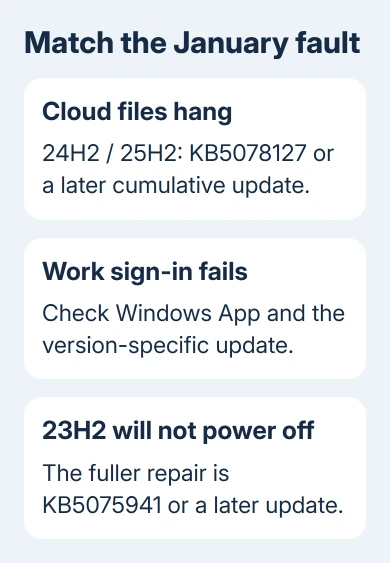
Choose the route that fits what happens:
- An app hangs while opening or saving a cloud file: start with the cloud storage fix in section 3.
- Windows App rejects a work remote connection: use the remote sign-in route in section 4.
- A 23H2 PC restarts instead of shutting down, or won't hibernate: check the power fix in section 5.
- Windows can't start: go to section 6 before attempting desktop instructions.
The installation date helps narrow things down, but a slow PC alone doesn't tell you which January fault it has. Write down the app, action, and error that fail. You'll then have a specific task to try again after the repair.
2. Install the current cumulative update
Open Settings > Windows Update, select Check for updates, and install the offered security update for your device. Save open work before selecting Restart now.
Reopen Windows Update after the restart to check for anything still pending.
I'd take the current update rather than hunt for an old emergency download. Cumulative updates carry earlier fixes, and you also keep the security changes released since January.
Microsoft says the cloud storage hangs were fixed by KB5078127, released January 24 for 24H2/25H2.
The January remote authentication fix is included too.
For 23H2, the January 24 emergency package was KB5078132. That isn't the final answer for every shutdown case: the full Secure Launch and Virtual Secure Mode power fix arrived on February 10 in KB5075941.
Newer updates include these repairs, so the January KB might not appear as a separate new offer.
On a managed work PC, send your version and build to IT if the required update isn't offered or Windows says your organization controls updates.
3. Cloud files or classic Outlook hang
This confirmed fault affected some applications opening or saving files in cloud storage, including OneDrive and Dropbox. One reported pattern involved classic Outlook using a PST file stored in OneDrive.
A PST is a local Outlook data file containing mail and other items.
The affected Outlook process could stay running after its window closed. Some configurations also had missing sent messages or downloaded mail again.
For those symptoms, apply the Windows repair before considering deleting your mail profile.
After restarting, launch the app that failed and repeat your original task. For a document app, try opening and saving a file in the same cloud location. For Outlook, check that it opens, sends, and exits normally.
If Outlook still won't reopen, follow the specific steps for Outlook staying open in Task Manager. That page also covers the separate question of a PST being kept inside OneDrive.
Don't delete or overwrite a PST while trying to clear this fault. It can hold mail that isn't available from the server.
If the update is installed and only Outlook still fails, note your Outlook version and whether the account uses POP before asking for help with the mail setup.
4. Remote sign-in fails in Windows App
The January fault could cause credential prompts or sign-in failures when Windows App connected to Azure Virtual Desktop or Windows 365. This affected remote work desktops, rather than ordinary website logins.
Install the current cumulative update on the affected Windows client, restart it, and retry the same work connection. The 24H2/25H2 remote fix first appeared in KB5077744 on January 17 and was included in the January 24 package.
For 23H2, the corresponding January packages were KB5077797, followed by KB5078132. Give IT the version from winver so they can choose the right package and way to install it.
If your organization allowed it, you could temporarily connect through the Windows App web client while waiting for the Windows app repair.
Ask IT for the approved browser connection rather than changing saved work credentials or disabling authentication protections.
If authentication still fails after the current update, capture the exact prompt and connection name for IT.
IT can then check your session and account. The January fix doesn't cover every reason a remote connection might fail.
5. A 23H2 PC won't shut down or hibernate
Some affected devices restarted instead of shutting down or entering hibernation after the January security update. The confirmed Windows 11 power issue applied to 23H2, involving Secure Launch or Virtual Secure Mode security features.
The initial January fixes covered some Secure Launch devices. The broader repair, including affected Virtual Secure Mode devices, arrived in KB5075941 on February 10.
The 23H2 issue history records that difference.
Apply your supported edition's current update, then test Start > Power > Shut down. Check that the computer powers off rather than returning to the sign-in screen after a restart.
Don't switch off those security features to imitate an old workaround.
If the shutdown screen names Task Host Window after updating, follow the Task Host shutdown checks. That message identifies a separate task holding up shutdown.
6. Windows can't reach the desktop
A PC that won't start needs a different approach. KB5078127 fixed cloud file and remote connection problems, but that doesn't mean it repaired every January startup error. Note the exact stop code and whether Windows Recovery opens.
In the recovery menu, Troubleshoot > Advanced options > Uninstall Updates > Uninstall latest quality update can remove the latest quality update when Windows won't start.
Use this option only when the startup failure began with that latest update.
By November, removing the latest update doesn't automatically remove January's package. Check the timing before choosing it. Keep the BitLocker recovery key available, since encrypted PCs may request it during recovery.
If recovery fails, ask your computer manufacturer's support team, or workplace IT, to restore startup while retaining personal files.
Give them the stop code, your Windows version if you know it, and when the update was installed. Ask which recovery method will preserve your files.
The Short Version
Identify the symptom and installed version, then get Windows fully updated. Cloud file hangs and remote sign-ins received January repairs; affected 23H2 shutdown and hibernation cases received a fuller February fix.
Startup failures need separate recovery steps.
Checked November 12, 2026.