

A Windows 10 Pro policy can block a Microsoft account even when your password is correct. On your own PC, check Accounts: Block Microsoft accounts and set it to This policy is disabled if you want to allow personal Microsoft accounts.
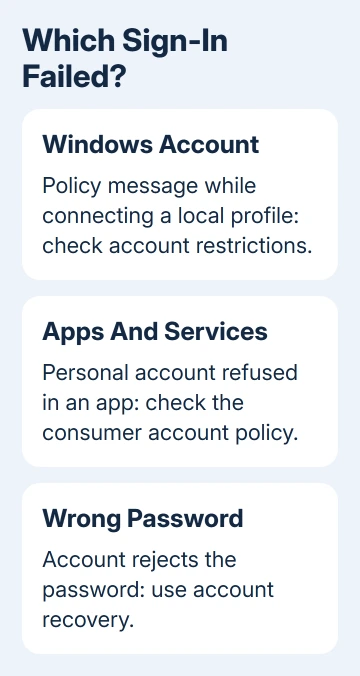
On a company-managed computer, the administrator controls that restriction. Choose the fix for the part that fails: your password, adding the account, or signing into Windows. Check which screen shows the error before changing a policy.
In this guide
1. Check what Windows is actually blocking
Open Settings > Accounts > Your info. For a local profile, Sign in with a Microsoft account instead connects that profile to a personal Microsoft account. A Group Policy message here means a computer setting is blocking the change.
That differs from a browser saying the password is incorrect. Changing a computer policy won't repair a forgotten password or unlock a suspended online account. Keep the exact message, including whether it mentions an administrator.
Check whether you can still enter Windows using the account you normally use. If the desktop opens, stay signed in while you inspect the setting. You don't need to remove that working account to change the setting.
A work or school address isn't always a personal Microsoft account. For the ordinary account routes, our Microsoft sign-in guide explains the difference. These policy changes apply to personal Microsoft accounts.
If Windows opens but the account connection is refused, continue with the local policy. If this is a workplace or school computer, skip to the management checks before changing anything.
2. Allow Microsoft accounts in Local Security Policy
You'll need an administrator profile to change this setting. Press Windows + R, type secpol.msc, and press Enter. Accept the administrator prompt if Windows asks for permission to open the console.
Expand Local Policies, then select Security Options. In the right pane, open Accounts: Block Microsoft accounts. Check the selected value before changing it, so you know what caused the restriction.
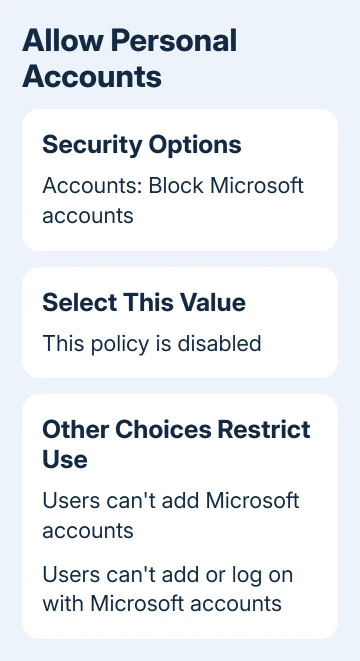
The three choices have different effects. This policy is disabled allows Microsoft accounts. Users can't add Microsoft accounts blocks adding or connecting accounts while allowing existing connected accounts to sign in.
The stricter Users can't add or log on with Microsoft accounts option also restricts existing connected-account use. Choosing it won't help an account that already can't sign in.
On a personal computer where this restriction isn't wanted, select This policy is disabled, then Apply > OK. Microsoft's account-blocking policy reference explains these choices.
Close the failed account dialog and try the connection again. This policy takes effect without restarting Windows. If the same restriction remains, check the second policy rather than repeatedly rebooting.
The same security option is available through gpedit.msc > Computer Configuration > Windows Settings > Security Settings > Local Policies > Security Options. These are two ways to reach the setting, not two separate fixes to apply.
3. Check the separate policy for app authentication
A second policy can block personal Microsoft accounts in apps and services. Check this when the Windows account setting looks correct but an app still won't let you sign in.
Press Windows + R, enter gpedit.msc, and open Computer Configuration > Administrative Templates > Windows Components > Microsoft account. Look for Block all consumer Microsoft account user authentication.
When this policy is enabled, apps and services on the device can't use personal Microsoft accounts to authenticate. It controls sign-in within apps, separately from the Windows account connection in Security Options.
On your own unmanaged PC, open the policy and choose Not Configured if you don't want this restriction, then apply the change. Leave an organization-controlled setting to its administrator.
Try the affected app again after closing and reopening it. If personal account sign-in now opens normally, the app restriction was the part still blocking you. A new password error needs account help instead of more policy edits.
If the setting isn't in your policy templates, don't substitute an unrelated account rule. Give support the Windows edition and the policy names you can actually see. Windows 10 Home doesn't include the same local policy editors as Pro.
4. Follow a setting that changes back to its manager
Open Settings > Accounts > Access work or school and check for an organization connection. A connected organization can apply policies centrally, so a local change can be replaced when those policies refresh.
Seeing an organization listed doesn't tell you who set this particular restriction. It does give you a useful lead when the option is locked or keeps returning to its previous value.
Keep that connection in place on a managed computer. Disconnecting it can affect access to work resources and isn't the right way to request permission to use a personal account.
Ask IT to review Accounts: Block Microsoft accounts and Block all consumer Microsoft account user authentication for this device. Include the full error and whether the block affects Windows account conversion, a particular app, or both.
For a personally owned computer with a leftover organization connection, our work or school account removal guide explains the account types and removal limits. Confirm ownership before changing enrollment.
I'd check this route before trying registry edits. A registry value can be reapplied by the same management system, leaving the original restriction in place and making the next support conversation harder.
5. Retry the original action and route the remaining error
After the relevant block is removed, return to Settings > Accounts > Your info > Sign in with a Microsoft account instead. Enter the intended account, then complete the verification shown.
If Windows asks for the current Windows password, it means the password for the local profile you're converting. That can differ from the Microsoft account password you just entered. Read the prompt before trying another password.
If the option is Sign in with a local account instead, this Windows profile is already connected to a Microsoft account. Check the account address displayed there before trying to connect it again.
If the remaining error mentions a password, verification code, or locked account, you'll need account recovery. For a policy message, give the device administrator or Windows support the selected values for both policies.
If you're locked out before reaching the desktop, use another existing administrator account if one is available. Otherwise, ask Microsoft Support for Windows sign-in recovery help and describe the policy change that preceded the lockout.
The Short Version
Disable the unwanted account block on a personal Windows 10 Pro PC, then check the separate consumer-account authentication policy if apps still refuse access. A setting controlled by an organization needs its administrator to change it.
Checked November 12, 2026.
 If you have any business, I can build it online






