A SteelSeries Apex Pro Mini that won't work over USB needs a direct connection and a reliable data cable before you reset its software. Plug it into the computer without a hub, then check whether it types outside SteelSeries GG.
A keyboard that types but doesn't appear in Engine has a software-detection problem. A keyboard that stays absent on another computer with another cable needs a hardware check. Those two cases shouldn't start with the same reset procedure.
In this guide
1. Bypass the hub and compare PC ports
Unplug the keyboard's cable at both ends, then reconnect it firmly. Connect the computer end directly to the PC. Leave docking stations, monitor USB sockets and extension leads out of this check.
Try another USB port. SteelSeries recommends a direct rear USB 3.0 connection on a desktop for Engine detection. Its USB-error guidance also permits testing a different USB 2.0 or USB 3.0 port.
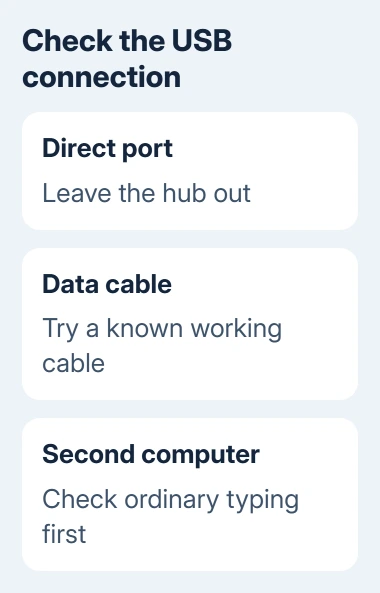
Open Notepad on Windows, or TextEdit on a Mac, and press several ordinary letter keys. If letters appear, the computer is receiving keystrokes even if GG can't find the keyboard.
Lighting alone doesn't tell you whether keystrokes reach the computer.
If another port restores typing, keep that connection while checking GG. If nothing changes, try another cable next. Reinstalling software repeatedly won't help you check whether the cable works.
The USB port guide explains why connector shape and supported features are separate questions. For this keyboard check, the immediate requirement is a working USB data connection.
2. Replace the cable with one that carries data
Try the supplied cable if you were using a replacement. Otherwise, use a compatible USB data cable that already works with another device. Make sure its plug fits fully into the keyboard's USB-C socket.
The Windows USB-C checks also stress matching the cable to the connection.
Some cables supply power without a working data connection. That can leave lights on while the keyboard sends no input. A different cable is a more useful check than assuming illuminated keys mean the USB link is healthy.
Keep the computer port the same during this comparison. If a different cable restores typing in that port, the first cable isn't making a reliable connection. That result doesn't call for resetting all your keyboard settings.
Check the model label too. The wired Apex Pro Mini uses its cable for connection. The Mini Wireless adds Bluetooth and a USB receiver, so a working wireless connection doesn't answer whether its cable connection works.
On a Wireless model, follow its own manual for the wired connection instead of assuming a Bluetooth or receiver session is a cable test. Record which connection works and which fails when asking for help.
Don't push a loose connector sideways to make it work. If normal movement interrupts the connection, stop using that cable or socket and have the physical fit checked.
3. Repair GG detection when the keyboard still types
If letters appear normally but GG doesn't show the keyboard, update SteelSeries GG first. Open Engine and look for the keyboard's device tile. A lighting screen and a device-detection screen aren't interchangeable.
For an invisible or blank app window, the GG launch checks explain background tasks, administrator settings and VPN interference.
Quit GG fully from its system-tray icon, using Quit or Exit, then open it again. Leave GG open, unplug the keyboard, wait 10 to 15 seconds and reconnect it. Give the software time to display the device.
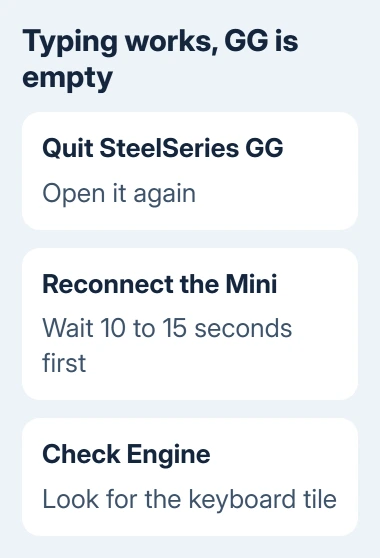
These steps follow the vendor's Engine detection guidance. The expected result is the keyboard appearing as a device you can open and configure.
On Windows, its separate USB-error instructions also suggest launching GG as an administrator before reconnecting. Right-click GG in Start and choose Run as administrator, approving the request only for the installed app you recognize.
If detection returns, check the offered settings or firmware notice for this exact model. Follow an update's connection instructions and let it finish before unplugging anything.
When GG still misses a keyboard that types normally, restart the computer. A clean reinstall of GG is a later software step in the vendor's guidance. Export important profiles before you uninstall GG.
4. Check what Windows sees and when failure happens
Right-click Start > Device Manager. Look under Keyboards and Universal Serial Bus controllers while connecting the Mini. Note any new entry or USB error, including its exact wording.
An entry appearing when connected shows Windows is responding to something on that USB connection. It doesn't tell you every keyboard function is healthy, but it helps distinguish a GG-only problem from a connection Windows can't recognize.
If trouble starts after sleep, the Engine support page also suggests checking USB power saving. In Device Manager, inspect the relevant USB hub's Properties > Power Management when that tab exists.
For a sleep-related failure, clear Allow the computer to turn off this device to save power for the relevant hub and compare the next sleep-and-wake cycle. Some systems don't expose this checkbox, so don't search for it indefinitely.
I'd leave unrelated USB devices and their settings alone. A keyboard that has never connected needs the cable and second-computer checks more than a collection of power-setting changes.
5. Compare another computer before choosing repair
Connect the Mini directly to another computer using the data cable already checked. Try ordinary typing first. The vendor's USB recognition steps include this comparison.
If it works on the second computer, return to the first computer's connection or software. If it fails on both with different working cables, the keyboard itself becomes a stronger suspect. Ask support about a repair.
Don't follow an Apex reset that asks for an OLED menu button and scroll wheel on a Mini that has neither. Those instructions describe different keyboard controls.
Ask support for a reset or recovery procedure matched to the exact Mini generation.
If another peripheral also fails, its controls may differ. The SteelSeries mouse connection guide separates receiver pairing from Bluetooth rather than applying a keyboard procedure to both.
Open a SteelSeries support ticket with the model, serial number, purchase details, GG version and the two-computer results. Include whether the socket feels loose, lights turn on, typing works, and Windows displays a USB error.
Ask about warranty service before opening the keyboard.
The Short Version
Connect a cable you know works directly to the PC. Check typing outside GG. Work on GG detection only when the keyboard can type normally.
Failure across two computers needs model-specific support or service, especially when the USB-C socket is loose.
Checked November 12, 2026.