

Chrome saves favorite websites as bookmarks. On a Windows computer, open the page and click the star beside the address bar. On Android or iPhone, open Chrome's menu and choose Add to bookmarks.
A bookmark saves the page's address for a future visit. It doesn't save a separate offline copy of the page or a downloaded document. Pick the method for the device you're using, then check where Chrome put the new entry.
In this guide
Save the current page on a Windows computer
Visit your chosen page in Chrome, then check its address before saving. A site may have redirected you to a sign-in page or another section of the website.
Click the star beside Chrome's address field. Chrome opens the bookmark controls, where you can check the name and destination folder. Use a short, recognizable name so the saved entry makes sense later.
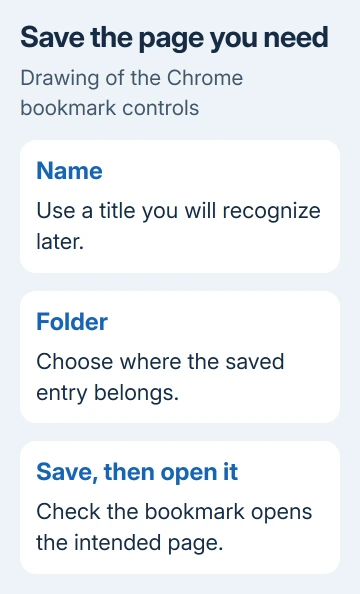
Choose the folder you want and confirm the save control shown by Chrome. If the page is already bookmarked, clicking its filled star opens the existing bookmark's details so you can check or change it without saving another copy.
For example, save a specific printer's support page with the model name, rather than leaving several entries named Support. Then you can tell the entries apart without opening each link to see which printer it's for.
Google's bookmark instructions explain how to save a page with the star control. On a MacBook, use the MacBook bookmark steps for Chrome and Safari's different controls.
Add a favorite in Chrome on Android
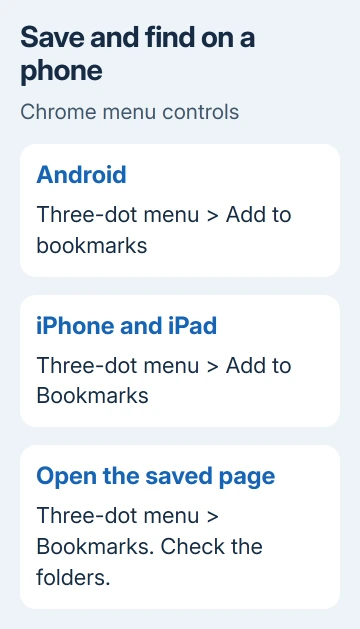
Open Chrome and visit the page. Use the address bar's three-dot menu, then select Add to bookmarks. Depending on the layout, the bookmark action may be shown with its star icon.
To check the saved result, open three-dot menu > Bookmarks. Open the folder containing your entry and tap it. If Chrome reopens a folder you used earlier, go back within Bookmarks to see the other folders.
For an address bar at the bottom, Chrome also supports swiping up on that bar to reach Bookmarks. The bar's position changes how you reach the list; the bookmark still saves the same page address.
To rename or correct an Android bookmark, tap its three-dot menu > Edit in the bookmark list. To move it, open the same entry's menu and choose Move to, then select its destination folder.
To make another folder, use the Bookmarks menu's Create new folder option. Group entries by a job or subject you recognize, rather than creating a separate folder for every site.
Add the favorite using iOS Chrome
Open the page in Chrome, tap its three-dot menu, and choose Add to Bookmarks. Use Chrome's menu for this task; Safari's share controls belong to a different browser with its own bookmarks.
Open three-dot menu > Bookmarks to find the saved entry. Review the available folders. If the list starts inside one folder, use Back at the top left to return to the other folders.
Touch and hold a bookmark, then choose Edit to change its name, folder or address. Tap Done when you've finished. Check the saved name in the list so you'll know which entry to open next time.
The same method applies on iPad in Chrome. A favorite saved in Safari won't appear in Chrome simply because both apps are installed on that iPad. Start the check in the browser where you saved it.
On a shared phone or tablet, look at the Chrome account before moving or deleting entries. An account-saved bookmark can be available on other devices too, so changing it on this device may change it in that shared collection too.
Find a saved page without a visible bookmarks bar
On a computer, type @bookmarks in Chrome's address bar, press Tab or Space, and enter part of the bookmark's name. Choose the matching saved entry from the results.
Another route is three-dot menu > Bookmarks and lists > Bookmark Manager. Use its search to look for a distinctive word from the page's title or the name you gave the bookmark.
The bookmarks bar is a convenient display, but it isn't the whole collection. A bookmark in a different folder can still be saved even though it isn't in that visible row.
On a phone, return to Bookmarks and check the other folders before saving the same page again. Chrome can remember the last folder you opened, which makes the collection seem smaller than it really is.
I'd check the entry by opening it once immediately after saving. It catches the wrong page or folder while the intended address is still fresh in your mind.
Choose whether the favorites should follow your account
Saving a bookmark in this browser doesn't always make it available on another device. Confirm which Google Account Chrome uses on each device before expecting the collections to match.
On a computer, open Settings > You and Google, select your account and review the information saved there. Current Chrome lets you choose what to save in the Google Account, including bookmarks.
For a phone, open Chrome's Settings and select its account controls. Review the saved-data or sync choices offered in that version. A bookmark kept only on one device won't appear elsewhere just because Gmail is signed in.
If the account is correct but an entry stays on its original device, use the Chrome bookmark sync checks. Keep the original entry while checking where it's stored.
Keep an offline page or backup as a separate task
An address in Bookmarks still opens the website. A page that needs an internet connection, account access or a current subscription can still require those things when you revisit the bookmark.
For a file such as a PDF, use the site's download option if you need your own local copy. Open the downloaded file afterward to check that it saved correctly. Bookmarking its viewing page alone doesn't create that file on the device.
For a bookmark you still can't locate, ask for advice in Chrome's Help Community. Include the device, browser, account and folder where you saved it. Keep the original browser data while searching for the missing entry.
The Short Version
Use the star on Windows or Add to Bookmarks in Chrome's phone menu. Check the saved folder and rename the entry if needed. Use Bookmarks or Bookmark Manager to reopen it, and check the Chrome account when you need it on another device.
Checked November 12, 2026.
 If you have any business, I can build it online






