

A Chrome black screen can come from a graphics problem. Try turning off graphics acceleration when the rest of the computer looks normal. If only one page or video is black, check that content before changing the whole browser.
A black desktop outside Chrome needs a Windows or Mac display check instead. The steps here apply when Chrome is the part that stops drawing properly.
In this guide
1. Reopen Chrome and compare another page
Close Chrome, reopen it, and load a simple page you normally use. On a Mac, use Chrome > Quit Google Chrome or Command+Q to quit the app fully instead of just closing its window.
If a frozen Windows window won't close, press Ctrl+Shift+Esc, select Google Chrome in Task Manager, and choose End task. This closes its open tabs, so any unsaved form or web-app work can be lost.
Restart the computer if Chrome immediately returns to a black window. Then compare an ordinary page with the original page that failed. A browser-wide black window and one failed video aren't the same result.
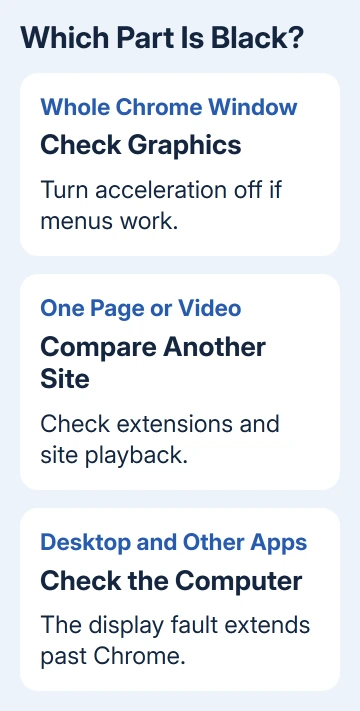
Open the troublesome address in another browser too. If the same site fails there, try another page on that site or send its support team the failing address and error text. Chrome's graphics setting won't repair a broken website.
Google recommends disabling acceleration for graphics conflicts in its Chrome troubleshooting steps. Continue with that check if Chrome alone stays black.
2. Turn off graphics acceleration when menus still work
If every Chrome control is black, skip to step 5 and update the computer's graphics software first. Don't type settings changes blindly into a window you can't read. Use another browser for the support route if Chrome stays unusable.
Open Chrome menu > Settings > System. Set Use graphics acceleration when available to off, then select Relaunch. Older releases can call the same option Use hardware acceleration when available.
Alternatively, enter chrome://settings/system in Chrome's address bar. That opens the relevant settings page directly, which is useful when pages fail but the browser's own controls still draw.
Relaunching matters because the graphics change needs a browser restart. After Chrome returns, revisit the same page or video to check for a restored picture. If the picture returns, leave acceleration off while checking for updates.
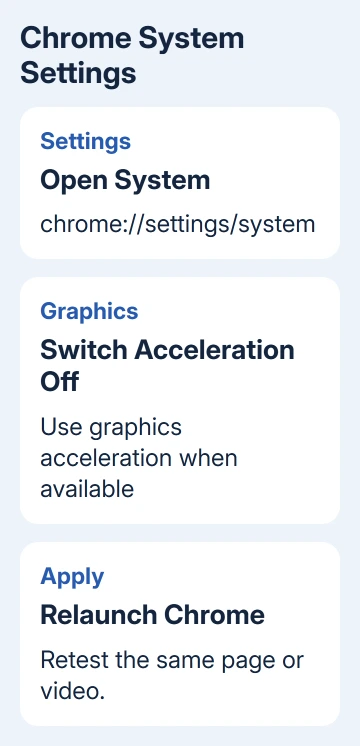
Turning acceleration off changes how Chrome draws content. It can affect video or demanding sites, so try the sites you actually use. A working basic page doesn't tell you whether a video call behaves well.
Update Chrome through Chrome menu > Help > About Google Chrome, then relaunch if offered. If a recent browser or graphics update resolves the conflict, you can try enabling acceleration again and compare the same content.
I'd leave experimental flags alone during this check. Changing the normal System switch gives you one clear result without adding several graphics settings that you later have to untangle.
3. Use Incognito to check a page-specific failure
If Chrome's menus and other pages work, open an Incognito window with Ctrl+Shift+N on Windows or Command+Shift+N on Mac. Enter the failing address and compare it with a normal window.
Incognito uses a separate session, with extensions off unless you've allowed them. If the page works there, site data or an extension in your regular session could be causing the problem.
Some sites need a sign-in or restrict playback in private windows. If the Incognito page never reaches the same signed-in content, you can't tell whether Incognito fixes the black screen for that content.
Open Chrome menu > Extensions > Manage Extensions. Turn off extensions, reopen the normal page, and test. If the page works, restore extensions individually until the problem returns.
Start with extensions that change page appearance, block content or modify video playback. Leave the troublesome extension switched off. Check whether its developer offers an update, or report the affected address to them.
For a browser that also hangs or stops responding, the Chrome freezing checks cover that wider fault. A black picture alone doesn't mean the entire app has stopped responding.
4. Handle a black video without wiping every site's data
When the page loads and its controls work but the video area stays black, play a different title from that service. Also compare ordinary videos with the specific protected stream or meeting that fails.
Check the site's own error message, sign-in state and playback requirements. A service can refuse one title or protected stream even while the browser displays the rest of the page correctly.
If the service works in another browser, use Chrome's acceleration check and extension test. If it fails across browsers, ask that service about the stream or account instead of deleting every Chrome setting.
When the failure affects a single site's normal session, clear that site's saved data. This signs you out and can reset site preferences. Clear only the affected site's data rather than clearing all browsing history by habit.
Use the Chrome site-data removal steps to select the affected site. Reload it, sign in again, and try the same video to see whether the old session was causing the problem.
5. Repair the graphics path if the failure keeps returning
On Windows 11, check Settings > Windows Update. For offered driver updates, open Advanced options > Optional updates. Windows 10 uses Settings > Update & Security > Windows Update; available updates depend on support coverage.
For a laptop or desktop with a dedicated graphics support page, use the PC maker's recommended driver for that model. Match it to the Windows version shown in Settings > System > About.
On a Mac, check System Settings > General > Software Update. Graphics updates arrive with macOS updates rather than a separate Windows graphics-driver installer. Retest the original page after the update finishes and the Mac restarts.
If Chrome alone stays unusable, report it through the Chrome Help Community. Include which part turns black, your Chrome and OS versions, and what happened with acceleration off.
If you choose to reinstall Chrome, back up or sync needed bookmarks and account data first. Deleting the existing profile removes its local browsing data, so keep the original profile unless you have a saved copy.
Ask the PC or Mac support team about a display fault if other apps also turn black. Tell them which other apps turn black, since that points to the computer's display or graphics system rather than Chrome alone.
The Short Version
Disable graphics acceleration and relaunch for a black Chrome window. Check extensions and site data for one failing page. Update Chrome and graphics software if the fault returns; ask device support about a black desktop outside Chrome.
Checked November 12, 2026.
 If you have any business, I can build it online






