
A missing Play Store on Chromebook can mean Android apps aren't set up, the wrong account is active, or an organization blocks them. Open Settings > Apps > Manage Google Play preferences and complete setup if it's offered.
ChromeOS Flex and Chromebooks without Android app support can't gain the ordinary Play Store through a browser download. Check which situation applies before installing files or resetting a working computer.
In this guide
1. Look in the Launcher and the Android app settings
Open the Launcher and search for Play Store. If it appears, open that result. A missing shelf shortcut doesn't mean the store itself is gone; the Launcher lists installed apps independently of the shortcuts along the bottom.
If the store opens, the missing icon problem is solved. To keep it handy, right-click its shelf icon while it's running and use Pin if offered. On a touch screen, use a long press for the shortcut menu.
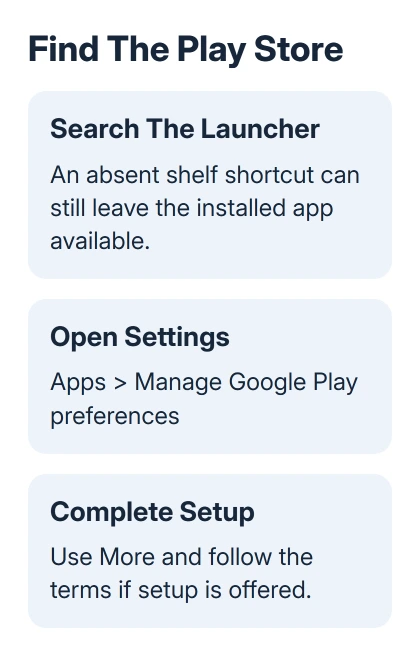
If search finds nothing, open the bottom-right time panel and select Settings > Apps. Look for Manage Google Play preferences. This is the current route in Google's Chromebook Android app instructions.
Open that setting if it's available. In the setup window, select More when prompted and follow the terms-of-service screens. Return to the Launcher afterward and open Play Store from there.
Older software may show Google Play Store > Turn on instead. Use that setup control when present. If neither route appears, check the account and device support next rather than downloading a Play Store installer.
2. Start a session with the intended Google Account
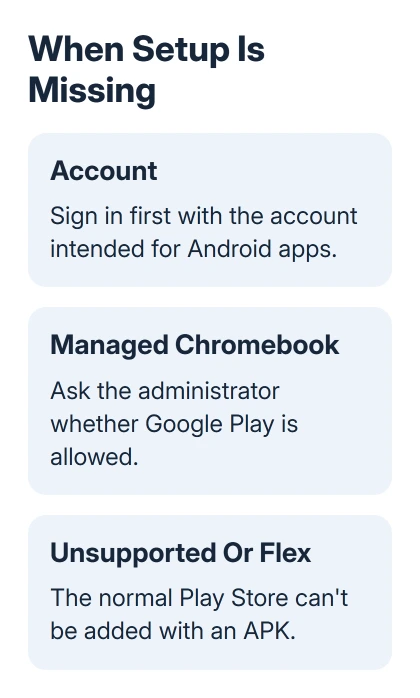
The first account signed into a Chromebook session gets its Android apps and Google Play access. Adding a second account inside an existing session doesn't give that second account its own Android app environment.
Save your files, then sign every Chromebook account out. From the sign-in screen, sign in first with the account you'll use for Google Play. Then check Settings > Apps and search the Launcher again.
Sign into your account for this check. Guest browsing isn't a substitute for the account's installed apps. If this is a school or company computer, use the account they authorize and continue with the management check.
This matters when your family shares a Chromebook. Play Store working for one person's main session doesn't mean it will be available to a second person added within that same session.
If Play Store returns after the account change, use it under that account. Apps from an Android phone won't all appear automatically on the Chromebook; install the compatible ones you need after the store opens.
For a store that opens but doesn't list one particular app, check that app's Chromebook availability. Its developer can exclude Chromebooks. That's a different problem from the entire Play Store being missing.
3. Check whether a school or employer controls it
Select the time again and look for the managed-device icon. That icon means the Chromebook is managed. An organization can control which features, accounts, apps, and settings are available.
Ask the administrator whether Android apps and Google Play are enabled for your account and that device. Include the exact Chromebook model and say whether Manage Google Play preferences is missing, disabled, or opening an error.
If the store exists but an app is unavailable, give them the app's name too. Approving one app is separate from allowing Android apps at all, so describe the part that's actually missing.
Don't remove school management or reset the device to try to unlock the store. Those actions aren't a supported way to change an organization's policy, and resetting can leave you signing back into the same restrictions.
The Play Protect settings guide covers a separate Android app-scanning control. Turning off scanning doesn't add Android support or unlock a store that the administrator has disabled.
If a used Chromebook remains managed by a previous organization, have the seller request its release from that administrator. A personal Google Account can't give permission that the device's administrator has withheld.
4. Update ChromeOS before deciding the option is unavailable
With internet access available, select Settings > About ChromeOS > Check for updates. Let an available update download. Select Restart when prompted, then return to Settings > Apps and look for the Play preferences again.
The operating-system update comes from About ChromeOS. Updating the Chrome browser on another computer or opening the Play Store website won't update this Chromebook's Android app support.
If storage blocks the update, move files you need elsewhere and delete copies you no longer need. The Chromebook app-removal steps help remove unwanted apps, rather than just their shelf shortcuts.
I'd finish this update check before spending time on an installer. It lets you check for the setting with the device's supported software up to date, while an Android APK can't add a missing ChromeOS feature.
If an update reports an error, record the full error for the Chromebook maker's support team. Get the update problem fixed before trying app setup again, so an unfinished update doesn't leave you checking outdated software.
5. Separate an unsupported Chromebook from ChromeOS Flex
Read the device label or documentation for its complete model name. Google Play works only on supported Chromebooks. If Play preferences are missing on an updated, unmanaged device, check whether that exact model supports Android apps.
A Windows PC or Mac converted to ChromeOS Flex doesn't provide the normal Play Store and general Android apps. It can look like an Android-capable Chromebook while offering different app support.
Use the web version of the service if it has one, or ask its developer for a supported browser alternative. A website shortcut can be useful, but it doesn't turn the site into the Android version of the app.
Avoid instructions promising to add the store by switching off security or downloading a random store package. Neither changes the device's supported ChromeOS feature set. Keep the model and operating-system name in any support request.
When the supported store still won't appear
If the device is supported, up to date, unmanaged, and signed in first with your chosen account, contact its manufacturer or Chromebook Help. Ask them to check why Android app setup is unavailable on that model.
Give them the model, ChromeOS version from About ChromeOS, account-session result, and the exact Apps settings shown. That helps support tell whether Android support is missing or the store is installed but won't open.
Don't turn Google Play off and on as a casual test. Removing the Play Store from a Chromebook erases Android app data and settings on the device. Only do that as part of a recovery procedure after checking what happens to your app data.
The Short Version
Search the Launcher and check Apps for Play preferences. Complete setup if available, then check the first account, policy, and ChromeOS updates. Unsupported models and ChromeOS Flex don't gain the normal Play Store from an APK.
Checked November 12, 2026.





