Windows 11 Calculator can be installed without opening the Microsoft Store app by using WinGet in Terminal. Run winget install --id 9WZDNCRFHVN5 --exact --source msstore to install the official Windows Calculator package.
WinGet still needs internet access and Microsoft's Store service. It can't bypass an organization's package restrictions or turn this into an offline installation. An existing Calculator copy may only need repair.
In this guide
Check whether Calculator is missing or just won't open
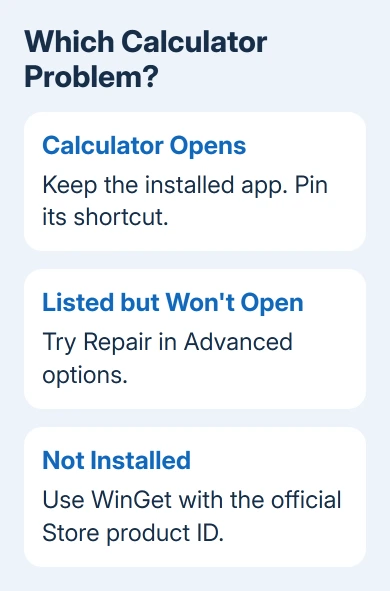
Press Windows+R, type calc, and press Enter. If Calculator opens, it's already installed. Pin it to Start or the taskbar if finding it was the problem; reinstalling a working copy isn't necessary.
If nothing opens, search Start for Calculator, then check Settings > Apps > Installed apps. If Calculator is listed but crashes, try repairing it first. If it isn't installed, use the installation steps.
The app's product ID is 9WZDNCRFHVN5. Using that ID with the msstore source avoids choosing a similarly named calculator from another publisher.
The official Calculator project's download link uses that same product ID. The project's source code is for developers; downloading its source ZIP won't install Calculator into Windows.
I'd repair a listed copy before downloading another package. It takes fewer changes, and you won't reinstall the whole app when only its shortcut is broken.
Prepare WinGet in a normal Terminal window
Right-click Start and select Terminal. Either its PowerShell tab or a Command Prompt tab can run WinGet. For the first check, enter:
winget --versionA version number means the command is available. WinGet is the Windows Package Manager, a tool that finds and installs apps from named package sources. It comes through the App Installer component on Windows 11.
If Windows says the command isn't recognized, close Terminal and reopen it before trying again. This is especially useful just after App Installer was installed or updated, when the older window may still have outdated command paths.
On a new Windows account, Windows may not have finished registering App Installer yet. Microsoft's WinGet setup instructions give this PowerShell command to request registration:
Add-AppxPackage -RegisterByFamilyName -MainPackage Microsoft.DesktopAppInstaller_8wekyb3d8bbweRun that in PowerShell, then open a fresh Terminal and repeat the version check. It tells Windows to recognize an App Installer package that's already there. It won't download a missing copy or remove organization restrictions.
If App Installer is absent, follow the linked setup instructions or ask IT to deploy it. Get winget --version working before changing the Calculator command; until WinGet works, it can't start installing Calculator.
Look up the official package before installing
In Terminal, enter:
winget show --id 9WZDNCRFHVN5 --exact --source msstoreThe result should identify Windows Calculator. Review the package details and publisher before proceeding. This also checks whether WinGet can reach the Store catalog on your connection.
The first Store-source request may ask you to accept source terms. Read the displayed terms and respond to the prompt. A question waiting for an answer can make Terminal look idle even though the command hasn't failed.
The --source msstore part is intentional: it selects the Store catalog while leaving the Store app closed. You can keep the Store window closed, but you'll still need a connection to its service.
If the lookup returns a connection or policy error, save the exact message. A Store service failure, a blocked source, and a missing WinGet command need different fixes. Repeating the install command won't address them all.
Install Calculator and confirm it opens
Once the lookup identifies the right app, run:
winget install --id 9WZDNCRFHVN5 --exact --source msstoreKeep Terminal open until the operation finishes. Answer any agreement or permission prompt shown for this installation. The command can display download and installation progress without opening the Store app itself.
After WinGet reports success, press Windows+R, enter calc, and press Enter. Try a simple calculation and check that the result appears. That checks that Calculator actually works in your account, beyond the installer's success message.
If WinGet reports that the package is already installed, return to Installed apps and use the repair steps in the next section. Repeating the same installation request won't necessarily fix damaged app data.
For a shared PC, verify Calculator from the Windows account that needs it. An installation that works in your account doesn't tell you whether Calculator works in another person's account.
Repair a copy that's already installed
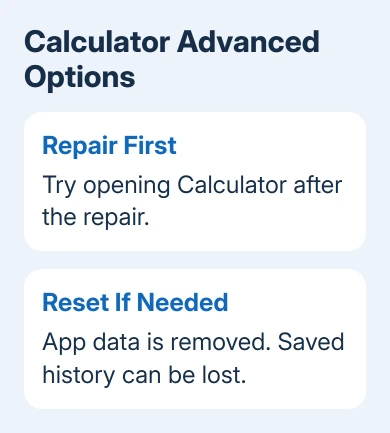
Open Settings > Apps > Installed apps. Find Calculator, select its three-dot menu, and choose Advanced options. If available, select Repair, then try opening Calculator again.
Microsoft says to try Repair first in its app repair instructions. If it doesn't solve the crash, return to that page in Settings and select Reset.
Reset removes the app's local data, so expect to lose saved information such as your calculation history. Use it when Repair hasn't restored a usable app, rather than selecting both buttons before checking the result.
If several apps fail after changing protected folder permissions, fix that separate problem with the WindowsApps permissions guidance. Taking ownership again isn't an app-install method.
When Store access is blocked or the PC is offline
An organization can permit Terminal but block the Store service. Ask IT for an approved Calculator deployment or restored access to the required package source. WinGet follows those restrictions too.
On an offline PC, try Repair if Calculator is listed. For a removed package, ask IT to install it offline with any extra packages it needs. Don't copy another computer's WindowsApps files.
For Store-wide crashes on a personal computer, use the Microsoft Store repair checks before trying another installation through the Store service. Keep the WinGet error text so support can identify the failed stage.
If only Calculator still fails after repair or installation, open Get Help from Start and report the Calculator problem. Include the Windows version, whether Calculator appears in Installed apps, and the exact installation or launch error.
The Short Version
Use WinGet with product ID 9WZDNCRFHVN5 and the msstore source to install Calculator while the Store app stays closed. Internet and Store-service access are still required. Repair an existing installation before reinstalling it.
Checked November 12, 2026.