

A BlackShark V2 mic can stop working because it's muted, its removable mic is loose or the wrong input is selected. Unmute it, reconnect the mic firmly, then select the input for your connection: USB sound card or the computer's audio jack.
Sound in the earcups doesn't mean the microphone connection works. If a Windows recording works while a game stays silent, keep the headset connected and fix that game's input choice instead.
In this guide
1. Check the boom and the headset's mute control
These steps are for the wired BlackShark V2, which includes a removable microphone and USB sound card. The V2 X, V2 Pro and V2 HyperSpeed have different hardware; don't use wireless pairing instructions for this wired headset.
Remove and firmly reconnect the microphone at the left earcup. Check the headset's mic mute button, then speak again. The earcup's volume knob adjusts what you hear, so turning it up won't restore a muted microphone.
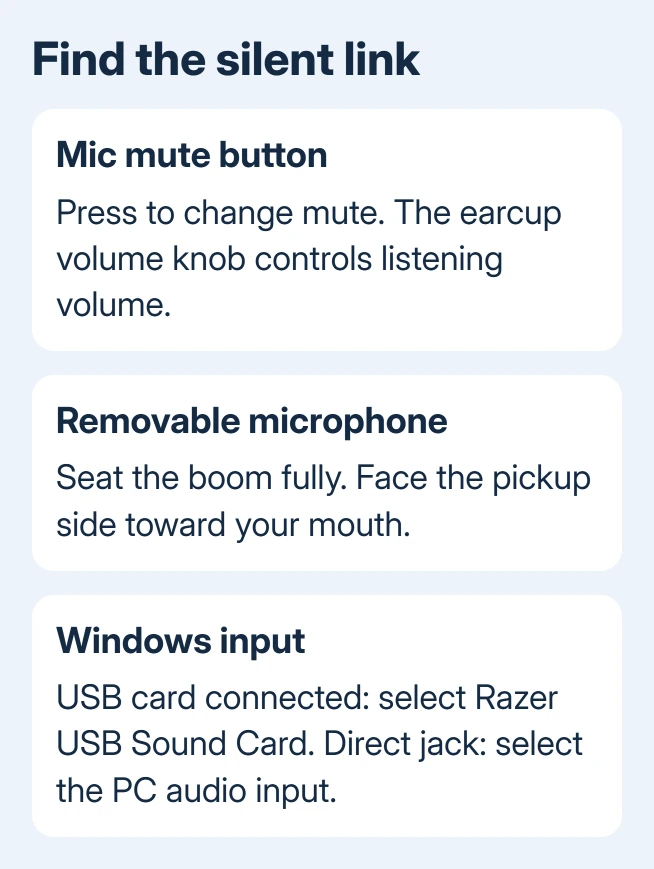
Position the microphone close to your mouth, with its pickup side facing you and the air vent facing away. Razer's BlackShark V2 product page confirms the removable mic and the two connection routes.
I'd check these physical controls before reinstalling anything. A microphone that isn't seated properly can stay silent while the headset plays audio normally. If the boom and mute button are correct, check the connection next.
2. Match the microphone to USB or the audio jack
To use the supplied USB sound card, push the headset's 3.5mm plug fully into the USB sound card. Connect that card directly to your computer, temporarily leaving out a USB hub or dock. Reseat both connections if the input is missing.
With that setup, look for Razer USB Sound Card as the microphone input. The computer's built-in microphone or analog jack is a different device. Selecting one of those won't capture the headset through its USB card.
For a direct 3.5mm connection, use a headset combination jack that accepts both headphones and a microphone. A headphone-only output can play the headset's sound without receiving its microphone signal.
A desktop with one headphone socket and another for microphones needs a compatible headset splitter, or you can use the supplied USB sound card. A simple headphone-sharing adapter doesn't separate the microphone and headphone connections.
When plugged into the audio jack, the mic may appear under the computer's audio device name rather than Razer. Choose that input when testing the audio jack. If USB works but the jack doesn't, check the jack, splitter and PC audio settings.
3. Record your voice in Windows before changing the game
On Windows 11, open Settings > System > Sound. Under Input, select the microphone for your connection. Open its properties, find Input settings, choose Start test, speak, then stop the test and use the playback option when offered.
On Windows 10, open Settings > System > Sound. Select the microphone under Choose your input device, then speak while watching Test your microphone. A moving indicator means the chosen input is delivering audio to Windows.
Use the Windows microphone test to compare the two routes. Keep the selected input volume high enough to register normal speech, then repeat the same sentence.
If the test records your voice, Windows is receiving the headset audio. Open the affected game's voice settings and select the same input by name. Check its microphone mute and push-to-talk control, including the key it expects you to hold.
Try a second recording or calling app when only one game stays silent. For Zoom specifically, follow the Zoom microphone checks after confirming that the Windows test works.
4. Give the recording app microphone access
In Windows 11, open Settings > Privacy & security > Microphone. Enable Microphone access. Also enable Let apps access your microphone. For a listed app, enable its own switch too.
Desktop games and calling programs also need Let desktop apps access your microphone. They don't all get individual switches in the same list. Close and reopen the game after correcting its access.
On Windows 10, use Settings > Privacy > Microphone. Check device access, Allow apps to access your microphone, and Allow desktop apps to access your microphone, as appropriate for the program.
These permissions matter when an app can't use an otherwise working input. If every recording test stays silent, continue with the USB sound card and microphone processing instead of repeatedly changing app permissions.
5. Check mic volume and Voice Gate in Synapse
Synapse gives you extra microphone controls when you use the USB sound card. The original Synapse 3 guide puts them in the device's Mic subtab. Select the USB sound card, check Mic Volume, and make sure the software hasn't muted the input.
Check Voice Gate if speech disappears unless you talk loudly. This control silences sound that falls under its chosen level. Temporarily turn it off, then repeat the Windows recording test at your normal speaking volume.
Once normal speech records clearly, turn on only the sound processing you need. Mic Boost increases input level, but it won't fix a disconnected boom. Excessive processing can also make a working mic seem intermittent.
These sound-card controls apply to the USB route. When the headset is plugged directly into the computer's analog socket, use that computer's input controls. Synapse settings for the disconnected USB card won't adjust the analog input.
6. Compare the sound card with a second connection
Try the headset in another compatible combination jack or another computer. Compare a short recording through the USB card with one through the analog jack, keeping the boom connected and unmuted.
If recording through the audio jack works but USB stays silent, tell Razer Support and ask about the USB sound card. If neither route records on a second compatible device, ask them to check the boom, headset socket and warranty options.
For a computer that also fails with another microphone, use the wider Windows microphone repairs. Include the Windows version, input names and recording-test results when contacting the PC maker.
Don't buy a replacement boom just because one game is silent. If Windows records your voice, send the game or calling-app support team the input you've selected, your voice settings and the exact error.
The Short Version
Seat the boom, unmute the headset and select the input matching USB or 3.5mm. Test a recording in Windows, then fix app access or game settings. Compare USB with analog before asking Razer about replacement hardware.
Checked November 12, 2026.
 If you have any business, I can build it online






