Windows Update error 0x80071a2d means a transaction needed by the installation isn't active. Restart Windows and retry the update first; if it keeps failing, repair the system files before moving to a Windows repair installation.
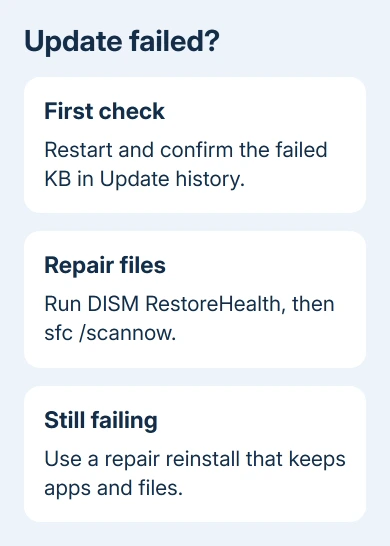
The code doesn't tell you which file or update has a problem. An immediate download failure differs from an install that restarts and undoes its changes. Note the update's KB number and whether it failed while downloading or installing.
In this guide
1. Finish pending restarts and identify the failed update
Save your work, open Start > Power, and choose Update and restart if it's offered. Otherwise choose Restart. After signing back in, let Windows finish loading before trying the update again.
On Windows 11, open Settings > Windows Update > Update history. On Windows 10, use Settings > Update & Security > Windows Update > View update history. Write down the failed update's KB number and date.
Also press Windows + R, type winver, and press Enter. Read the version label and OS build shown there. Support uses those details to distinguish a monthly package from a change to a newer Windows release.
Check whether the entry says Failed. An old failure can remain after a later attempt succeeds. If the update has since installed and Windows isn't asking to retry it, you don't need to repair Windows for the old entry.
If a different code appears on the next attempt, use that code for the next check. The Windows Update error guide separates storage, permissions and component repair problems.
2. Run the update troubleshooter for your Windows version
On Windows 11, open Settings > System > Troubleshoot > Other troubleshooters, then choose Run beside Windows Update. Windows may continue the troubleshooting session in Get Help; follow that app's prompts.
On Windows 10, open Settings > Update & Security > Troubleshoot > Additional troubleshooters. Select Windows Update > Run the troubleshooter when that older control is available. Current help may redirect you to Get Help instead.
Let the tool finish and read its result. It can correct update settings and services. If it reports a fix, retry the failed update before changing more settings.
If Get Help won't open, keep that detail with the KB number and continue to system file repair. The update error and a broken help app can be separate problems; repeatedly opening the failed tool won't help Windows install the update.
3. Repair Windows files with DISM, then SFC
Microsoft recommends DISM before SFC in its system file repair instructions. DISM repairs the Windows files that SFC uses to replace damaged system files.
Open Start, type Command Prompt, and select Run as administrator. Approve the permission prompt, then enter this command:
DISM.exe /Online /Cleanup-Image /RestoreHealthWait for it to finish. Then run:
sfc /scannowLeave Command Prompt running until verification completes. Don't close it just because the percentage stops moving for a while. Wait for the final message to see how the scan went.
If SFC reports that it repaired corrupt files, restart and retry the update. If it reports no integrity violations, the protected system files passed its check. Continue to the repair option if the update still fails.
If DISM fails or SFC can't repair some files, save the exact message. Don't substitute repair-source paths copied from another computer. If these repair tools can't finish, move on to a repair installation.
I'd use these built-in repairs before downloading an update repair utility. They give you a result you can report and avoid adding another program while Windows installation is already failing.
4. Use the Windows 11 repair reinstall when offered
Copy important files to your backup before reinstalling. Connect the laptop to power and keep its internet connection available throughout the repair.
Open Settings > System > Recovery. Find the Fix problems using Windows Update entry and click Reinstall now beside it. Review the restart choice in the confirmation window, then select OK when ready.
Windows downloads replacement installation files based on your last successful Windows update. Your current Windows version is reinstalled, with apps, files and settings kept. Reset this PC is a separate command.
The option requires Windows 11, release 22H2 or newer. The PC also needs the optional update released in February 2024, or a later update. Management by your workplace or school can hide the option.
If the button is missing, don't force it through registry changes. Ask IT to handle a work PC. For a personal PC, use installation media to repair Windows while keeping apps and files. Windows 10 doesn't have this repair control.
5. Keep apps and files during a media repair
Use official installation media that matches your Windows edition, language and processor type. Open it from the running Windows desktop and launch setup.exe. Booting from the media starts a different installation route.
At the screen that summarizes what will be kept, check for Keep personal files and apps. Stop if that choice isn't available. Continuing with a different choice can remove programs or data you meant to keep.
The Windows repair walkthrough explains the in-place route in more detail. Follow its installation steps; the different error code discussed there isn't the one you're fixing.
When the repair completes, open Windows Update to retry the failed KB. For another 0x80071a2d failure, search for Windows Update in Get Help and request help with an update installation failure.
Send support the KB, Windows version, final scan messages and the stage when installation fails. Say whether Windows had restarted yet. For a managed PC, IT can check update policy and installation logs with those details.
The Short Version
Restart, confirm the failed KB, and run the update troubleshooter. Next use DISM followed by SFC. Persistent failures need a repair reinstall that keeps apps and files, or support with the exact installation results.
Checked November 12, 2026.