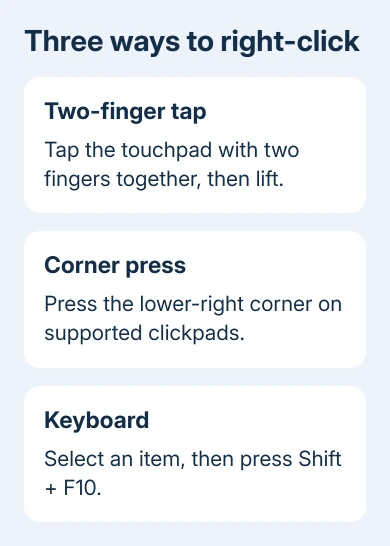
Tap your Lenovo laptop's touchpad with two fingers to right-click. On models with a clickpad, pressing its lower-right corner is another option; a ThinkPad with separate buttons may have a dedicated right button instead.
The menu shows actions for whatever your pointer is over. Point at a file, app or empty desktop area, then use the method that suits your touchpad. If two-finger tapping does nothing, check its setting rather than pressing harder.
In this guide
Start with a two-finger tap
Point at the item first, then make a brief two-finger tap on the pad. Lift both fingers without sliding them. A small menu of commands should appear beside the selected item or pointer.
Practice on a blank spot on the desktop. If its menu opens, the gesture works, even if an app shows different commands. Close the menu with Esc, or click outside it, without running a command.
The two-finger gesture is a tap, so it doesn't require the pad to physically click. Sliding two fingers usually scrolls instead. Keep them still for the tap if a page moves rather than showing a menu.
Lenovo's touchpad gesture instructions show two-finger tapping as the context-menu gesture. A context menu is simply the list of actions for the item you're working with.
If a file opens, Windows read your gesture as a normal click or double-click instead. Try again with both fingers landing together. If the pointer works but every two-finger tap acts like a single tap, move to the Windows setting next.
Turn on right-click gestures in Windows
On Windows 11, open Start > Settings > Bluetooth & devices > Touchpad. Expand Taps and enable Tap with two fingers to right-click. Try the gesture again on the desktop.
On Windows 10, open Start > Settings > Devices > Touchpad. Under Taps, enable Tap with two fingers to right-click. Your touchpad driver determines which controls are offered.
The Press the lower right corner of the touchpad to right-click option enables the physical corner click. Choose it if you'd rather press the pad. It works separately from two-finger tapping.
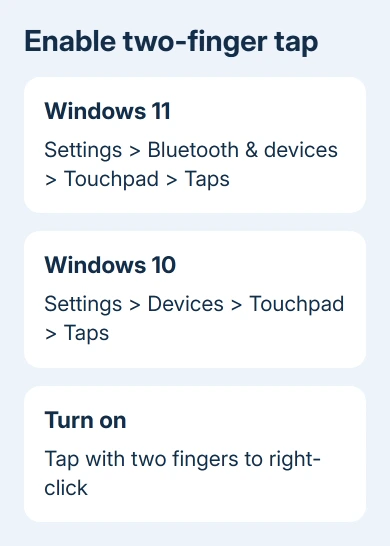
If Taps is missing, your laptop may use another touchpad settings panel. Older Synaptics or ELAN drivers may put options under Additional settings or mouse properties. Use the controls supplied for your model.
Don't change the main mouse button simply to enable the two-finger gesture. Swapping the primary button changes how normal clicks work. It isn't the same setting as enabling a touchpad right-click.
For an unresponsive pad with no Touchpad settings page, use the touchpad troubleshooting guide. Get Windows to recognize the pad and respond to it before adjusting gestures.
Use the clickpad corner or a ThinkPad button
On a clickpad, move the pointer to the item and press the lower-right area until the pad clicks. Release it to open the menu. The exact clickable area varies by model, so start near the lower-right corner.
Keep your other hand off the pad while learning the corner. Resting another finger on it can make the laptop read your gesture differently. Once the menu opens reliably, use whichever tapping or pressing method feels more comfortable.
Some ThinkPads have three buttons near the TrackPoint, the small pointing stick in the keyboard. If your model has those buttons, use the rightmost one to right-click. The middle button has a different role.
Other Lenovo laptops have buttons beneath the touchpad or controls integrated into the pad. Check your laptop's hardware; ThinkPads, IdeaPads and Yogas don't all share one button layout.
For a game that needs right-click held down, a two-finger tap only sends a brief menu-style click. Use the physical right-click control if your model supports holding it, or connect a mouse with a separate right button.
I'd use a mouse for a game that needs frequent click-and-hold actions. A separate button is easier to hold down than trying to turn a brief touchpad gesture into a long press.
Open the menu from the keyboard
Select a file or control, then press Shift + F10 to display its actions. Choose a command with the direction keys; Enter runs it and Esc cancels.
For a simple test, press Windows + E to open File Explorer. Select a file with a single click, then use Shift + F10. The file should stay selected while its menu appears.
If the F10 key performs a laptop function instead, try Fn + Shift + F10. Depending on your Lenovo keyboard, F10 can act as a function key or run its other labeled action by default.
A dedicated Menu key, when fitted, also displays actions for the selected item. Many Lenovo keyboards lack this key. Use Shift + F10 when the Menu key or touchpad isn't available.
Windows 11 can show a compact file menu with Show more options for older commands. A shorter menu doesn't mean your right-click failed. The 7-Zip menu guide explains one common example.
Use touch on a Yoga, or check a method that fails
On a Lenovo with a touchscreen, press and hold the item on the screen, then release to show its menu. Use a stationary hold. Dragging your finger can move the item or scroll the page instead.
This is a screen gesture, separate from the touchpad's two-finger tap. A Yoga in tablet mode may be easier to use this way when its keyboard and touchpad aren't available in that position.
If the keyboard method opens a menu but the corner click doesn't, try two-finger tapping and check the corner setting. If taps open the menu but a physical press fails, check the click control and its setting.
If the pad clicks unevenly, sticks, or has lifted from the laptop's case, stop pressing it and arrange a hardware inspection. Contact Lenovo support with the laptop's model or serial number and say which click methods still work.
For a missing driver panel, ask Lenovo support for the touchpad driver for that exact model and Windows version. Describe whether pointer movement, one-finger tapping and two-finger tapping work, so they know which part isn't working.
The Short Version
Use a two-finger tap, the clickpad's lower-right corner, or a separate right button. Enable the gesture under Touchpad settings if needed. Shift + F10 opens the selected item's menu when the touchpad isn't available.
Checked November 12, 2026.