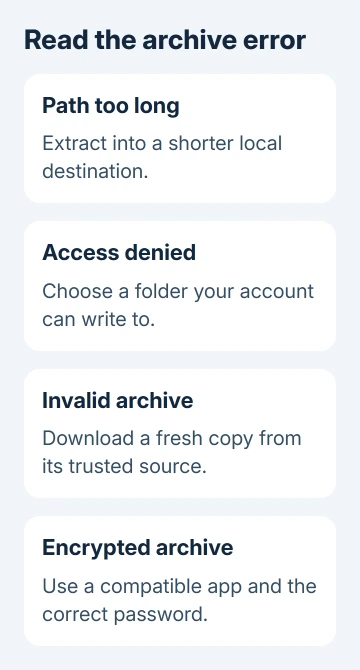
The error message tells you which Windows 11 compressed-folder fix to try. For The destination path is too long, extract into a short local folder; for an invalid archive, download a fresh copy. Encrypted archives need a compatible app.
Start with the complete error, including any filename it shows. When Windows lists the contents, focus on the failed extraction. When it can't open the archive at all, check the download and format.
In this guide
1. Match the error to the operation that failed
Check whether the message appeared while opening an archive, using Extract All, or creating a new ZIP. Keep the original archive while troubleshooting. A failed extraction can leave a partly filled destination folder.
In File Explorer, select View > Show > File name extensions to display endings such as .zip, .rar, .7z or another extension. An archive icon isn't a reliable format check.
If Windows lists the files inside, extract into a new folder instead of opening a document inside the archive. Browsing an archive only shows what's inside. Extracting gives you ordinary files that your apps can save and edit.
Microsoft says to use Extract All in its archive instructions for unpacking everything. For one item, drag it from the archive to a folder.
If only one extracted file fails, note that name. If every archive fails, including a small ZIP you create yourself, the problem affects more than that download. Next, check the destination folder and the archive separately.
2. Shorten the destination when the path is too long
Create a folder with a short name somewhere you can write, such as C:\Users\yourname\z inside your user folder. Use your actual account folder rather than typing the example name literally.
Right-click the archive, select Extract All, then use Browse to choose that short folder. Use a fresh destination folder so files from an earlier failed attempt don't get mixed in.
The path includes every folder name as well as the final filename. A short ZIP name doesn't help much when its contents already contain many nested folders. Choosing a destination with fewer parent folders shortens the full path.
If the error names one deeply nested item, compare its full destination with a file that extracts successfully. When the shorter destination works, keep the files there until you can simplify the folder structure for your project.
I'd try the shorter folder before changing Windows policies. The Windows path documentation shows that apps must support long paths. A registry switch alone can't fix every extractor.
If the same item still fails in a short destination, ask the sender to shorten its internal folder names and create the archive again. Renaming the outer ZIP alone doesn't rename folders stored inside it.
3. Use a local folder you can actually write to
For an access-denied or destination-file error, try a new folder under your own Downloads or Documents. Avoid Windows system folders and another person's account folder. Select that folder in Extract All and retry.
First create a small ordinary file in the chosen destination. If Windows won't let you save there, it won't let you extract files there either. Choose an allowed location, or ask IT for access when it is a managed work folder.
Check free space on the destination drive in This PC. The ZIP's size is its compressed size; its extracted contents can need substantially more room. A download fitting on the drive doesn't mean its contents will fit too.
If the archive is on removable storage, copy it to the local Downloads folder before extracting. That keeps both the archive and the extracted files on your PC, so a removable drive can't disconnect halfway through extraction.
For an archive stored in the cloud, let its download finish first. If the source or drive itself disappears, follow the Windows drive-detection checks.
If a local writable folder works, check the original destination's access and storage. Don't grant broad permissions across the whole drive just to unpack a document. Save the extracted files somewhere your account already controls.
4. Download a fresh copy of an invalid archive
For an invalid or corrupt compressed folder, return to the original trusted download and save another copy. Wait for the browser to finish. Compare the completed download's size with the sender's file if that information is available.
Open the new copy before deleting the old one. If the new copy extracts, the earlier download was the problem. If both fail on the same item, ask the sender to extract their original archive and send a newly created copy.
Changing an extension from .rar to .zip doesn't convert the contents. Use the real format and a compatible extractor. A downloaded web page renamed as a ZIP is still a web page, even when Explorer gives it an archive icon.
Windows 11 24H2 supports ZIP, RAR, 7z and TAR archive formats, but encrypted archives are a separate limitation. Check Settings > System > About > Windows specifications if the built-in format support doesn't match your PC.
For an encrypted archive, use an app that supports its encryption, such as 7-Zip or WinRAR, and get the password from the sender. Extracting with another program won't recover a password you don't have.
If 7-Zip is already installed but its commands aren't visible in Explorer, check the 7-Zip context-menu options. That menu problem is separate from a damaged archive.
5. Check a failed ZIP creation without changing the originals
If the error happens while making a ZIP, copy a small ordinary file to your local Downloads folder. Open its right-click menu, then select Show more options > Send to > Compressed (zipped) folder. Check whether the new ZIP opens.
If that works, retry your original selection in smaller groups. A particular source file, unavailable cloud item or destination can be responsible. Note which group fails instead of retrying the whole selection unchanged.
If even the small local ZIP fails, restart Windows, then make that test ZIP again. For a work PC, give IT the error and the source and destination paths. For a personal PC, open Get Help and describe the File Explorer archive failure.
Send the archive's creator the exact filename and error when one archive fails in multiple compatible tools. Ask for a freshly created archive or the affected file separately. Repeated partial extractions won't fix damaged contents.
The Short Version
Use a short writable local destination for path and access errors. Replace an invalid download, and use a compatible app for encrypted archives. Keep the original archive until the extracted files open correctly outside it.
Checked November 12, 2026.