Samsung Galaxy phones add Home screen widgets from the menu you open by holding clear wallpaper on Home. Tap Widgets, choose an app and a design, then tap Add. For widgets beside the Lock screen clock, edit the Lock screen instead.
Those two screens have different widget lists. A weather panel available on Home won't necessarily appear in the Lock screen picker, and installing an app doesn't always give it a widget.
In this guide
Add the first widget to your Home screen
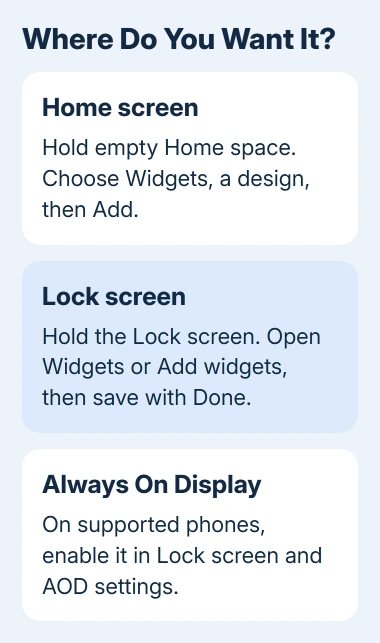
Return to Home and find a page with some free space. Hold a clear patch of wallpaper, rather than an app icon. Holding an icon opens that app's shortcut menu instead of the screen editor.
Tap Widgets. Recommended choices appear first on supported versions; scroll through the app list to see the others. Expand the app you want, choose one of its previews, and tap Add.
The widget should now sit on Home and stay there when you finish editing. If the selected page is crowded, use another Home page or choose a smaller design. Each preview's size tells you how much room it needs on the screen's grid.
I'd start with one widget you use daily, such as Calendar or Weather. It's easier to judge the space it needs when the page isn't already full of panels competing for attention.
Samsung's Galaxy widget instructions cover Home, stacks, Lock screen, and Always On Display. Google's Home screen controls also describe dragging a widget preview onto Home on Android layouts that use that method.
Resize, move, or remove the panel
Hold the placed widget. If it supports resizing, handles appear around its edges. Drag a handle to fit the panel, then tap empty space to finish. Without handles, choose another size from the app's picker.
To move it, hold the widget itself and drag it to the intended position. Move toward the edge of Home to place it on another page. Keep enough space around it to avoid covering the spot where you normally start a gesture.
The hold menu may include Settings. Depending on the widget, this can change its background color, transparency, or displayed information. A setting available for Weather won't necessarily exist for Calendar or a music app.
If the panel is blank, open its app and finish setting it up first. For a calendar, check that you've added the account you want to see. Return Home afterward and check whether the panel now shows the information you expected.
To remove it, hold the widget and choose Remove, or Remove from Home on versions with that wording. This frees up its space on the page. It doesn't uninstall the app or erase the account behind it.
Keep several widgets in a stack
When the hold menu offers Create stack, choose it on an existing widget. Select another widget and its design, then tap Add. Swipe left or right across the finished stack to switch between its panels.
Hold the stack and choose Edit stack to change which panels it contains. Use its add control to include another widget, or the red minus control to remove one. Swipe through the stack to find the missing widget before adding a duplicate.
Don't spend time searching for automatic rotation on a recent phone. The current instructions say Auto rotate widgets isn't available on One UI 6.1.1 or later. Manual swiping still gives you access to the panels you've stacked.
If Create stack doesn't appear for the selected widget, use separate placements. The widget and installed software determine which controls appear. A missing stack option doesn't mean you failed to add the widget correctly.
Put widgets beside the Lock screen clock
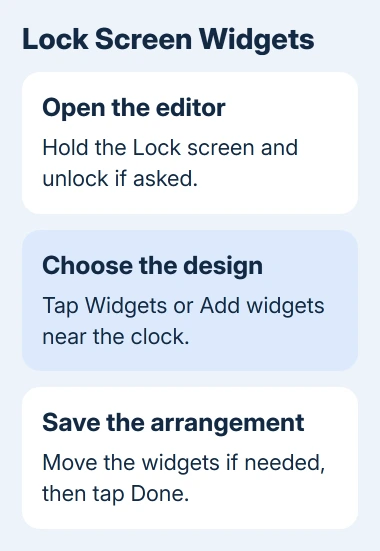
Wake the phone and hold your finger on the Lock screen. Unlock the phone if asked so you can open the editor. Tap Widgets or Add widgets near the clock, depending on the version, then choose from that screen's available designs.
Select a widget such as Battery, Clock, or Reminder and choose its offered style. Add the other items you need, then hold and drag a widget to change its position among the others. Tap Done to save the arrangement.
Lock and wake the phone again to check the saved result. Tapping a widget can lead to more information after you swipe up and unlock. These smaller widgets come from the Lock screen's own list, separate from the Home screen choices.
The phone model and software determine the available designs. If the editor has no widget area, check Settings > Software update for an available update and ask support about that model's Lock screen support.
An unwanted second city clock is a separate travel setting. Use the Dual clock and Roaming clock controls when that is the item you're trying to change.
Show supported widgets while the screen is off
On a phone with Always On Display, open Settings > Lock screen and AOD > Always On Display and enable it. Supported widgets already added to the Lock screen can appear there too; this isn't another Home widget picker.
Use When to show to choose when that display appears. The other choices depend on the device and One UI version. On supported One UI 7.0 or later devices, Show Now bar is among the available options.
Don't expect every phone to offer every Always On Display setting. Use the choices your model displays. A phone without the feature can't gain it just by adding a Home widget.
When the app has no widget to add
Make sure you've installed the app. Open it, then return to Widgets. Look under its app name, rather than only the Recommended section. An app can offer several widget designs or none at all.
A tablet uses a related Home editor, covered in the Samsung tablet widget steps. Its available designs still depend on the app; a phone-specific widget isn't automatically a tablet option.
If one app is missing, ask its developer whether your version supports widgets on your Galaxy. If several built-in widgets won't add, give Samsung Support your model, One UI version, and the screen where editing fails.
The Short Version
Hold empty Home space, tap Widgets, choose a design, and add it. Edit the Lock screen separately for clock-area widgets. Resize only when handles appear, use stacks when offered, and check app support when a widget is absent.
Checked November 12, 2026.