RCS pictures need internet access; MMS pictures need your carrier's cellular data service. Switch between Wi-Fi and cellular data first, then check the conversation's message type. Turning RCS on doesn't mean every chat uses it.
A picture that won't download, a photo that won't send, and a saved image missing from Gallery need different checks. Start with the failed picture in Google Messages so you're fixing the part that actually stopped.
In this guide
1. Retry the picture with a working data connection
Open the conversation with the failed picture and tap its download or retry control once. Open a website on the same phone. If that doesn't load either, restore the connection before changing anything inside Messages.
Disable Wi-Fi and retry using cellular data, or use reliable Wi-Fi when cellular reception is poor. Keep the chat open during the download. If the picture loads after switching, check the connection you were using before.
A phone showing Wi-Fi bars can still be connected to a network without internet access. Don't judge this check by the signal icon alone. Opening a fresh page checks whether the phone can actually reach the internet.
Ask the sender for one fresh picture after the connection works. If that arrives while the earlier attachment remains stuck, keep the new copy. Getting back online doesn't mean an earlier failed picture will download.
If all pictures still fail, check the chat type next. If ordinary SMS texts aren't arriving either, check the phone line and default texting app as well.
2. Check RCS inside the affected conversation
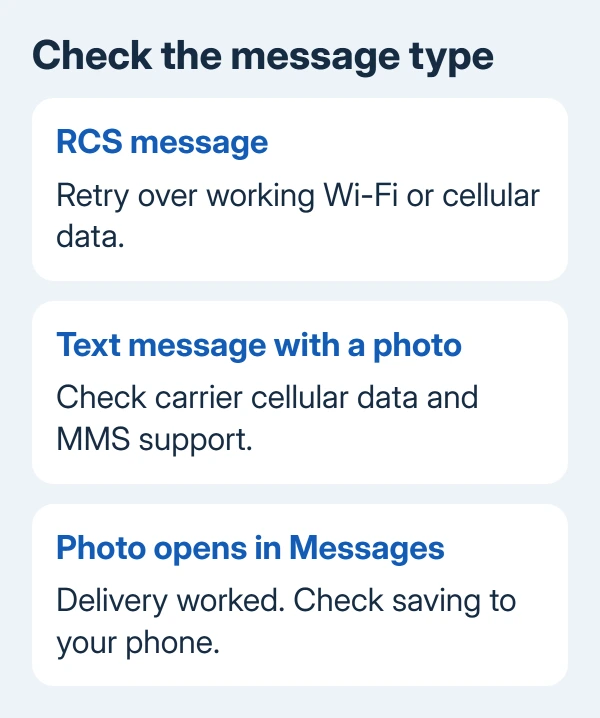
Look at the compose field in the conversation. RCS message identifies an RCS conversation; Text message means the conversation is using SMS or MMS. Picture messages in that second category need the MMS checks in the next section.
Then open Google Messages > profile picture > Messages settings > RCS chats. Some app versions call the section Chat features. Check the status too. The switch can be on even when RCS isn't working.
Connected means RCS is available with other people who have it enabled. Connecting means the phone number is being verified. Trouble connecting. Awaiting retry also points to verification rather than a particular photo file.
Google's RCS settings instructions explain these statuses and the resend options. Complete any phone-number verification the app requests, and check that the number belongs to the line you're using.
If the status is Connected, try another RCS contact. If pictures fail with just one person, ask them to check their connection too. If several contacts are affected, check your app, connection, and service next.
Don't repeatedly turn RCS off and on to force one attachment through. First check whether a new message reaches the same person. Changing the phone's RCS registration makes it harder to tell why that picture failed.
3. Use the MMS checks when the chat says Text message
Turn cellular data on and check that the line has service and a plan that supports MMS. A plain text can arrive even when pictures won't. Pictures use a different part of the carrier's messaging service.
On a Pixel, open Settings > Network & internet > SIMs and select the relevant line. On a Galaxy, use Settings > Connections > SIM manager. Check the line and cellular data selection, especially after changing SIMs or carriers.
Retry the picture with cellular data on. If it downloads, the problem was with the cellular data MMS needs rather than RCS. Check the message type when comparing it with a chat that works over Wi-Fi.
If MMS still fails, reset the carrier's access point settings to their defaults. These settings, called APNs, tell the phone how to reach cellular data and picture messaging. The menu depends on the phone and carrier.
On many Pixels, find Access Point Names within the selected SIM's settings. On many Galaxy phones, use Connections > Mobile networks > Access Point Names. Use Reset to default when available, then test another picture.
Check with work or carrier support before resetting APN values they supplied. I'd use the carrier's defaults before copying an unrelated network's settings. One carrier's configuration can be wrong for another.
4. Update Messages and check the phone's storage warning
Open Google Play, find Google Messages, and install an available update. Reopen the conversation afterward. Restart the phone if the app remains stuck, then ask for another fresh attachment.
Make sure you're updating the app you actually use. Two apps can appear as Messages: Google's app and Samsung's app. Their settings and updates differ. Google's RCS paths in this guide apply to Google Messages.
Check for a warning about insufficient storage. If Messages says it can't send or receive until space is available, open the phone's Settings > Storage and delete unwanted files before testing again.
Keep the conversation history while doing these checks. Deleting the chat removes the very attachment you're trying to recover and doesn't repair the connection. A factory reset is also too disruptive for a single failed attachment.
A photo visible in Messages has already arrived, even if Gallery doesn't show it. Open it and tap its save or download control. Look for the copy in your file or photo app; this is a saving problem rather than failed delivery.
5. Separate a broken group from a wider delivery failure
A member losing RCS can change a group's behavior. Replies may arrive as individual SMS or MMS conversations until their RCS connection returns. Read the compose label before treating a split group as missing photos.
Ask one member to send a picture directly to you, then compare the group. If the direct picture arrives, focus on the group or its members. You don't need to erase every message on your phone.
The controls for leaving an Android group chat also depend on RCS versus MMS. Starting a new group is a separate decision, so keep the existing history while checking delivery.
If RCS pictures still won't send or load, use Google Messages' Help & feedback option. Include your phone model, app version, carrier, RCS status, whether Wi-Fi and cellular data both failed, and whether every contact is affected.
If MMS pictures still fail, ask your carrier to check picture messaging on your line. Give support the time of a recent failed message and the receiving number so they can trace it.
The Short Version
Get the phone online, then check whether the chat uses RCS or MMS. Check RCS status, use carrier cellular data for MMS, and update Messages. If sending still fails, report the chat type and a recent failed transfer.
Checked November 12, 2026.