Before unplugging USB storage from Linux, use Eject, Safely Remove, or unmount its filesystems to stop Linux using them. Let Linux finish before you pull the cable. A Volume is busy message means something still has the drive open.
A mouse or keyboard doesn't need a disk-unmount step. A USB drive that disconnects by itself is a different problem: first protect its files, then check the connection instead of repeatedly forcing an eject.
In this guide
1. Eject the storage device from the file manager
Finish saving files and wait for any copy operation to complete. In Ubuntu's GNOME desktop, open Files, find the drive in the sidebar, and click its eject control. You can also right-click the drive and choose Eject.
The label varies between Linux desktops. Look for Eject, Unmount, or Safely Remove on the storage device you're using. Removing a folder bookmark from the sidebar doesn't unmount the drive, so check that you're acting on the device entry.
GNOME's safe-removal steps explain why: an application can still be using a drive after its window appears idle. Removing storage during that work can damage files.
Wait for ejecting to finish or for the desktop to say it's safe to unplug the drive. A copy progress window disappearing is useful, but ejecting asks Linux to finish using the device.
If the drive has several mounted volumes, unmount each one before disconnecting it. The terminal procedure later in this guide makes that easier to see when the desktop lists several entries for one USB disk.
2. Close what's keeping a busy volume open
Choose Cancel when the desktop reports Volume is busy. Save and close documents stored on the drive. Close the music player, video player, archive manager, or editor that was using it, then retry the eject.
A terminal can keep a drive busy simply by having its current directory inside that drive. In every terminal tab that was working there, run:
cd ~Close file-manager windows displaying the drive and wait for any backup or synchronization job to finish. Then use Eject again. If ejecting works now, an open file or a running job was keeping the drive busy.
Don't choose Eject Anyway while important files are open. GNOME warns that forcing removal can cause errors in the applications using them. Save and close that work instead of dismissing the busy message.
If the same message remains after you've closed the obvious programs, use the next steps to identify the correct mounted volume. Avoid guessing at a device name copied from an example.
3. Identify the drive before using terminal commands
Open a terminal and list the connected storage devices, including their model, size, connection type, and mount locations:
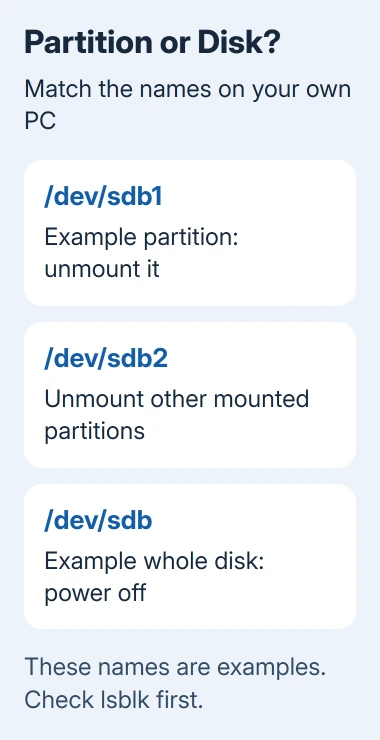
lsblk -o NAME,SIZE,MODEL,TRAN,MOUNTPOINTSMatch the USB drive by its capacity and model, then look at its child partitions. A disk might be named sdb, with mounted partitions sdb1 and sdb2. Those are examples; your system can assign different names.
The MOUNTPOINTS column shows the folders where you can access each filesystem's files. A blank entry means that item has no mount location listed. Check all the partitions belonging to the external disk, rather than only the first one.
The commands need different names for a whole disk and for one of its partitions. You'll unmount each mounted partition first, then ask Linux to power off the whole removable disk.
If you can't confidently match the device, return to the file manager and its named eject control. I'd rather spend another minute matching the label than issue a storage command against a guessed drive.
4. Unmount each partition and power off the USB disk
On a desktop using UDisks, unmount a mounted partition with this command, replacing /dev/sdb1 with the partition you identified:
udisksctl unmount -b /dev/sdb1Wait for the command to report success. Repeat it for any other mounted partitions on that same USB disk. If it reports the device is busy, return to the open-file checks instead of adding a force option.
Once every partition is unmounted, ask Linux to power off the whole disk:
udisksctl power-off -b /dev/sdbThe UDisks command reference explains that power-off checks whether the drive is in use and finishes writing pending data. For USB, it then disconnects the device from the system. The drive will usually disappear from the device list.
Powering off a multi-slot card reader can affect its other slots too. Finish work on the other cards before using that operation. A device's activity light isn't a substitute for a successful removal result.
Without udisksctl, use umount with the real mount path, for example sudo umount /media/yourname/USB. Replace that example path with yours. Avoid lazy or forced unmounting for ordinary removal.
5. Handle USB devices that aren't storage
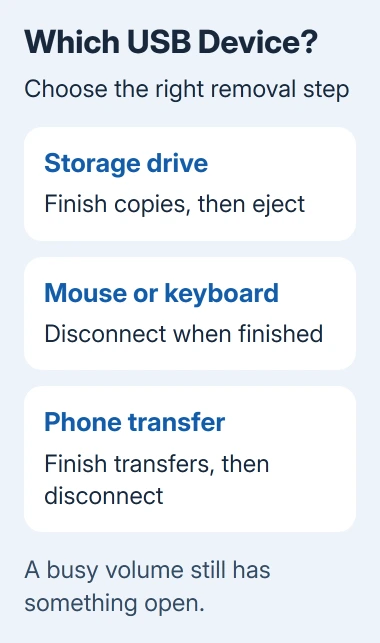
A mouse, keyboard, or ordinary USB headset doesn't have a mounted filesystem that needs unmounting. Finish its task, then disconnect it. Let a printer finish printing, and stop recording before removing a microphone.
For an attached headset that never produces audio, select its USB output in antiX before replacing the device.
A phone can expose file transfer without appearing as a normal disk partition. Finish the transfer and use the file manager's disconnect or eject action if it offers one. Don't invent a /dev/sd name for a device that isn't listed that way.
When the same storage drive is used on Windows, follow its safe hardware removal procedure there as well. Closing the Linux desktop's windows doesn't complete a pending operation on another computer.
6. Treat unexpected disconnects as a separate fault
If the disk vanishes during a copy, stop copying important files to it. Attach it to a direct computer port using a suitable data cable, avoiding the hub for that comparison. A powered enclosure also needs its correct power supply.
Test a different port and cable one at a time. If the drive stays connected after one change, that cable or port could be the problem. If it disconnects on another computer too, ask the enclosure or drive maker to check the hardware.
The USB disconnecting guide covers a Windows comparison when you're testing the same accessory there. Its Windows power settings don't apply to a Linux desktop.
For storage errors, give your distribution's support forum the model, desktop, removal message, and failed command. Preserve readable files first; the SSD health guide explains why repeated errors need attention.
The Short Version
Eject storage through the desktop, or identify its partitions and unmount them before powering off the USB disk. Close open files and terminal directories when a volume is busy. Unexpected disconnects need connection and hardware checks.
Checked November 12, 2026.