

OK Google, set up my device links your old Android phone to a new one during setup. If saying it opens a search or gets no response, open the Google app on the old phone and search for set up my device instead.
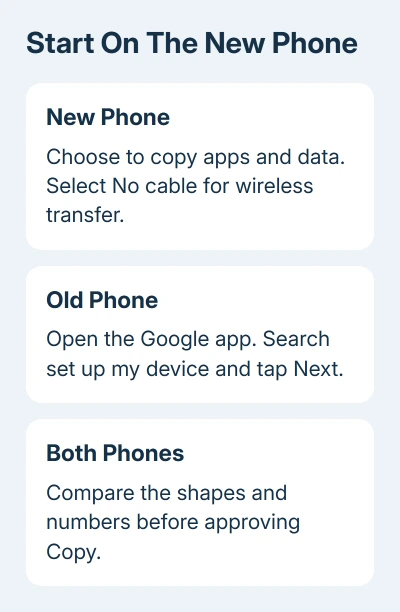
Start the new phone's setup first and choose to copy your apps and data. The old phone can then find it, check the matching shapes and numbers, and approve the transfer. A compatible cable is another supported way to move the same data.
In this guide
Prepare the phones for the move
Charge both phones and connect them to working Wi-Fi. Have your Google Account password and the old phone's screen-lock PIN ready. Setup can ask for both, and knowing one doesn't replace the other.
Check that the new phone has enough storage for what you're moving. If the old phone contains more data than the new one can hold, plan to select fewer items. A successful connection won't solve a storage shortage.
Google's Android transfer guide says cable and wireless copying support the same data. Some steps require Android 10 or later, and menus vary by manufacturer.
Samsung offers Smart Switch, while Pixel phones also have model-specific transfer instructions.
Keep the old phone unchanged while you check the replacement. Banking apps, authenticator apps, and other accounts can need their own sign-in or migration steps. Copying an app doesn't mean you'll already be signed in when you open it.
For the difference between a direct transfer and a saved account backup, the Android backup guide explains what is stored. A backup is especially useful when the old phone isn't available.
Start setup on the new Android phone
Turn on the new phone and tap Start. Choose the language and accessibility options you need, then connect to a network when prompted. Continue until setup offers to copy apps and data from another device.
Choose to copy rather than setting up without your old data. If setup first asks for a cable and you want a wireless transfer, tap No cable. At Transfer wirelessly, tap Next.
Leave the new phone on that setup screen. If you run the command on the old phone too soon, the new phone may not be ready to accept the connection.
Transfer during setup when possible, since some phones don't offer the option afterward. If setup is finished or the copy prompt is missing, check your phone maker's instructions for adding data afterward before considering a reset.
Search set up my device on the old phone
Unlock the old Android phone. Open the Google app and enter set up my device in its search field. This is the app with the Google G, rather than a search box inside an unrelated browser.
Tap Next in the setup flow. If Get started appears, tap Next there as well. Keep the new phone nearby and waiting in its transfer setup while the old phone searches for it.
When both phones show shapes and numbers, compare them before approving. They should match on the two phones you're transferring between. If they don't match, don't confirm that pairing.
On the old phone, continue with Next, then Copy, and enter its PIN when requested. Follow the new phone's prompts to access your Google Account, then select which apps and data to bring across.
The spoken command is a shortcut, not a transfer requirement. I'd use the typed search if voice control answers it as a general question. That avoids changing assistant settings during phone setup.
Use a cable when wireless setup won't connect
Return to the new phone's copy-data step and choose the cable route if you have a compatible cable or adapter. Connect the phones, unlock the old one, and follow the prompts shown on each screen.
Choose a data-capable cable. A cable that charges the phone but never produces a transfer prompt can still be unsuitable for copying. Check the connection and cable before assuming something is wrong with your old phone.
Cable and wireless transfers support the same data. A cable changes how the phones connect; it won't copy files or private app data that the transfer normally leaves out.
If neither route finds the old phone, note where setup stops and write down both phone models. Ask the new phone maker's transfer support about that pairing. Samsung Smart Switch and Pixel prompts need their own instructions.
Restore a backup when the old phone isn't available
During the new phone's copy step, choose the option for a cable that doesn't fit or an unavailable adapter when prompted. Use the Google Account holding your saved device backup.
Choose the right device backup if more than one is listed. Setup may request the old device's PIN to confirm access. Select the available data types, then tap Restore and let setup continue.
A missing backup can't be recreated without the original phone. Check the account and saved device name before assuming every copy is gone. Photos synced to Google Photos are separate from an individual device backup.
If pictures are missing after sign-in, the Google Photos backup checks explain how to check the account and upload state. Don't delete the remaining copy while sorting out which account holds your pictures.
Check the items that don't transfer automatically
Open your contacts, messages, photos, and a few important apps once setup says copying is complete. Apps can still be downloading, so check the Play Store's progress before deciding that a missing icon means transfer failed.
The general transfer list excludes Downloads such as PDFs, hidden-folder media, apps outside Google Play, and data from apps that don't use Android backup. You'll also need to reconnect non-Google accounts and move their data separately.
Move needed Downloads separately and reconnect other accounts. For WhatsApp, prepare its backup before moving, then follow its restore flow on the replacement. Ordinary message copying doesn't include those chats automatically.
For missing app content, keep the old phone and give that app's support the transfer error. For copying that never finishes, contact the replacement phone maker's setup support. Name the connection method that failed.
The Short Version
Open the new phone's copy-data screen first. In the old phone's Google app, enter set up my device. Compare the matching symbols and approve Copy. A cable or saved backup offers another route. Check important data afterward.
Checked November 12, 2026.
 If you have any business, I can build it online






