

A Dell laptop microphone can go silent when it's muted, Windows selects a headset, or an app lacks access. Unmute it and choose the laptop's microphone array in Sound settings. A missing input needs Dell's audio-driver and hardware checks.
If your voice records clearly in Windows but calls are silent, check the calling app. If Windows can't find the microphone at all, check its drivers and hardware. Choose the steps for the result on your screen.
In this guide
1. Unmute the Dell microphone and choose its input
Disconnect any dock, USB headset, or Bluetooth headset while checking the built-in mic. That keeps Windows from recording through a headset somewhere else while you're speaking toward the laptop.
Look for a crossed-out microphone symbol on the keyboard. The key's position and whether it needs Fn vary by Dell model. Follow your laptop's markings instead of guessing a function-key number.
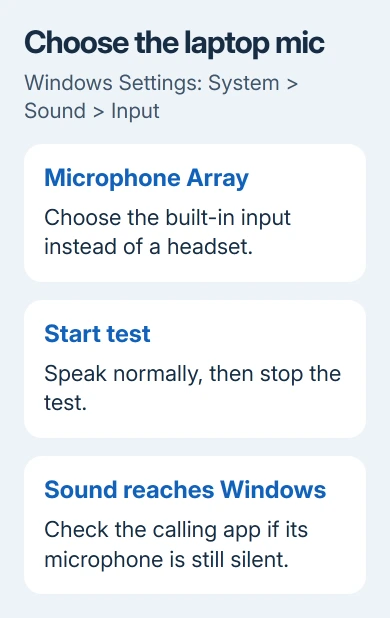
Open Start > Settings > System > Sound. Under Input, select the built-in microphone, often labeled Microphone Array. A Realtek or Intel name can appear alongside it; choose your laptop's input rather than a disconnected headset.
On Windows 11, open the input's properties and choose Start test. Speak, select Stop test, then use Play if available. Windows 10 shows Test your microphone in the Input section; speak and watch its meter.
A meter that reacts or a clear recording means sound reaches Windows. Check the calling app if calls stay silent; check access and levels if the meter stays still. I'd start here before reinstalling audio software.
2. Allow microphone access in Windows
For Windows 11, use Settings > Privacy & security > Microphone. Enable Microphone access, then Let apps access your microphone. Switch on the affected app's individual permission if listed.
For Windows 10, use Settings > Privacy > Microphone. Choose Change under Allow access to the microphone on this device when access is disabled. Also enable Allow apps to access your microphone.
For calling software installed as a desktop app, enable desktop-app microphone access in either Windows version. These apps don't all have their own switches, so a missing app name doesn't tell you whether access is blocked.
Close and reopen the calling app after changing access. The Windows microphone repair steps cover these separate permission controls. Ask IT about a switch locked by your organization's policy.
3. Match the calling app to the working microphone
In the calling app's device or audio settings, select the same microphone that recorded your voice in Windows. Check the app's mute control. Some programs keep using a headset even after you change the Windows default.
For example, use Settings > Audio > Microphone in Zoom. Select your laptop input and use its microphone test. Other apps label this area Devices, Audio, or Voice; choose your microphone by name so the app isn't still using an old device.
If the app test works but other people still can't hear you, check the mute button in the actual meeting. If another app records your voice clearly, check that meeting or service next. The Dell microphone is picking up sound.
For a call made in a browser, check the site's microphone permission as well as Windows access. Compare the results with a Windows microphone recording test when only web calls fail.
4. Adjust quiet or distorted input
Return to the microphone's properties under Settings > System > Sound. Increase Input volume a little at a time while recording a short sample. A faint voice needs more input, while crackling or harsh speech can get worse at maximum volume.
If the driver offers Audio enhancements, switch them off temporarily and compare another sample. These effects process your voice and can sometimes cause low volume or dropouts. Restore the setting if disabling it makes no improvement.
Some drivers offer Microphone Boost in the classic microphone properties, under Levels. That control isn't available on every Dell input. Don't spend time searching for it if your driver doesn't offer it.
A useful result is clear speech at a normal distance, without needing to shout. If every recording remains silent, more amplification won't solve a missing signal. Continue with the Dell driver package.
5. Restore the drivers matched to your Dell model
Use your Dell Service Tag to identify the laptop on Drivers & Downloads. It's more reliable than choosing a vaguely similar Inspiron, Latitude, or XPS model. Select the Windows version actually installed on the laptop.
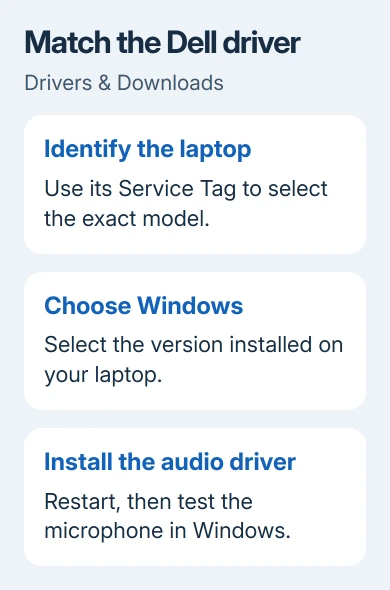
Install the audio download listed for your exact model. Restart and repeat the input test. If SupportAssist is already on the laptop, you can also use its update scan to locate the matching packages.
If the mic stopped working right after an audio update, open Device Manager > Sound, video and game controllers. Open the device's Properties > Driver tab and select Roll Back Driver if available.
When rollback is grayed out, an earlier driver isn't available through that button. Install the supported Dell download instead. The general Windows microphone guide covers missing recording devices too.
6. Check Dell's chipset updates and test the hardware
Dell recommends checking chipset and BIOS updates after audio-driver repair fails. Chipset software helps Windows communicate with internal components; the BIOS handles hardware startup before Windows loads.
Look in the model's BIOS and Chipset download categories. For a BIOS update, connect AC power and follow its instructions, including BitLocker preparation. Don't interrupt the update before it finishes.
Run the microphone diagnostic through SupportAssist. Follow its recording prompts and save the result. Send any microphone failure result to Dell; the diagnostic result helps them assess the microphone beyond a single silent meeting.
Ask Dell support about model-specific firmware audio settings and microphone service if the internal input stays missing. Send your Service Tag, Windows and audio-driver versions, diagnostic result, and whether a USB mic works.
That combination helps support decide whether to repair Windows audio, change a model-specific setting, or arrange service for the built-in microphone. A working USB headset can keep calls going while the internal input is repaired.
The Short Version
Unmute the mic, select the laptop input, and test it in Windows. Fix app access when that test works. A missing or silent internal input needs the correct Dell audio package, then chipset checks and a SupportAssist microphone diagnostic.
Checked November 13, 2026.
 If you have any business, I can build it online






