A Maxtor OneTouch 4 can still appear as a USB disk even when its old backup software won't run. Check whether Windows sees the drive first; a working disk with a missing backup button needs different help from a drive that never appears.
A OneTouch 4 protected with DrivePass is another case. Moving it to a new computer can leave its contents locked, even though the USB connection works. Start by checking the connection, then follow the steps for what Windows shows.
In this guide
1. Check power and USB before looking for software
Connect the drive directly to the PC, without a USB hub or dock. Try another USB port and, if available, a compatible replacement data cable. A damaged cable can carry power while failing to make a reliable data connection.
The desktop OneTouch 4 uses an external power adapter. Confirm that its adapter is connected and try a wall outlet directly. The smaller OneTouch 4 Mini is a different model; don't look for a desktop power socket on it.
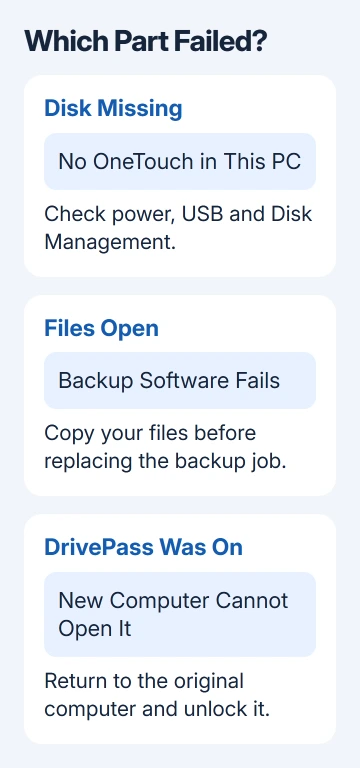
Check the label before replacing a power supply. The connector's shape doesn't tell you whether an adapter supplies the required power. Use a replacement specified for that exact drive model.
Connect the OneTouch to another available PC, too. If the drive appears there, copy your files while you can. The first PC's USB connection or software then needs attention.
If the drive repeatedly disconnects or makes unusual mechanical sounds, stop trying long backup jobs. I'd protect the files before spending time getting the old OneTouch button working again.
2. Find out whether Windows detects the disk
Press Windows+E, select This PC, and look for the drive under Devices and drives. Open it if it appears. If your folders open, Windows can read the drive even if Maxtor Manager reports a problem.
For a missing drive, open Disk Management from the Start button's right-click menu. Give the list time to load. Match the disk's capacity to the label on your OneTouch so you don't select an internal disk by mistake.
Seagate explains that a missing disk and an unreadable volume need different USB drive checks. Read the disk's status before installing more software.
Look for these different results:
- A normal data volume with a drive letter: return to This PC and try opening that letter.
- A normal data volume without a letter: check the letter assignment in the next step.
- RAW, Unallocated, or Not Initialized: Windows can't read the drive's existing storage normally.
- No matching disk: return to power, cable and another-computer checks rather than changing backup settings.
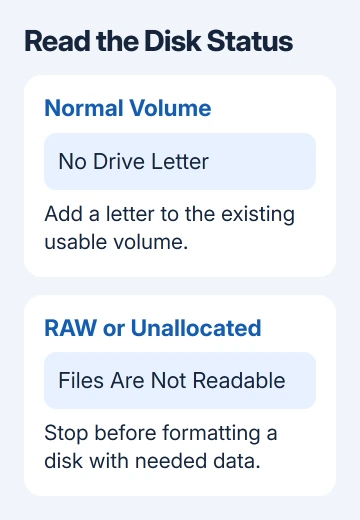
Don't initialize or format a disk holding files you need. Those actions prepare storage for use; they aren't a way to recover an existing backup. Cancel an initialization prompt until you've decided how to recover the data.
If other external disks are missing too, the external drive detection guide covers the wider Windows problem. Keep track of whether this OneTouch is the only disk affected.
3. Give a readable volume its missing drive letter
In Disk Management, right-click the OneTouch's existing data volume. Select Change Drive Letter and Paths from that menu. If it has no letter, select Add, choose an available letter, and confirm with OK.
Open This PC again and check the new letter. If your folders appear, copy a small file to the computer and open that copy. That checks whether the file itself opens, rather than just whether Windows lists the drive.
Adding a letter only helps an existing usable volume, the area that holds your files. If Change Drive Letter and Paths is unavailable or the area is unallocated, this won't help. Don't create a new volume over the old data.
A drive that appears under a different letter can also confuse an old backup job. Once the files are accessible, check the destination in the backup program instead of assuming the original job still points to this disk.
4. Deal with DrivePass on the original computer
The OneTouch 4 Plus and OneTouch 4 Mini offered DrivePass, which password-protects access to the drive. This is separate from Maxtor Encryption, which protects files placed inside its encrypted folder.
If the drive stopped opening after you moved it to another PC, reconnect it to the original computer where Maxtor Manager worked. Unlock it there with your password, then temporarily remove DrivePass before moving it again.
The OneTouch 4 FAQ gives that route for a locked drive moved to a system without Maxtor Manager. It doesn't mean every missing OneTouch disk is password-locked.
Copy important files while that original setup still works. Don't wait to find replacements for every part of the old software before making another copy.
The FAQ offers no way to recover a forgotten DrivePass or encryption password. Erasing the drive would remove the protected data rather than recover it. Stop there if the only copy is inside the locked drive.
5. Replace the backup job when the disk itself works
If you can browse and copy ordinary files, a failed Maxtor Manager installation doesn't make the disk unusable. You can normally use the drive without the bundled backup program, unless a feature such as its security lock blocks access.
Use File Explorer to copy the folders you need onto another disk first. Open a few copied documents or photos from their new location before changing the old backup setup.
For new backups, open Control Panel > System and Security > File History. Use Select drive to choose the accessible external disk, then turn on File History.
File History makes its own backups. It doesn't convert an old SafetyDrill image or make the physical OneTouch button control the new job. Keep any older backup files until you've recovered the material you need from them.
If the replacement backup won't run, use the Windows backup guide to check the backup method and destination. Don't erase the old set simply because a new program can't open it.
6. Stop at recovery when the drive won't stay readable
If neither computer detects the disk after cable and power checks, have its hardware checked. If it appears as RAW or unallocated, choose a recovery approach before using the disk again.
Give Seagate support the exact OneTouch model, power-light behavior, Disk Management result and second-PC result. Say whether DrivePass was enabled and whether another copy of the files exists.
For irreplaceable files, ask a recovery service to assess the disk before running repair tools. If the original computer still works or another backup opens, recover your files there rather than repeatedly trying the failing drive.
The Short Version
Check disk access before repairing Maxtor Manager. Fix power, USB or a missing letter as appropriate; unlock DrivePass on the original PC. A readable disk can hold new backups without reviving the old software.
Checked November 13, 2026.