Switch the Keychron keyboard to BT, then hold Fn+1 until its Bluetooth indicator flashes. Choose the keyboard in your computer's Bluetooth device list. Use the number-row 1, not the F1 function key.
Some models use different pairing keys, including the original K6 and K12. Check the model name before copying a shortcut, especially if the keyboard has two Fn keys or a separate 2.4 GHz wireless mode.
In this guide
Put the keyboard in the right wireless mode
Find the connection switch on the keyboard and select BT or Bluetooth. Cable is the wired connection, and 2.4G, if present, uses the USB receiver. Neither setting starts Bluetooth pairing.
Set the operating-system switch to the computer you're using, such as Mac/iOS or Win/Android on models with those labels. This helps the modifier and function keys behave as expected after connection.
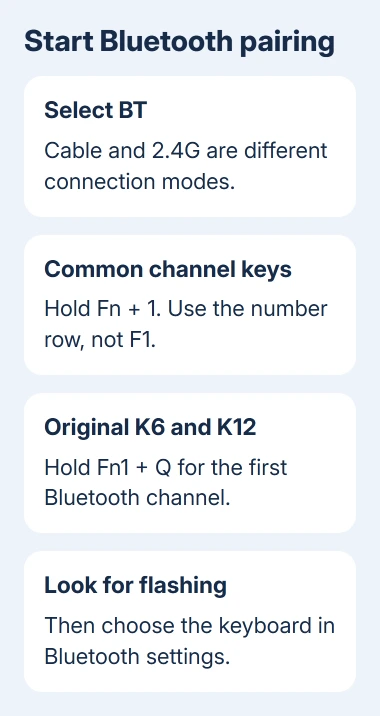
Keychron's Bluetooth setup instructions recommend starting with the BT switch and a held pairing shortcut. A quick tap selects a saved channel; it doesn't make the keyboard visible to devices looking to pair.
Charge the keyboard if it won't power on or stay on. Keep its model manual handy for the charging indicator; the color and placement of the light aren't identical across the range.
Hold the pairing keys for your model
On models using the common numbered channels, hold Fn+1 until the Bluetooth light flashes. Then begin the computer's device search while the keyboard is discoverable. Select the name matching your keyboard model.
For the original K6 and K12, the Bluetooth channels use Fn1+Q, Fn1+W, and Fn1+E. Hold the appropriate combination to pair. Don't assume a K6 Pro or another similarly named version has the original model's key map.
The B1 Pro uses a long press of Fn+1 for its first Bluetooth pairing channel, with Fn+2 and Fn+3 for the other channels. Its number-row shortcut is separate from the dedicated function keys.
For any other model, follow the pairing shortcut in its exact manual if it differs. The flashing light tells you pairing has started; holding an unrelated shortcut longer won't make the computer discover the keyboard.
If the light never flashes, check the BT switch and the correct Fn key again. If it flashes but the computer can't see the keyboard, leave it in pairing mode and continue with the operating-system steps.
Pair through Windows settings
On Windows 11, open Start > Settings > Bluetooth & devices. Turn on Bluetooth, select Add device, then choose Bluetooth. Wait for the Keychron model name and select it.
On Windows 10, open Start > Settings > Devices > Bluetooth & other devices. Turn on Bluetooth, choose Add Bluetooth or other device, then select Bluetooth and the keyboard.
If Windows displays a pairing code, follow the on-screen request using the Keychron keyboard and press Enter when instructed. Keep that window open until Windows reports that the device is connected.
The Windows Bluetooth pairing instructions cover both versions. If you can't find Bluetooth itself, the computer needs a working Bluetooth adapter before it can discover the keyboard.
Try typing a sentence into Notepad. Then test Shift and a familiar shortcut. Typing successfully confirms the connection; a swapped Command or Windows key points you back to the keyboard's operating-system switch.
For a Windows connection that disappears repeatedly, use the Bluetooth disconnect checks after the initial pairing succeeds. Repeating discovery won't fix an adapter that keeps dropping connected devices.
Connect from the Mac's Bluetooth settings
For macOS Ventura 13 onward, go to Apple menu > System Settings > Bluetooth. With Bluetooth on and the keyboard's pairing light flashing, find it under nearby devices and choose Connect.
For the older System Preferences layout, use Apple menu > System Preferences > Bluetooth instead. Select your keyboard from the discovered devices, then follow the Mac's pairing request.
Test in TextEdit once connected. Use a built-in or wired keyboard if the Mac needs a password before Bluetooth is available. A keyboard that pairs after login won't necessarily work at the startup unlock screen.
If the keyboard works after login but not during startup, the Mac Bluetooth keyboard login guide covers that particular pattern. Don't reset an otherwise working keyboard just because the pre-login screen behaves differently.
Keep separate channels for separate devices
For a model with three numbered Bluetooth channels, pair the first computer using a held Fn+1. Pair another device on Fn+2, and a third on Fn+3, using that device's Bluetooth settings each time.
After pairing, a short press of the matching channel shortcut switches between saved devices. On the original K6 and K12, use their Q, W, and E channel combinations instead of the number-row shortcuts.
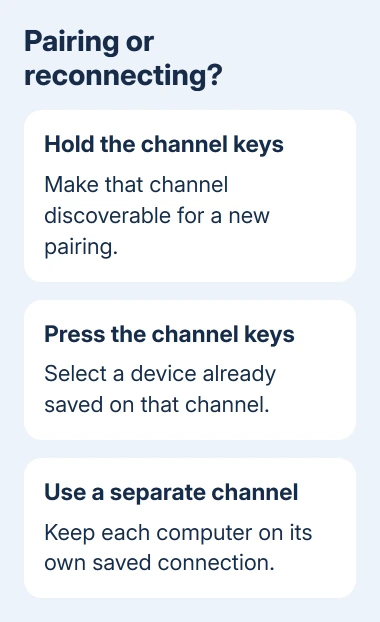
Give each device its own channel so switching remains predictable. If the keyboard reconnects to a different computer, check the selected channel before deleting its pairing records on every device.
This also helps when the keyboard appears connected but letters reach the wrong screen. The selected Bluetooth channel chooses the destination; the Mac/Windows switch changes key behavior rather than the paired device.
Recover a pairing that won't complete
Remove the old keyboard entry from the computer's Bluetooth list. Hold the pairing shortcut to make the keyboard visible again, then reconnect. A saved entry can remain visible even though a fresh pairing is needed.
I'd try another supported channel before resetting the keyboard. If another phone or computer connects on that channel, check the failing computer's Bluetooth adapter and settings before replacing the keyboard.
Restart the keyboard and computer if discovery still fails. Use a wired connection for essential work while checking the wireless problem. This keeps you able to enter passwords without repeatedly interrupting setup.
Leave factory resets and firmware changes until you've checked the exact model's instructions. Keychron models don't all share the same firmware or reset procedure, so a generic shortcut or download is a poor next step.
If it still won't pair, contact support@keychron.com with the order number, order email, exact model, operating system, plus a brief video of the BT switch position and flashing indicator. Include whether another device could connect.
The Short Version
Select BT and hold your model's pairing keys. Add the discovered keyboard through the computer's Bluetooth controls. Give devices separate channels: a short press selects a saved device, while holding the keys starts pairing.
Checked November 13, 2026.