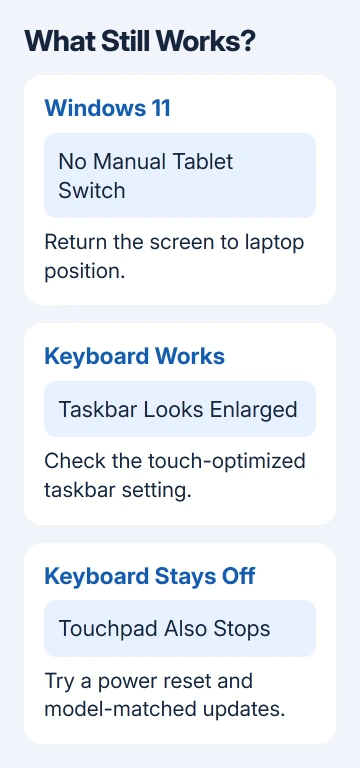
Windows 11 takes an HP OmniBook convertible out of tablet mode when it detects laptop position or an attached keyboard. Bring the display back to a typing angle and restart first; Windows 11 has no manual Tablet mode switch.
An enlarged taskbar by itself is different from a built-in keyboard and touchpad that stop responding. Check which behavior you're seeing before changing drivers: the screen layout can be wrong while the keyboard still works normally.
In this guide
1. Return the screen to its normal laptop position
Set the OmniBook on a firm surface and bring its screen back to an ordinary typing angle. On a convertible, the keyboard can be disabled when the screen is folded back for tablet use. Don't force the hinge beyond its normal movement.
Type a short line in Notepad, then check pointer movement using the touchpad. If both return when the screen comes forward, the computer was responding to its physical position rather than losing the keyboard driver.
If this model has a detachable keyboard, reseat its connection. For a conventional laptop without a folding screen, skip the hinge movement; OmniBook covers several kinds of computer, not just convertibles.
Connect a USB keyboard or mouse if the built-in controls remain unavailable. That lets you navigate the next checks. An external keyboard working doesn't confirm that the internal keyboard or position sensor is healthy.
Save open work and select Start > Power > Restart. Check the built-in controls again after signing in with the screen still in its normal laptop position.
Microsoft's tablet-mode instructions confirm that Windows 11 handles this automatically. Advice to find a Tablet mode tile applies to Windows 10, not a missing Windows 11 control.
2. Change the taskbar setting if only its size is wrong
If typing and the touchpad work, check whether it's just the larger taskbar making the laptop feel stuck in tablet mode. On supported touch-capable Windows 11 devices, open Settings > Personalization > Taskbar > Taskbar behaviors.
Look for Optimize taskbar for touch interactions when this device is used as a tablet. Uncheck that option to keep the ordinary taskbar layout. This control may not appear on every device or Windows build.
Changing the taskbar doesn't repair a keyboard that Windows thinks is folded away. If the controls remain dead, continue with the power and device checks rather than repeatedly changing display size.
The touch keyboard is another separate feature. If it keeps appearing while a physical keyboard works, the touch-keyboard startup guide explains its settings without disabling the touchscreen.
3. Try a power reset for controls that stay unavailable
A power reset can clear a temporary hardware problem without erasing your personal files. It is different from Reset this PC, which starts a Windows recovery process. Save open files, then shut the computer down before starting.
Disconnect the AC adapter and nonessential accessories, including USB disks, docks and memory cards. With the notebook off and the adapter disconnected, hold its power button for approximately 15 seconds.
Reconnect the adapter, start the computer, and test it in laptop position before reconnecting the dock. These are HP's general notebook power-reset steps. If your model's service instructions give a different sequence, follow those.
Leave the case closed and its internal battery connected throughout this procedure. You don't need to take the laptop apart for this reset.
When the controls work again, add each accessory separately and retest after every connection. If they fail as soon as you move the screen, note the angle and behavior for support rather than treating a restart as a lasting fix.
4. Install the updates meant for this exact OmniBook
Open Settings > Windows Update, choose Check for updates, and install the available updates. Then open Advanced options > Optional updates and check whether a relevant driver update is offered.
Driver names differ between models. Don't assume an Intel sensor package belongs on a Snapdragon OmniBook, or that every OmniBook uses the same keyboard, touchpad and position-detection hardware.
For a supported Intel or AMD model with HP Support Assistant installed, open the app and find your computer on My Dashboard. Select Updates, let it check, then install the appropriate updates it offers for that device.
HP Support Assistant doesn't support ARM-based devices or Windows in S mode. On those systems, use Windows Update and ask HP for the exact model's supported update route rather than trying to make that app run.
Keep the charger attached during a BIOS update and let it finish without interruption. BIOS is the computer's startup firmware; a package for a similar-looking OmniBook is not a substitute for the correct model's update.
Restart when prompted after installing updates, then test the keyboard and touchpad in laptop position. Record which update changed the behavior if the problem returns later.
5. Check the device status before removing anything
Open Device Manager by right-clicking the Start button. Look under Keyboards, Human Interface Devices and any sensor-related category present on the machine. Open an entry with a warning symbol and read Device status.
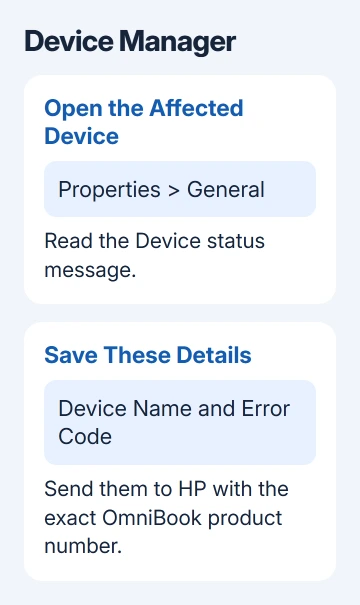
I'd save the full device name and error code before changing that device's driver. The name and code let support check that device and its driver instead of focusing on the taskbar.
Don't remove every HID device or disable every sensor. HID means Human Interface Device, a category that can include several input controls. Removing the wrong one can take away the touchscreen you're using to navigate.
For a problem affecting only the touchpad while typing works, use the touchpad troubleshooting guide. When only one control fails, focus on that device rather than changing settings for the whole convertible.
6. Ask for a keyboard and position-sensor assessment
If the keyboard and touchpad stay disabled after the position, power and update checks, give HP support your product number and Windows version. Include whether an external keyboard works and whether screen movement changes the failure.
Ask support to check screen-position detection along with the built-in keyboard and touchpad. Even if the keyboard works in a startup menu, a position signal can disable it inside Windows. That still needs checking.
On an older HP running Windows 10, turn Tablet mode off in Action Center. Its Settings > System > Tablet controls differ from Windows 11. Keep a modern OmniBook on its supported system; that older switch doesn't apply to it.
Avoid registry recipes that claim to add a permanent Windows 11 tablet-mode switch. They don't repair a faulty hinge sensor or supply a missing model-specific driver. Ask HP to assess it under warranty if the built-in controls keep failing.
The Short Version
Start in laptop position and restart. Windows 11 manages tablet behavior automatically; taskbar size and keyboard pop-ups have separate controls. Try a power reset and matching updates, then ask HP to assess input or position detection.
Checked November 13, 2026.