

Press Ctrl+X to cut selected text or files, then Ctrl+V to paste them where you want them on a Windows computer. Use Ctrl+C instead when the original should stay in place.
The important difference is what you've selected: words inside a document move within that document, while a file selected in File Explorer moves between folders. Clicking the destination before pasting keeps the move in the right place.
In this guide
Select the words or files you want to move
For text, click inside the document, message or other editable field. Highlight the words by dragging across them. To select everything in that field or document, press Ctrl+A while the typing cursor is there.
For files, press Windows+E to open File Explorer. Open the folder holding the items and click a file once. Its name or icon should become selected; double-clicking usually opens it instead.
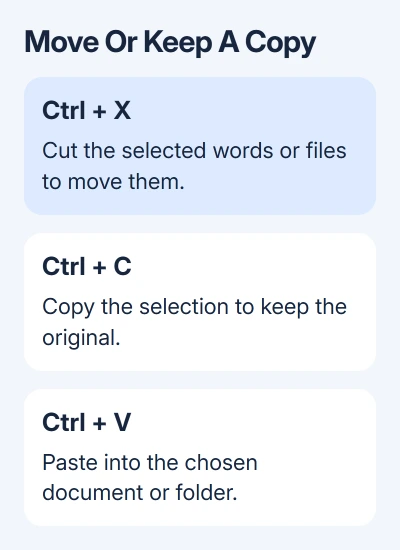
Hold Ctrl while clicking additional files to select separate items. For a group of files listed together, select the first file, hold Shift, and select the last. Check the highlighted items before using Cut.
Microsoft's Windows keyboard reference lists Ctrl+X, Ctrl+C and Ctrl+V for these commands.
The shortcuts work in Windows 10 and Windows 11, although an app can limit what it lets you move.
A regular webpage usually lets you copy its words but doesn't let you cut them away. Use Copy for text you're reading on a site. Use Cut in content you can edit, such as an unfinished email or a document you own.
Move text inside a document or between apps
With the words selected, press Ctrl+X. They disappear from the editable source and go onto the clipboard, the temporary place Windows keeps content ready to paste.
Click the destination so its text cursor appears where the words should go. Press Ctrl+V. The text should appear at that cursor and disappear from its original position.
For a move between apps, cut in the first app, switch to the second, and click its editable area before pasting. A blank part of an app window isn't necessarily somewhere text can be entered.
For example, cut a paragraph in Word, open an email draft, and click inside the message body before pasting. Clicking the subject field instead puts the paragraph there. It's easy to click the wrong field when switching windows quickly.
If the paste lands in the wrong place, press Ctrl+Z in that destination app to undo it. Check the original document too before closing anything, especially if you moved text between two programs.
I'd use Copy for an important passage moving between unfamiliar apps. After checking that every word arrived correctly, delete the source passage if you intended a move.
Move files to another folder
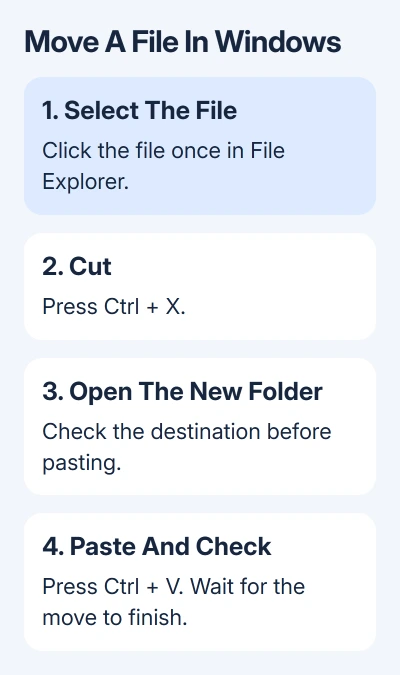
In File Explorer, highlight the items to move, then use Ctrl+X. Open the destination folder, then press Ctrl+V. Wait for any transfer window to finish before checking the new location.
A successful move leaves the files in the destination and removes them from the source folder. Open an important moved document from its new folder to confirm that you've moved the actual file you intended.
If Windows reports a matching filename at the destination, read its choices before continuing. Replace can overwrite the destination copy. Keep both versions or cancel when you're unsure which document contains the latest work.
Moving onto a USB drive can take longer than rearranging files inside one drive. Leave the drive connected until the operation finishes. If the progress window is still running, the drive isn't ready to disconnect.
To cancel before pasting, press Esc in File Explorer. If your aim is to put another copy on a USB drive while keeping the computer's original, start with Ctrl+C, not Cut.
Moving a desktop shortcut only moves that shortcut. It doesn't relocate the app or its documents. Likewise, moving a document file changes its folder, while cutting words inside that document changes its contents.
Use the mouse or touch controls instead
Right-click selected text and choose Cut, then right-click the destination and choose Paste. In some apps, those commands live in an Edit menu or a ribbon instead of the right-click menu.
In Windows 11 File Explorer, Cut, Copy and Paste can appear as icons in the command bar and context menu. Hover briefly to display the command name, then choose the matching icon.
In Windows 10 File Explorer, the Home tab provides the clipboard commands. The right-click menu also offers the named commands. Either way moves the files just as the keyboard shortcuts do.
For touch input, a long press on the selected item opens its context menu. Text selection handles let you adjust the words first. Choose the command only after the selection covers the content you actually want.
On a different computer, the Chromebook shortcuts explain its clipboard menu. Mac file moves use another combination.
Fix a missing Cut command or an empty paste
When Cut is unavailable, check whether the content is editable. A received email, protected document, or ordinary webpage can allow Copy while preventing you from removing the original words.
When Paste is unavailable, copy a short piece of plain text again and click inside an editable field. If that works, the earlier selection or destination didn't support the content you were trying to paste.
A file can't be pasted into a plain text field as a folder move. Similarly, copying words doesn't create a new document file in File Explorer. Open an app that accepts those words, paste them there, and save the document.
To look for previously copied text, press Windows+V. Clipboard history may ask you to turn it on. It isn't a history of File Explorer moves, and enabling it doesn't bring back something copied before it was enabled.
The clipboard help page explains its limits.
Clipboard history holds text, HTML (web content) and bitmap images, with a 4MB limit per item and space for 25 entries.
If shortcuts fail in just one program, use its menu and check its editing permissions. If File Explorer reports an error during a move, leave both folders as they are. Give support the two folder paths along with the complete error.
The Short Version
Highlight what should move, cut with Ctrl+X, then paste with Ctrl+V at its new location. Use Ctrl+C to keep the original. Confirm where the words or files arrived before closing documents or disconnecting a drive.
Checked November 13, 2026.
 If you have any business, I can build it online






