

A frozen Dell laptop screen can be one stuck app, a display problem, or Windows no longer responding. Try Ctrl+Alt+Delete first. If that screen opens, close the failed app instead of forcing the whole laptop off.
When no keys respond, a forced shutdown can get the laptop responding again, but repeat freezes need another check. Dell's built-in hardware tests run before Windows loads, helping you decide whether to repair software or arrange service.
In this guide
1. Close the app if Windows still responds
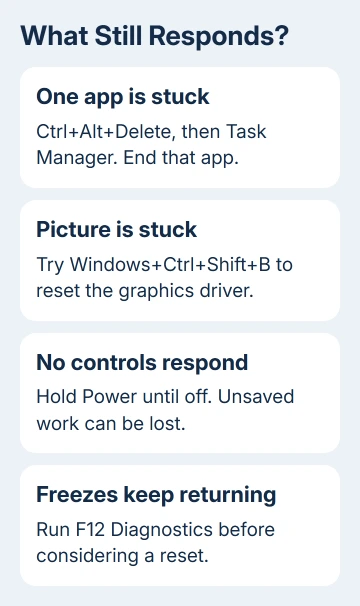
Press Ctrl+Alt+Delete and wait for the security screen. If it appears, choose Task Manager. On Windows 11, open Processes from its navigation; on Windows 10, select More details if necessary, then the Processes tab.
Select the app that stopped responding and choose End task. This closes that app without shutting down the rest of Windows. Unsaved work inside it can be lost, so save anything still responding before ending it.
Move the pointer and switch to another application afterward. If the desktop works again, reopen the failed program, check whether it has an update, then retry the task that froze it.
If an app keeps hanging on one file, focus on that app; if unrelated programs hang too, check the system. Try another file in that app and keep the result for its support team.
If Ctrl+Alt+Delete never appears, continue with the display check. A mouse pointer that moves doesn't always mean the rest of Windows can respond, but it gives you another useful detail to report.
2. Try the graphics shortcut for a stuck picture
Press Windows+Ctrl+Shift+B once. This resets the graphics driver, which handles the picture on your screen. Windows may beep and briefly flicker while the display refreshes.
Try this when the picture stops changing while sound continues, or the problem began while connecting a monitor. It won't recover an unsaved document from an application that has crashed.
Microsoft recommends this shortcut in its blank-screen troubleshooting. If the picture returns, save your work and note whether a dock, monitor, game, or video was involved.
If the screen has lines, flickers, or shows damaged colors rather than a motionless normal picture, use the Dell display test. That checks the panel instead of assuming every screen fault is a Windows freeze.
If neither the graphics shortcut nor the security screen works, move to one forced shutdown. Don't keep sending keyboard shortcuts while the machine remains completely unresponsive.
3. Force the laptop off only when normal control is gone
Press and hold the laptop's power button. Keep it held until power goes off. Release it once the screen and power indicators show it's off. A normal press afterward starts the laptop again.
A forced shutdown loses unsaved work and can interrupt disk activity. Don't do this during a BIOS update, and leave a visible Windows update or installation progress screen to finish instead of applying the frozen-desktop procedure.
After Windows starts, check whether the app offers document recovery. Save recovered files before returning to the task that caused the freeze. A successful restart restores control, but doesn't explain why the freeze happened.
Shut down normally once you have saved the work. Disconnect docks, USB storage, printers, and other optional accessories, then start the laptop without them. Keep the charger connected as needed.
Use it in the same way that previously caused the hang. If it stays responsive, add accessories back individually. A freeze that returns with one dock or device gives you a specific connection or driver to check.
Don't open the laptop to remove a sealed battery for this step. The accessory check only needs external devices disconnected; battery-removal procedures differ between Dell models.
4. Run the hardware test from the Dell startup menu
Restart the laptop. At the Dell logo, tap F12 repeatedly to open the One Time Boot Menu, then select Diagnostics. Follow any on-screen questions while the test runs.
Dell says its preboot diagnostic procedure runs before Windows. Record the error code, validation code, and Service Tag if it reports a failure.
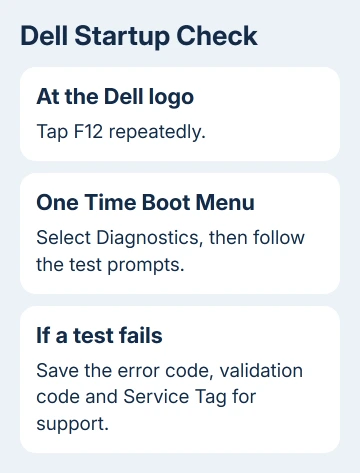
A memory or storage error should go to Dell support with those codes. Don't factory-reset Windows to repair a drive or memory component that failed its hardware test.
Passing the quick test doesn't rule out every fault that comes and goes. If the laptop freezes during diagnostics, tell support that it happens before Windows loads. They'll need that detail when deciding how to repair it.
If tests complete without errors and freezing happens only in Windows, continue with software checks. I'd run this test before a reset because it can catch a hardware problem without deleting your files.
5. Repair recurring software and heat problems
Open Settings > Windows Update on Windows 11. On Windows 10, use Settings > Update & Security > Windows Update. Apply the offered packages, then complete their restart prompts.
Use the installed SupportAssist app, if available, to check Dell's driver updates for the laptop. Check that the offered drivers match your laptop model. For a graphics-related hang, pay particular attention to the display driver.
If a BIOS update is offered, follow its power and recovery-key instructions before starting. If the laptop keeps losing power unexpectedly, ask support how to update the BIOS safely before starting.
If freezing started after installing an application, update or uninstall it, then repeat the task that froze the laptop. Avoid changing several unrelated programs at once, because you'll lose track of which change helped.
Keep the vents clear while the laptop sits on a hard surface. A freeze during games or video work, accompanied by unusual heat or fan behavior, needs cooling checks alongside software checks. Don't block the vents with bedding.
If normal Windows keeps hanging, use Shift while choosing Restart, then Troubleshoot > Advanced options > Startup Settings > Restart. Choose 4 for Safe Mode. An encrypted device can ask for its BitLocker recovery key, so get that key first.
Safe Mode loads fewer drivers and services. If it runs without freezing there, check the software loaded during normal startup. The result alone won't name the cause; the random-freezing guide explains how to use it.
Tell Dell support your model, test results, when the freezes happen, connected accessories, and how it runs in Safe Mode. Ask for hardware service if tests fail, or help checking Windows freezes if they pass.
The Short Version
If Ctrl+Alt+Delete works, close the failed app. Try a graphics reset for a stuck picture, then force power off only if controls don't respond. For repeat freezes, disconnect accessories and run F12 Diagnostics to choose the next repair.
Checked November 13, 2026.
 If you have any business, I can build it online






