

Windows 11 screen timeout is controlled in Power & battery, separately from the timer that puts the computer to sleep. Change Turn my screen off after for the power source you're using.
A laptop can have one delay on battery and another while plugged in.
If the display goes dark sooner only after you lock Windows or walk away, a different control can be responsible. Set the normal idle delay first, then check the specific behavior that remains.
In this guide
Set the display timer for battery and plugged-in use
Open Start > Settings > System > Power & battery. Expand Screen, sleep, & hibernate timeouts. On Windows 11 versions with the earlier layout, the same group is called Screen and sleep.
Find Turn my screen off after and choose the time you want. Depending on the layout, Windows shows separate battery and plugged-in choices within the group, or includes the power source in each setting's label.
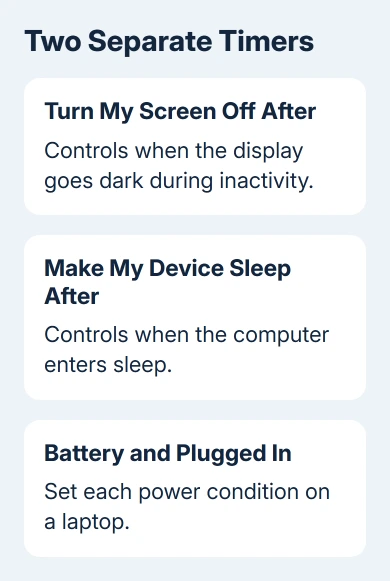
On a laptop, set the battery and plugged-in delays separately. A longer plugged-in delay won't keep the screen awake after you disconnect the charger.
On a desktop without a battery, use the plugged-in settings; a battery delay doesn't apply.
Choose Never only for the power source where you need it. This stops the normal display timer from switching the screen off, but it doesn't cancel sleep, a screen saver, a lock command or every manufacturer power feature.
Windows saves the change as soon as you choose a time. Leave the computer idle and check whether the display switches off at the new interval. Don't keep moving the mouse during the check, because activity restarts the idle countdown.
I'd start with a reasonable delay such as ten minutes rather than making everything stay awake indefinitely. It's easy to extend the display timer for a particular task without leaving a laptop running unattended all afternoon.
Microsoft's Windows power settings instructions describe separate controls for display power and sleep.
Choose each delay for what you need the computer to do; one dropdown doesn't control both.
Keep the computer awake when the task needs it
In the same settings group, check Make my device sleep after. If sleep starts before your selected display delay, the computer can still go to sleep and turn its screen off first. Set a sleep delay that fits the job as well.
Turning the screen off leaves the computer running. Sleep reduces activity and changes what the PC can keep doing. That's why a long screen timer alone isn't enough for a task that requires the computer to remain active.
For example, you can let the display turn off after a short delay while setting a longer sleep delay. That suits a PC doing work you don't need to watch. For reading instructions on screen, extend the display delay too.
If the computer seems to stay awake but one monitor goes dark, also check that monitor's own power menu. Windows' idle timer and a display's built-in automatic power setting aren't necessarily the same control.
For a monitor that won't light up after sleeping, use the monitor wake-up checks. Troubleshooting a screen that won't wake is different from changing when it goes dark.
Check the separate timer after locking Windows
Press Windows + L and compare what happens with the unlocked desktop. If your new idle delay works while unlocked but the display turns off quickly at the lock screen, the lock screen is using its own timer.
Changing the normal screen-off dropdown repeatedly won't correct that difference. The locked-screen timeout guide covers the dedicated setting and its powercfg commands.
Keep this distinction in mind on shared computers. You can extend the display delay and still lock your account when you leave. Locking protects the session; deciding how long the lock screen stays lit is another choice.
A screen saver can also appear before the display powers off. Search Start for Change screen saver to inspect its Wait value and whether On resume, display logon screen is selected.
Its timing doesn't replace the screen-off setting.
If the screen saver appears at the expected interval and you can dismiss it, Windows hasn't necessarily entered sleep. Note what you actually see: an animation, a black display, or the sign-in screen.
Use that behavior to choose your next setting change.
Stop presence detection from shortening the delay
Some Windows 11 laptops have a presence sensor that notices when you leave. On supported hardware, open Settings > System > Power & battery and find Screen and sleep or the corresponding timeout group.
Look for Automatically turn off my screen when I leave.
Turn it off for a comparison if the display goes dark when you move away, even though the normal idle timer is longer. The control appears only on devices that support it.
Select More options beside the presence setting to check its detection distance and how long it waits after you leave. Reading at the edge of its range can need different settings than sitting directly in front of the laptop.
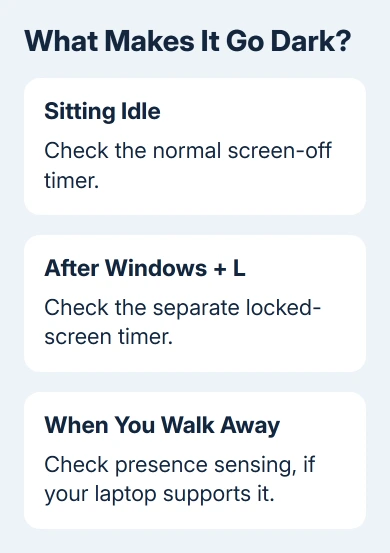
Test one behavior at a time. First sit in front of the computer without touching it, then walk away and compare the display behavior.
If the screen turns off when you move away, presence detection is the setting to check.
Handle settings that are locked or keep changing
IT can enforce power and sign-in rules on work computers. If a choice is unavailable or changes back after sign-in, send IT the setting name, whether the charger is connected, and the display's actual shutoff time.
For your own PC, write down the timer values and compare them after a restart. If a laptop utility also offers display or power profiles, check which profile is active. Ask the laptop maker which program manages that model's idle settings.
When requesting help, say whether the display changes on battery, on the charger, while unlocked, or only after leaving. Those details separate four different causes that can otherwise look like the same short timeout.
The Short Version
Choose the display-off interval in Windows 11 Power & battery, for both power conditions on a laptop. Check sleep separately. A short delay after locking or walking away can come from the lock-screen timer or presence detection.
Checked November 13, 2026.
 If you have any business, I can build it online






