

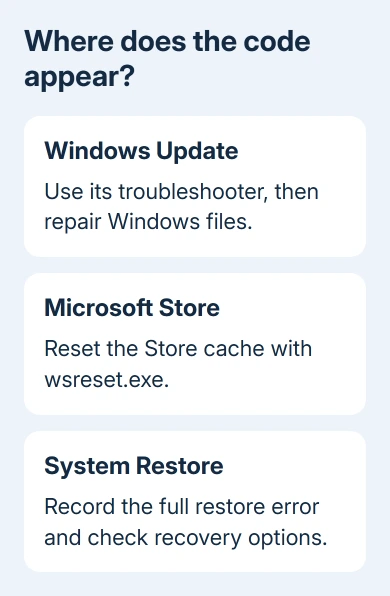
Error 0x8000FFFF, sometimes labeled Catastrophic failure, needs a repair that matches what failed. For Windows Update, start with its troubleshooter and then repair system files; for a Store-only failure, reset the Store cache first.
The wording sounds like a hardware disaster, yet this code doesn't identify a failed drive by itself. Note whether it appears during an update, an app download, an installation or System Restore before choosing a fix.
In this guide
1. Match the error to the failed action
Write down the whole error message. Include the KB number or feature-update name for Windows Update. For an installer, record the app's name and whether installation had started when it failed.
Restart Windows once after saving your work, then repeat that specific action. This gives a pending installation the chance to finish. If it works this time, you don't need to keep repairing Windows.
If only one app installer fails, download a fresh installer from its publisher and check its Windows 11 requirements. A bad download and a system-wide update failure can show the same general error without needing the same repair.
I'd keep the original message beside your notes. If the next attempt produces a different code, that new message can change the next step. Continuing with instructions for the old code can miss the part that now needs attention.
2. Run the Windows Update troubleshooter
Use this section when the code appears in Settings > Windows Update. Open Start > Get Help, search for the Windows Update troubleshooter, and follow its guided checks. Let it finish before retrying the failed update.
Microsoft recommends its troubleshooter as the first stop in the Windows Update repair steps. Follow any restart instruction, then check Windows Update again.
Look for Download, Install, or Restart now beside the update you were trying to apply. After the troubleshooter finishes, check whether the update actually installs. Its status tells you whether the repair worked.
Check available space in Settings > System > Storage if Windows reports insufficient space. Remove files you recognize or use the storage recommendations. A failed update still needs room for its downloaded files and installation work.
If the same code returns, continue with the system repairs. If you see a different code, the Windows Update error list separates errors that need a different response.
3. Repair Windows components, then protected system files
Open Start, type cmd, and choose Run as administrator for Command Prompt. Approve the permission request. Check that the window title says Administrator before you run the repair.
Run this command, letting it finish before continuing:
DISM.exe /Online /Cleanup-Image /RestoreHealthDISM repairs the files Windows uses to fix damaged system files. It may need internet access to download replacements. Leave the window open even if the progress number stays unchanged for a while.
After DISM completes successfully, run:
sfc /scannowSystem File Checker scans Windows' protected files, replacing damaged ones where possible. Let the scan reach 100%, read the result, then restart and retry the original operation.
A result saying damaged files were repaired gives you a reason to try again. A clean result means this scan didn't detect damage in those protected files. It doesn't check every app's data or every cause of the error.
If DISM fails, keep its code rather than repeatedly rerunning it. If SFC can't repair everything, use the SFC repair explanation for help with the files Windows needs for repairs. Files it couldn't repair still need attention.
4. Reset the cache for a Store-only failure
If 0x8000FFFF appears when Microsoft Store opens or downloads an app, close the Store. Press Windows + R, enter wsreset.exe, and select OK. A blank command window opens while the cache resets.
Wait for that window to close and the Store to open. Try the same app again. This built-in reset clears the Store cache; it isn't a Windows reset and doesn't reinstall the operating system.
For a paid app, check the Store's account address matches the one used to buy it. If another free app downloads but the original purchase won't, report the app and account problem through the Store's support options.
For failures in both the Store and Windows Update, move to system repair. Record what happened after the cache reset, so support knows which app checks have already been tried.
5. Handle System Restore and repair Windows when needed
If the message appears in System Restore, keep its full text, including any named file or drive. A failed restore needs the Windows recovery tools. Resetting the Store cache won't repair the restore operation.
While Windows still starts, back up important files before proceeding. Type Create a restore point into Start search, open the result, and select System Restore. Use Show more restore points, if offered, to check for another suitable point.
Use Scan for affected programs before choosing that point. It shows programs and drivers the restore will affect. Choose an appropriate point from before the problem, then follow the restore prompts without interrupting the restart.
If restore fails again or no suitable point exists, move to a supported Windows repair. For a running Windows 11 installation, open Settings > System > Recovery > Fix problems using Windows Update > Reinstall now.
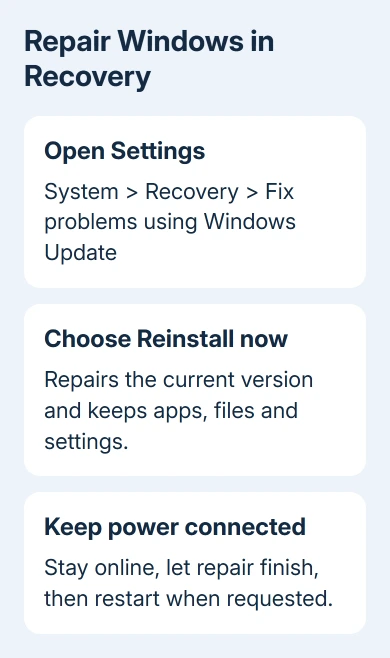
This repair reinstalls the current Windows version while preserving apps, files and settings. Keep the computer on power and connected to the internet. After installation finishes, restart when prompted and try the failed operation again.
Managed PCs and systems without the required updates may lack this option. It needs Windows 11's 2022 annual update or later and the February 2024 optional update or a later one. Ask IT about repairs on an organization-managed device.
If Windows won't start, use the recovery options to choose startup recovery instead of following desktop menu paths you can't reach.
For continued failure, use Get Help with the operation, error and repair results. Send errors from one app's installer to its publisher. Before choosing a repair that erases anything, ask which options keep your files.
The Short Version
Match 0x8000FFFF to the failed task. Try update troubleshooting and DISM/SFC for Windows, wsreset for the Store, or recovery for a failed restore. Consider a repair installation when the earlier checks don't help.
Checked November 13, 2026.






