Chrome uninstalls through Windows Settings, the Mac's Trash or the delete-app option on an iPhone or iPad. Most Android phones have built-in Chrome and offer Disable instead. Save needed data stored only on the device before removal.
Removing the app and deleting its profile are separate choices. Keep the profile if you're reinstalling to fix a problem and still need your bookmarks or saved information. Choose your device's section rather than following every procedure.
In this guide
Keep a copy of needed browser data
Check whether the bookmarks and passwords you need are saved in your Google Account or exist only in this Chrome profile. Don't assume signing into Gmail saved all of the browser's local information.
For a separate bookmark copy on a computer, open Chrome menu > Bookmarks and lists > Bookmark Manager. In the manager's menu, choose Export bookmarks and save the exported HTML file somewhere you can reach without opening Chrome.
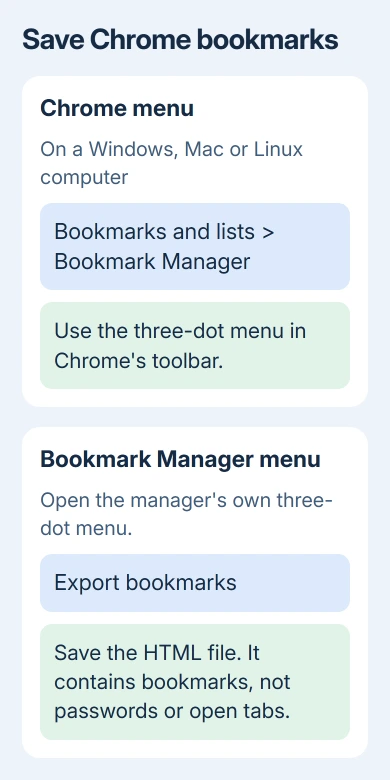
The Chrome bookmark export guide explains the file and how to import it later. A bookmark export doesn't contain your passwords, open tabs or browsing history.
Import supported data into your replacement browser before deleting Chrome's profile. Open that browser to check the imported items. Save important website addresses separately if needed.
Google says in its uninstall instructions that removing profile data is optional on computers. Information saved in your account may remain on Google's servers after you uninstall. Removing Chrome doesn't delete that account data.
Remove Chrome from Windows 11 or Windows 10
Close every Chrome window first. Save unfinished work in web forms before doing this, since closing the browser can discard text that hasn't been submitted.
On Windows 11:
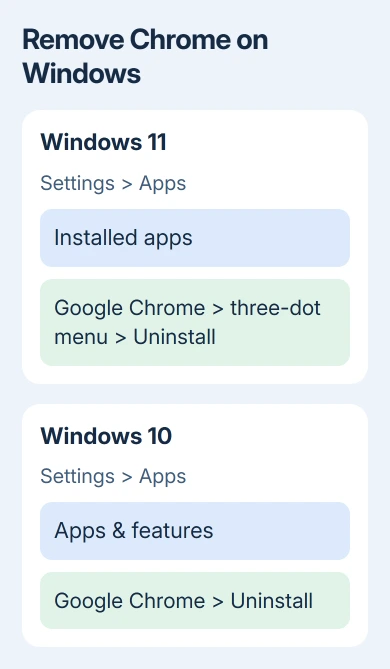
- Open Start > Settings > Apps > Installed apps.
- Search for Google Chrome.
- Open its three-dot menu and choose Uninstall.
- Confirm Uninstall, then approve the Windows permission prompt if asked.
On Windows 10:
- Open Start > Settings > Apps > Apps & features.
- Select Google Chrome.
- Choose Uninstall, then confirm it.
- Follow the Chrome uninstaller and approve any required permission prompt.
If the uninstaller offers Also delete your browsing data, leave it unchecked to retain the local profile during a reinstall. Select it only after you've saved the information you need and intend to remove that local data.
After the uninstall finishes, search Installed apps or Apps & features again. Chrome should no longer be listed. A desktop shortcut can remain after removal, so check the app list to see whether Chrome is still installed.
If Windows says Chrome is still running, use Chrome menu > Exit where available. If that doesn't release it, restart Windows, leave Chrome closed and retry the uninstall. This avoids guessing which background task to end.
With a company- or school-managed PC, a blocked uninstall or a browser that returns after restart may be controlled by IT. Ask the administrator to remove the managed installation rather than deleting program folders manually.
Uninstall Chrome on a Mac
Right-click Chrome in the Dock and choose Quit, or use Chrome > Quit Google Chrome from its menu bar. Closing its last window alone doesn't always quit a Mac application.
Open Finder > Applications, find Google Chrome, and drag it to the Trash. If it isn't in Applications, use Finder's search to locate the actual application. Approve the administrator-password request if macOS displays it.
That removes the app from its usual location. Its profile, the folder holding your Chrome data and settings, can remain for a later reinstall. Leaving it there doesn't mean the uninstall failed.
To delete the profile as well, open Finder > Go > Go to Folder and enter ~/Library/Application Support/Google/Chrome. The tilde points to your own user Library, rather than the computer-wide Library folder.
Only remove that folder's contents if you intend to erase this user's local Chrome profile. Back up needed data first. Don't delete the parent Google folder, which may contain data belonging to other software.
Return to Applications to confirm Chrome is gone. Emptying the Trash makes the removal harder to undo, so check that you kept the data you wanted before emptying it.
Delete Chrome from an iPhone or iPad
Touch and hold the Chrome icon, then choose Remove App > Delete App > Delete. If the menu offers Remove from Home Screen, that choice only hides the icon while leaving the app installed in the App Library.
Check the App Library if you can't find Chrome on a Home Screen. Search for Chrome, touch and hold its icon, then use the delete choice. Choose deletion if you want the app removed; hiding its icon leaves it available.
After deletion, Chrome won't open from its icon and can be downloaded again from the App Store. Deleting the app doesn't delete information saved in your Google Account.
When the delete option is unavailable on a child's or managed device, check the device's app-deletion restrictions or ask its administrator. Repeatedly hiding the icon won't remove an app that the device won't allow you to delete.
Disable preinstalled Chrome on Android
Open Settings > Apps > Chrome. Depending on the phone, tap See all apps or App info before selecting Chrome. If it's a built-in app, choose Disable and confirm the prompt.
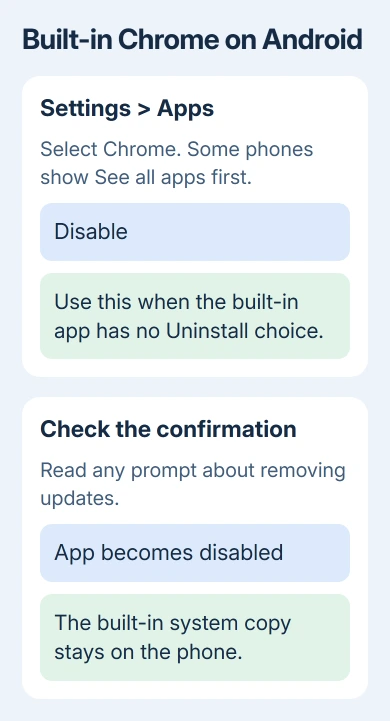
Disabling keeps Chrome from appearing in the normal app list. It doesn't remove the built-in system copy. Some devices also offer to remove installed updates as part of disabling, so check what that prompt will change before confirming.
If your phone offers Uninstall because Chrome was installed as a removable app, use that choice instead. The choice depends on your phone, so follow the button it offers.
Install and open another browser if you still need one. If the phone won't let you disable or uninstall Chrome, check whether a work profile or device administrator manages the app. Don't root the phone just to remove a browser.
Remove the standard Linux package
For the standard stable Chrome package on Debian-based distributions, open Terminal and run sudo dpkg -r google-chrome-stable. For an RPM installation, the corresponding command is sudo rpm -e google-chrome-stable.
Enter your administrator password when prompted. These commands target the standard stable package. Chromium and Chrome Beta or Dev are different packages, so don't use a matching-looking name without checking what you installed.
If removal was meant to fix a browser problem
A reinstall can reuse the retained profile. If the same extension or setting returns, removing the app alone didn't remove that configuration. For settings trouble, try the Chrome reset procedure before deciding to erase local data.
For an uninstall error that survives a restart, ask Google Chrome Help about the exact message and include your operating system. For a managed device, IT needs the error message and operating system to review its app installation rules.
The Short Version
Save needed data, close Chrome and uninstall it using the device's app controls. Windows and Mac can retain the local profile; deleting it is a separate decision. On most Android phones, Disable is the available option for built-in Chrome.
Checked November 13, 2026.