

Audio drivers in Windows 11 are easiest to update through Windows Update, including its optional driver updates. Try that first, then Device Manager or your PC maker's support page. Choose the driver for the output you use.
Laptop speakers, a USB headset and sound through an HDMI monitor can use different drivers. Updating Realtek won't necessarily change an HDMI output handled by the graphics driver. Start by identifying the output you want to repair.
In this guide
Check the sound device before downloading anything
Open Settings > System > Sound. Under Output, select the speakers, headphones or monitor you use. Play a short sound at a comfortable volume and check whether the problem affects that output or every output.
A USB headset often has its own audio device, separate from the laptop's built-in speakers. An HDMI or DisplayPort monitor may appear under an Intel, AMD or NVIDIA audio device. Note the name rather than assuming all PC sound is Realtek.
If Windows simply selected the wrong output, changing it may restore sound without any installation. For a wider sound failure, the no sound on a computer guide covers volume and playback checks before driver repairs.
Next, right-click Start > Device Manager. Expand Sound, video and game controllers, open the relevant device's Properties, and select Driver. Record the provider, date and version for a comparison once the update finishes.
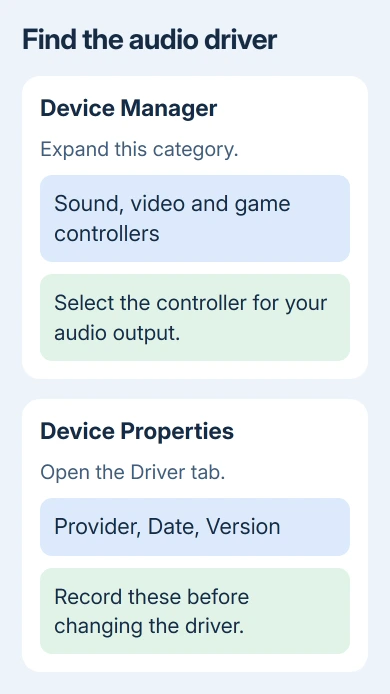
The Audio inputs and outputs category lists where sound plays or is recorded, such as speakers and microphones. To check the underlying driver, use its controller entry instead. Names vary; match the entry to the hardware you're fixing.
1. Install the driver offered by Windows Update
Open Start > Settings > Windows Update, then select Check for updates. Save documents and finish recordings before installing the offered updates. Restart when Windows requests it.
Return to Windows Update > Advanced options > Optional updates. Expand Driver updates if it appears. Look for an audio update matching the device or manufacturer you identified, select it, then choose Download & install.
If Driver updates isn't listed, this screen has no optional drivers available. It doesn't mean the sound hardware is missing, and it doesn't mean you need a paid updater utility.
For newly connected hardware, check which drivers Windows installs automatically before treating an empty optional list as a failed installation.
Microsoft's audio driver instructions recommend Windows Update first. I'd use that route before hunting for a chip-maker download; it's simpler and keeps the installation tied to this Windows setup.
After restarting, test the same output and task that failed. If sound now works, leave that working driver in place even if a different download has a higher version number.
2. Check the same device in Device Manager
Right-click Start > Device Manager, expand Sound, video and game controllers, and right-click your audio device. Select Update driver > Search automatically for drivers and follow the result.
Restart if it installs an update. Reopen the device's Properties > Driver tab and check its version against your earlier note. That shows whether the selected device's driver changed. An installer window closing doesn't tell you that.
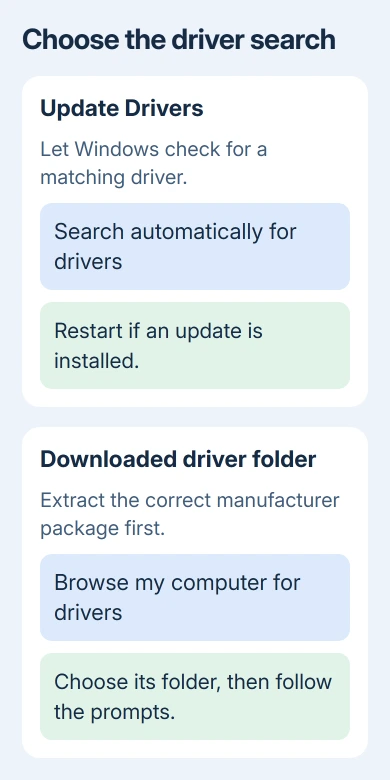
If Windows reports that its best driver is already installed, a newer package may still exist on the computer maker's support page. That message only tells you what this search found. Repeating it won't help.
If the correct driver is installed but the device is disabled, updating it won't switch it back on. Check the device's status in Properties and note any error code before checking the manufacturer's download.
3. Download the model-specific audio package
For built-in laptop sound, open your PC maker's official driver page and search for the exact model or serial number. For a custom desktop, use the motherboard model. For a separate USB audio interface, use that device maker's page.
On an HP laptop, for example, open HP Software and Drivers, identify the laptop and choose its Windows 11 audio download. Other manufacturers provide their own equivalent model-specific driver lists.
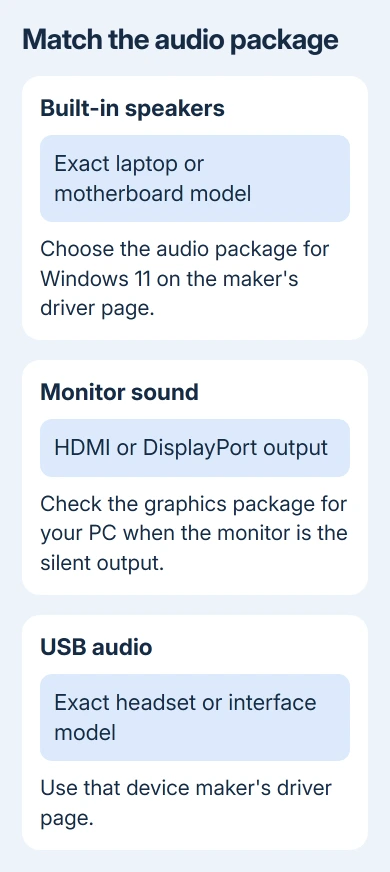
Match the listed operating system and hardware before downloading. Two laptops with a similar series name can have different audio components. A Windows 11 label on a random driver download isn't enough to identify the right package.
Read the package's installation notes. If it supplies an installer, run that installer and follow its restart instructions. Some systems need the manufacturer's audio components and control app together for features such as jack detection.
For a Dell whose speakers or headset still don't behave, use the Dell laptop no-sound checks alongside its model-specific package. That keeps a connector or output problem from turning into repeated driver replacements.
When HDMI or DisplayPort sound is the failing output, check the graphics package offered for your PC as well. Don't replace the built-in speaker driver repeatedly when the monitor uses a different controller.
4. Install an extracted driver folder when required
Some downloads contain driver files rather than a setup app. Extract the downloaded archive somewhere easy to find. Don't point Device Manager at the unopened ZIP file.
Return to the audio device in Device Manager and choose Update driver > Browse my computer for drivers. Select Browse, choose the extracted folder, and include subfolders when that option is available. Select Next and follow the prompts.
Use this route when the manufacturer's instructions call for it. If the download supplies a full installer, running that installer is usually the clearer way to install its companion components too.
If the folder contains no matching driver, check the model, Windows version and extraction location. Don't force a different device's driver into place just to clear the message.
5. Undo an update that made audio worse
If sound failed immediately after the driver change, open Device Manager > your audio device > Properties > Driver. Use Roll Back Driver when enabled. Complete its prompts, then restart the PC.
Lenovo laptops can receive Elevoc microphone drivers the same way, and checking ElevocControlService shows how to tell that genuine service apart from malware.
If Roll Back Driver is dimmed, you can't use that button to restore the older driver. Check the PC maker's page for a compatible earlier release; its support team can advise which version fits your model.
For a damaged installation that updating hasn't repaired, try reinstalling the device. Right-click it, select Uninstall device, confirm and restart. Windows then tries to reinstall the device driver during startup.
Keep the correct manufacturer installer available before this step, especially when the PC has limited internet access. Reinstalling may repair the installation without changing the driver version.
When the correct driver still doesn't fix sound
Compare the original output with headphones or HDMI again. Send the maker your model, Windows build, driver details and any Device Manager error code. Ask which audio package and companion components your computer requires.
If one app alone is silent while Windows sounds work, check that app's output choice next. Replacing a functioning device driver won't correct an app that's sending sound to a disconnected headset.
When several app volumes stay stuck at 1 percent, check their sound controls and audio services before choosing a replacement package.
The Short Version
Identify the device and check Windows Update, including Optional updates. Continue with Device Manager, then the model's official package. Restart and retest the same output. Undo an update that made the problem worse.
Checked November 13, 2026.
 If you have any business, I can build it online






