Disabling HID-compliant touch screen in Device Manager turns off touch on a Dell laptop without turning off its display. This device entry is the same in Windows 10 and 11. Choose Enable device to turn touch back on later.
Use a keyboard and touchpad or mouse for the change. The screen will stop responding to your finger as soon as you disable touch, so a detachable or folded-back two-in-one needs another way to control Windows first.
In this guide
Open Device Manager with the keyboard or mouse
Save anything you're working on, then put the laptop in a position where its keyboard and touchpad are usable. If random screen taps interrupt your work, connect a mouse before you start.
Right-click Start and select Device Manager. Windows 11 often puts Start in the center; Windows 10 normally puts it at the left. Device Manager opens the same way on either version.
Press Windows + X, then select Device Manager from the menu. Another option is to press Windows + R, type devmgmt.msc, and press Enter. You can use any of these methods without touching the screen.
If an administrator prompt appears, approve it using an account with permission to make the change. On a company or school laptop, ask its support team to make the change if your account can't disable hardware.
Device Manager lists hardware categories. Human Interface Devices is the category you need for the touch sensor. You aren't looking for Display adapters, which controls the graphics hardware that produces the picture.
Disable the touchscreen entry
Expand Human Interface Devices. Find HID-compliant touch screen, right-click that exact entry, and choose Disable device. Confirm the prompt if Windows asks whether you want to disable it.
Microsoft explains the switch in its touchscreen instructions. Dell's demonstration follows the same Device Manager procedure.
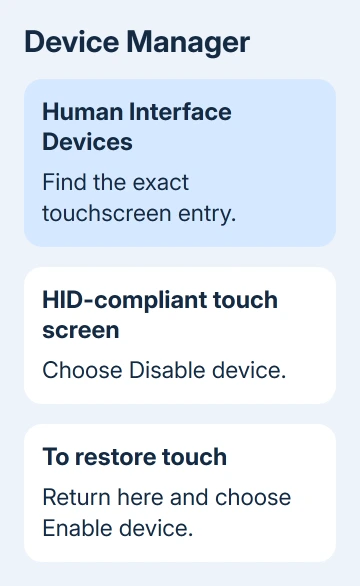
Don't disable entries simply because they contain HID. That label covers several kinds of input hardware. A touchpad, keyboard, pen or other input device can appear in this area too.
Touch the screen once after confirming. It should no longer move the pointer or activate a control, while the keyboard and mouse keep working. That's how you'll know touch is off and your other controls still work.
If the menu already offers Enable device, that entry is already disabled. Leave it disabled if turning touch off is your goal. Selecting Enable device would restore the input you're trying to stop.
Handle more than one touchscreen entry carefully
Some computers list multiple HID-compliant touch screen entries. Repeat the disable action for the touchscreen entries that need to be off, then check whether the built-in screen still responds.
If a separate touchscreen monitor is attached, disconnect it before checking the laptop's own screen. That lets you check the laptop's screen on its own.
Once the built-in screen ignores touch and your other controls work, you're done. Leave the other Human Interface Devices entries and driver packages alone.
On a two-in-one, keep it in laptop position while checking the result. Turning off touch doesn't create a replacement for the keyboard when you fold it away. Plan to keep a mouse or another suitable input device available.
If the touchscreen entry isn't listed
Check that Human Interface Devices is expanded and read the full names. A touchpad entry controls different hardware from the missing touchscreen device. Disabling the touchpad won't turn off finger input on the display.
If the screen already ignores touch, you've got the result you wanted even without that entry. Check whether the laptop was sold with a touch display before spending time searching for a device that may not exist.
Dell sells models with different display options. A model family name alone doesn't tell you which screen is fitted to your laptop. Check your order details or the documentation that came with it.
When touch still works but you can't identify its entry, ask Dell support which touchscreen device your laptop uses. Have the Service Tag ready; it identifies your individual laptop more precisely than the series name.
The Dell touchscreen repair guide covers the reverse problem, where touch should work but doesn't. Use those steps later if turning the device back on doesn't restore touch.
Turn touch back on when you need it
Return to Device Manager > Human Interface Devices using the keyboard, mouse or touchpad. Right-click the touchscreen entry you disabled and select Enable device. Repeat for any other touchscreen entries you disabled.
Test a familiar control with your finger. If touch doesn't return immediately, restart the laptop and check again. Keep another input method connected until you know the screen responds normally.
I'd use Disable device rather than Uninstall device for this job. Disabling gives you a direct way back; uninstalling starts removing the device's driver, which you don't need to do just to prevent accidental touches.
If touch returns after a major update or driver change, check the entry's current state and disable it again if needed. This changes a Windows setting; it doesn't physically disconnect the touchscreen.
Know what switching off touch won't repair
The screen should still display the desktop normally. Turning off its touch input doesn't repair flickering, colored lines or a dark image. The Dell display test guide covers those picture problems.
For unwanted taps, disabling touch can make the laptop usable with its keyboard and mouse. If the screen is physically damaged, have it checked for repair even if disabling touch stops the unwanted taps.
Ask Dell support for touchscreen identification or a display repair quote using the Service Tag and your description of the fault. Explain whether you want touch disabled by choice or whether it was producing random input.
The Short Version
Open Device Manager, expand Human Interface Devices, and disable HID-compliant touch screen. Keep a mouse or keyboard available. Choose Enable device to restore touch, and leave unrelated input and graphics devices alone.
Checked November 13, 2026.