Escape the Backrooms can lose voice chat when its saved audio settings stop behaving correctly. Restore the game's audio settings to their defaults first, especially when your mic works outside the game.
Silence, the wrong microphone, and loud distorted speech need different checks. Use the reset for a working mic that stays silent only in this game; use the Windows input test for a mic that also fails elsewhere.
In this guide
1. Restore the game's audio settings and check its mic key
In the game's audio settings, find the option for restoring defaults. Note any customized controls before using a reset. Rejoin a session with another player and check whether they can hear normal speech.
Several owners in the game's microphone discussion confirmed that restoring defaults brought voice back. Some players in the thread still had trouble, so continue with the Windows test if you're still silent.
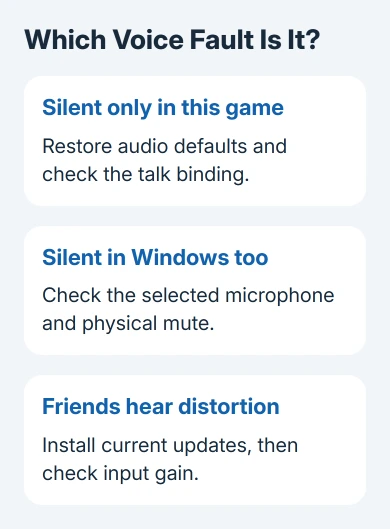
Check the current voice or push-to-talk binding too. One owner got their mic working by pressing V, the key they reported in that discussion. Use the binding shown in your installed version if you've changed it or the defaults differ.
Use the assigned push-to-talk key while speaking in a session. If voice starts, the microphone was working; the game was waiting for that control. You won't catch that by checking the menus alone.
If the reset doesn't help, leave the settings at their defaults and test the Windows input next. This checks whether your speech reaches the PC before the game tries to use it.
2. Test the microphone Windows is actually receiving
On Windows 11, open Settings > System > Sound and find Input. Choose the recording device you want the game to hear. Open its properties, select Start test, speak normally, then choose Stop test > Play to hear the sample.
On Windows 10, open Settings > System > Sound, select your input device, and speak while watching Test your microphone. If the input indicator moves, Windows is receiving a signal from that device.
The Windows microphone test also lets you adjust input volume. If that sample has no speech, check the headset mute switch and connection, then recheck the selected input before changing game files.
A laptop may list its built-in microphone, a USB headset, a webcam mic, and virtual recording devices. Choose by the device name instead of trusting the first entry to belong to the headset you're wearing.
For a broader input failure, follow the Windows microphone troubleshooting steps. Return to the game after you can record your voice normally. Reinstalling a game won't correct a headset mute switch or a missing Windows input.
3. Set the intended microphone as the default
Close the game. Press Windows + R, enter mmsys.cpl, and press Enter. Open Recording, select your mic, and use Set Default. If a separate default communications device option is available, choose it for the same mic.
Speak and watch that device's green level meter before closing the window. Then start the game again. Relaunching matters because a game can keep the input it selected when it opened.
This check is especially useful after connecting a controller, webcam, USB audio device, or VR headset. Windows may list several working recording devices even though only one is near your mouth.
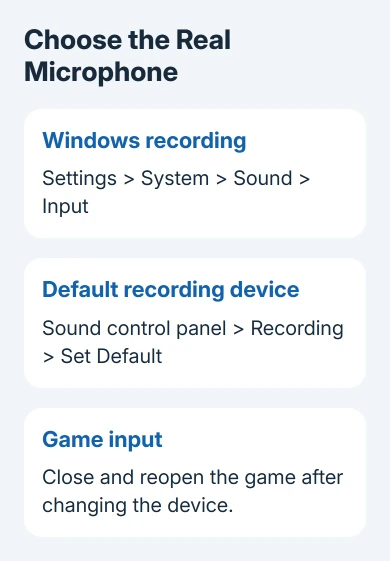
One player got voice working by correcting input and output in Windows' volume mixer, then restarting the game. Check the game's assigned input too, if your Windows version offers that choice while the game runs.
I'd correct the selected input before removing software. One player fixed a conflict by uninstalling SteamVR, but choosing the intended recording device is the smaller first step when several inputs are present.
4. Allow microphone access for desktop games
In Windows 11, open Settings > Privacy & security > Microphone. Turn on Microphone access and turn on Let apps access your microphone too. Also enable Let desktop apps access your microphone for desktop games.
In Windows 10, open Settings > Privacy > Microphone. Allow microphone access for this device and its apps. Farther down, switch on Allow desktop apps to access your microphone.
A Steam game is a desktop application. It may not have its own individual switch in the Store-app list. Check the desktop-app permission when the Windows test works but the game can't pick up your speech.
Restart the game after changing access and repeat the same short voice test. If Windows already allowed it, keep that setting and continue to the checks for distorted voice or damaged game files.
5. Update before chasing old input-gain workarounds
Install the game's available update through the launcher used to play it. The October 29, 2026 Lost & Found update includes fixes for occasional PC microphone distortion and voice-chat trouble with certain wireless headphones.
Those fixes won't fix every silent mic. If friends hear harsh or broken speech, the game receives your mic but the sound is distorted. That's different from silence. Ask another player which behavior they hear.
Older replies describe input gain changing after leaving settings. Players recovered voice with an audio reset or an in-session push-to-talk toggle. Skip old numeric recipes when a newer build has different controls.
If speech is arriving but too loud, lower the available input-gain control a little and test again. Raise it only when friends can hear speech but it is too quiet. Leave the mic where it was while comparing the results.
6. Verify Steam files, then report what still fails
For the Steam edition, open Library, right-click Escape the Backrooms, and select Properties > Installed Files > Verify integrity of game files. Let verification finish before launching another voice test.
A later reply confirmed file verification fixed voice. Other players had already tried restarts and setting changes without success. Verification is another step to try if those haven't helped.
A different game with the same complaint may need its own controls. The ARC Raiders microphone checks cover that game's input selection rather than Escape the Backrooms settings.
For a game-only failure, use the developer support link on its Steam listing. Include the build, launcher, Windows version, mic model, recording-test result, and whether friends hear silence or distortion after a reset.
The Short Version
Reset game audio and check the talk binding. Test the intended Windows mic, correct device and privacy settings, then update and verify Steam files. Give developer support the recording result if only this game fails.
Checked November 13, 2026.