For ARC Raiders' failed to detect microphone message, first check that Windows lets the game use your mic. Allow Windows desktop apps to use the mic, then choose the headset under the game's Voice Chat Input Device setting.
If Windows can't record your voice either, start with the microphone connection. If speech records normally but ARC Raiders rejects the mic, check its selected input, voice mode and privacy permissions.
In this guide
1. Allow desktop microphone access, then reopen the game
Close ARC Raiders. In Windows 11, open Settings > Privacy & security > Microphone. Enable Microphone access. Then enable Let apps access your microphone. Also turn on microphone access for desktop apps.
On Windows 10, open Settings > Privacy > Microphone. Check Microphone access for this device, then turn on the switch that lets apps use the microphone. Enable the separate desktop-app permission too.
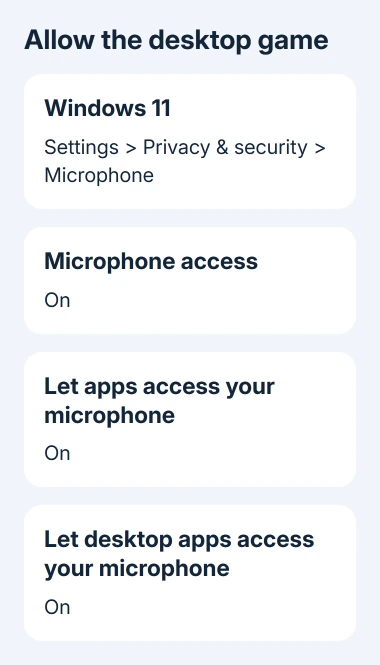
The desktop setting matters even when general access is on. Desktop games don't get individual switches like Microsoft Store apps. A missing game entry doesn't automatically mean its installation is broken.
These Windows microphone permissions apply to apps running on the PC. Changing a headset's mute button can't override a Windows privacy block.
Reopen the game to see whether it still reports the detection error. If your workplace has locked that switch, ask its IT team to allow desktop apps to use the microphone.
2. Select the microphone in both Windows and ARC Raiders
Open Settings > System > Sound in Windows and find Input. Select the microphone you're speaking into. A webcam, monitor or laptop can add another input even when the headset is connected correctly.
Check the headset's physical mute control and the microphone plug or wireless receiver. Hearing sound through the headphones doesn't mean the mic is connected too. If the boom detaches, push it fully into the headset's microphone socket.
Use the built-in microphone test to check that selected input. Speak at your usual distance, then play back the sample if that option appears. Note the device name so you can select the same one in the game.
In ARC Raiders, open Settings > Audio. Under Voice Chat Input Device, select that same microphone instead of leaving the game to choose another device. Confirm the voice-chat output also points to the headphones you use.
Embark's PC voice-chat troubleshooting specifically recommends choosing the input when several devices are connected. That matters after adding a webcam or switching from a USB headset to a wireless one.
If Windows records you but the game still reports no microphone, check the voice mode and other apps using the mic next. If Windows records nothing, skip the game's network settings and check the microphone connection or driver in step 5.
3. Check party and proximity voice separately
First enable voice chat through Settings > Audio > Voice Chat > Enable Voice Chat. Even the correct microphone can't send your voice through a channel that's switched off.
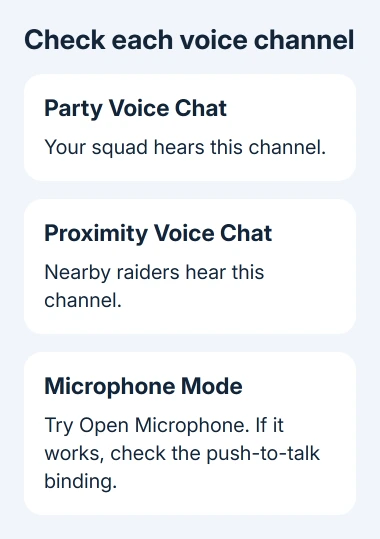
Open the game's Settings > Audio and inspect Party Voice Chat and Proximity Voice Chat. Party chat is for your squad; proximity chat lets nearby raiders hear you. Success in one doesn't confirm that the other is enabled.
Change the affected channel from Push-to-Talk to Open Microphone for a short comparison. Speak to a teammate and ask whether they hear you. If they do, the input works and the remaining problem is the push-to-talk setup.
For push-to-talk, check the assigned key in the controls and hold it while speaking. Don't assume the squad key also activates proximity chat. Use the channel's current binding rather than relying on a key from someone else's setup.
Return to your preferred mode after the check. I'd use push-to-talk for proximity chat once it works, so a conversation in your room doesn't become part of the raid.
If players can't hear you in either channel but Windows records your voice, the problem isn't simply a forgotten push-to-talk key. Close programs using the microphone next and reopen the game with the headset already connected.
4. Release the microphone from other audio apps
Quit Discord, meeting apps, browser calls and recording tools, then try voice chat again. Closing a window may leave the app running beside the clock, so use its Quit or Exit command when available.
Open Task Manager with Ctrl + Shift + Esc and inspect Processes for the audio apps you intended to close. End only those apps, then start ARC Raiders again and select the microphone.
Some audio software can hold the input or replace it with a virtual microphone. That virtual device passes sound through another program. If the program isn't running, selecting its input can leave the game with silence.
Choose the physical headset microphone for this check. If voice now works, reopen your usual audio tools one at a time and retry. If voice stops working after you reopen an app, check how that app handles your microphone.
For another game with silent voice, Escape the Backrooms has confirmed audio-reset fixes and separate distortion checks.
If PEAK also loses the same input, check its voice-routing conflicts and rebuild the lobby after a clean game restart.
If the mic is available but players can't hear you, tell support that. The game can detect your microphone yet fail to send your voice over the network. A silent channel alone doesn't mean your headset is faulty.
5. Repair an input that Windows can't hear
For a microphone missing from Windows, reconnect its USB receiver or cable directly to the PC and try another suitable port. A headset that only works on another computer needs its Windows connection or audio software checked.
Open Device Manager > Audio inputs and outputs. Right-click the microphone and choose Update driver. Check the associated audio device as well, then restart Windows and repeat the recording check before returning to the game.
If the recording is still silent, use the PC or headset maker's support page for that model. Give the input name and whether it appears in Windows. Ask about the correct driver, receiver pairing or microphone connection.
When only ARC Raiders still rejects the mic
If the microphone fails only in ARC Raiders, open its Help Center's technical support request. Include the exact detection message, Windows version, input-device name, whether Windows records speech, and which voice channels fail.
Also say whether removing other audio apps changed the result. If the game closes rather than rejecting the mic, use the separate ARC Raiders crash fixes, matched to the exit code.
The Short Version
Allow desktop microphone access, choose the same physical input in Windows and ARC Raiders, and check each voice channel's mode. Compare with other audio apps closed. Repair Windows detection first when the mic fails outside the game too.
Checked November 12, 2026.