RSAT installs through Windows 11's Optional features, so a separate Windows 11 installer isn't needed. Search Start for Optional features, choose View features, and add the administration tools you need.
This route works on Windows 11 Pro and Enterprise; Home doesn't support it. ARM PCs need another check because the available tools and installation route differ from those on Intel and AMD computers.
In this guide
Check the edition and processor before installing
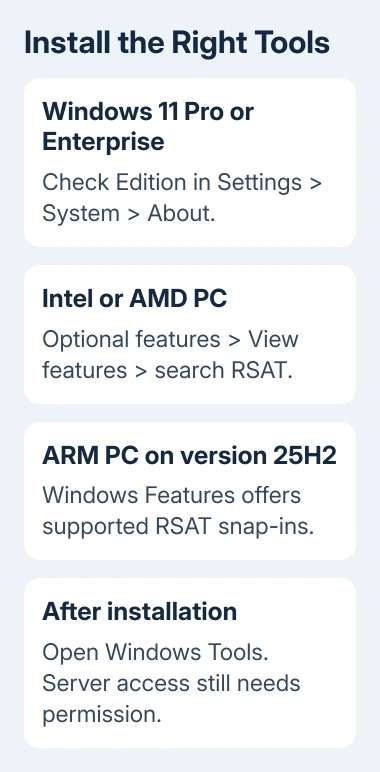
Open Settings > System > About. Under Windows specifications, read Edition. Under Device specifications, check System type to see whether your computer is x64 or ARM-based.
Microsoft says RSAT requires Pro or Enterprise on Windows 11. Installing the tools also requires administrator rights on this PC.
For an office laptop, ask IT which tools you need and whether they install them for you. You'll need an authorized administrator account on this PC to install them; a server login doesn't automatically give you that access.
RSAT means Remote Server Administration Tools. These are management programs for services such as Active Directory and DNS. Adding the programs doesn't turn this laptop into a domain controller or grant access to a company's servers.
The PC specifications checks help when you're unsure which computer or Windows edition you're using. Confirm those details before looking for a missing feature or choosing an installation command.
Add the tools from Optional features
For Windows 11 running on Intel or AMD, use the Settings interface first. It lets you choose the tools you need instead of installing everything with one command.
- Open Start, type Optional features, and open the matching system setting.
- Search the installed-features list for RSAT to check whether the required component is already present.
- Beside Add an optional feature, choose View features.
- Search for RSAT and select the required entries.
- Choose Next, review the selection, then choose Add or Install, as your build shows.
- Watch the progress in Optional features and complete any requested restart.
In current Windows 11, find this page at Settings > System > Optional features. Older layouts use Apps > Optional features. Searching Start avoids that location difference.
For Active Directory Users and Computers, select RSAT: Active Directory Domain Services and Lightweight Directory Services Tools. Group Policy Management Tools, DNS Server Tools and DHCP Server Tools are separate choices.
Windows Update supplies these feature files over the internet. An installation still showing progress hasn't finished. Wait for its result before trying to open the console or adding the same component again.
If the tool is already installed, skip to opening it. If its name never appears, return to the edition and processor checks. A Windows Server installation guide uses different commands from this Windows 11 procedure.
Use PowerShell when you need the exact component name
I'd use a command for the specific tool when the Settings list is hard to read or you need to check what actually installed. Find Windows PowerShell in Start. Use its Run as administrator option.
List the available RSAT capabilities with this command:
Get-WindowsCapability -Online | Where-Object Name -like 'RSAT*'Check each component's Name and State. NotPresent means that capability isn't installed. Installed means Windows already has it. Keep the complete name, including its version suffix, when selecting a component.
For the Active Directory tools, run:
Add-WindowsCapability -Online -Name Rsat.ActiveDirectory.DS-LDS.Tools~~~~0.0.1.0Let the installation command finish. Check RestartNeeded in the result, restart if required, then run the listing command again. The component should now report Installed rather than NotPresent.
Use the exact name returned by the list for a different tool. Install-WindowsFeature belongs to the Windows Server route; it isn't the command for adding these Windows client capabilities.
Use the ARM route only for supported tools
The current RSAT compatibility notes give a separate route for Windows 11 version 25H2 on Arm64. Don't assume every x64 feature is offered on an ARM laptop.
Open Control Panel > Programs > Programs and Features. Choose Turn Windows features on or off. Locate the supported administration components, select the tools you need, and let Windows finish applying the change.
The listed ARM snap-ins include Active Directory Domain Services and Lightweight Directory Services, Active Directory Certificate Services, Server Manager, Group Policy Management, DNS and DHCP tools. Other RSAT tools may be absent.
For an earlier ARM release or a tool absent from the list, ask IT which release and architecture support it. Downloading an old Windows 10 package won't supply a missing Windows 11 ARM component.
Open the console and separate installation from access
Search Start for Windows Tools after installation, or search for the tool's name. For the Active Directory console, press Windows+R, enter dsa.msc, and press Enter.
If the console opens, the tool is available on your PC. If it can't connect to a domain or server, check that connection separately. Check the organization's network or VPN connection and use the account authorized to manage that service.
For virtual machines, installing Hyper-V and its management tools is a separate choice. RSAT installation alone doesn't enable this PC to run local virtual machines.
If installation fails, record the capability name, error code, edition and Windows version. On a managed PC, give IT those details and ask whether the PC's update settings allow it to download optional features.
On a supported personal PC, open Get Help for an optional-feature installation failure. If the console opens but can't reach a server, ask the server administrator to check your permissions and connection.
The Short Version
RSAT setup starts with the edition and processor check. Add the required components, verify installation and open Windows Tools. ARM 25H2 has a separate route. Server access still needs an authorized account and a working connection.
Checked November 13, 2026.