Duolingo can't hear a speaking answer when its microphone permission is blocked, even if lesson audio plays normally. Allow microphone access for Duolingo on your phone, or for its website in your browser, then reopen the exercise.
A missing speaking question is different from a visible microphone that captures silence. Match the checks to the symptom on your screen, then try a normal voice recording if changing permissions doesn't help.
In this guide
1. Separate a missing exercise from a silent microphone
Open the lesson and check which control you're trying to use. A speaker button plays the example aloud; it doesn't record your answer. In a speaking exercise, wait for the recording prompt before speaking.
Duolingo's speaking exercise explanation shows a Tap to speak control. Follow the prompt in your exercise rather than speaking while the example is still playing.
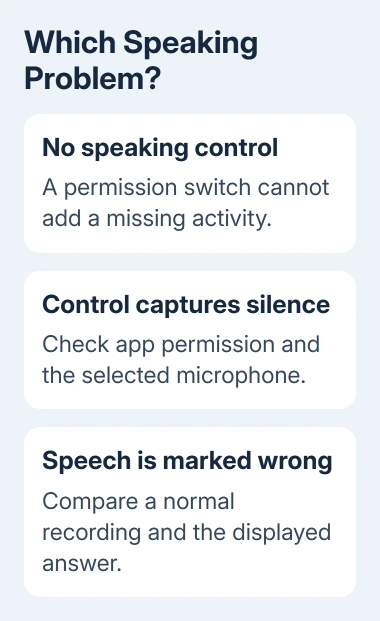
Changing permission won't add a speaking question or recording control to a screen that doesn't have one. Open a speaking activity available in your course, or report the missing activity with the course and platform details.
If the microphone starts but doesn't register any sound, work through permissions next. If it captures speech but rejects the answer, check the words and recording conditions after confirming a normal voice recording works.
Keep the Duolingo language-learning app separate from the Duolingo English Test. The English Test is a different product with its own test app and technical checks. A phone lesson fix shouldn't replace its exam instructions.
2. Allow Duolingo to use the phone's microphone
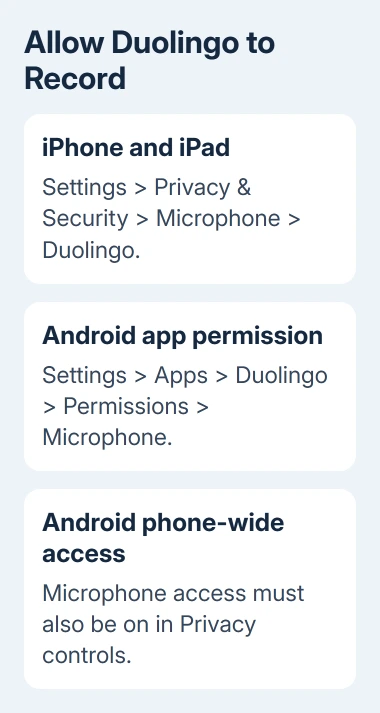
On iPhone or iPad, open Settings > Privacy & Security > Microphone. Find Duolingo and turn on its switch. Return to the app, reopen a speaking question and accept a permission prompt if one appears.
If Duolingo isn't listed, start an activity that requests recording access and check for the prompt. Apple's specific-app microphone guidance directs you to the app developer when the app isn't listed or already has permission.
On Android, open Settings > Apps > Duolingo > Permissions > Microphone. Choose Allow only while using the app, or the equivalent option on your phone. Ask every time requires accepting the request each time you use it.
Some Android layouts need See all apps before you can select Duolingo. The Android permission instructions explain the app-specific access choices. Allowing notifications or media access doesn't grant microphone access.
On Android 12 and later, also check the phone's Microphone access control in Quick Settings or Privacy controls. This phone-wide control can block recording even when Duolingo's individual permission is allowed.
The Android microphone checks cover finding that separate control when the menu varies. After enabling it, retry the same speaking activity so you're comparing the result of one change.
3. Check Chrome's site permission and selected microphone
On a computer, open Chrome's Settings > Privacy and security > Site settings > Microphone. Confirm sites can ask to use a microphone, then inspect the list of allowed and blocked sites.
Find duolingo.com in the blocked list if it's there. Select it and change microphone access to Allow. Alternatively, remove its blocked permission and approve the request when the lesson next asks to record.
On the same Microphone page, select the input you intend to use. A laptop microphone, USB microphone and headset can appear as different devices. Choose the one near you rather than assuming the default is correct.
Restart Chrome when its permission instructions request it, then return to the lesson. The camera and microphone controls also explain the permissions your browser may need in the computer's settings.
On Windows 11, check Settings > Privacy & security > Microphone and the controls allowing microphone and desktop-app access. On a Mac, check System Settings > Privacy & Security > Microphone for Chrome.
A school or work browser may lock recording permissions. Ask your administrator whether the site can use a microphone. Reinstalling the phone app won't change a policy blocking Chrome on your laptop.
4. Compare a recording without the headset
Disconnect Bluetooth headphones, wired headsets and USB audio adapters for one comparison. Record a few words using the device's recorder. Listen to the playback for clear speech; an input indicator alone won't tell you how it sounds.
On iPhone, use Voice Memos, press Record and speak toward the bottom of the phone. Stop and play the recording. The phone microphone test explains what to check when that recording is silent too.
On Android, use the phone's recorder if it has one. On Windows, use Settings > System > Sound > Input, select the microphone and use its test control. Check the input level while speaking at your normal distance.
If that recording is silent too, the problem isn't limited to Duolingo. Check the device's microphone permission, any hardware mute control and anything covering the opening before returning to the lesson.
If the recording is clear but Duolingo stays silent, check its permission and which microphone it's using. A working recorder doesn't confirm that a different application is using the same microphone.
I'd keep the headset disconnected for the next lesson attempt. If that works, reconnect it and repeat the activity. Comparing the two attempts helps you check whether the headset or microphone selection needs attention.
5. Update the app and report persistent recognition failure
Close Duolingo and open it again. On Android, use Settings > Apps > Duolingo > Force stop if it's stuck, then reopen it. Look for a Duolingo update in App Store on iPhone or Google Play on Android.
Restart your device if recording is still stuck after reopening the app. Retry a short speaking answer in a quiet space, with the microphone unobstructed and the device close enough to capture ordinary speech clearly.
When speech is captured but marked wrong, compare the displayed answer with what you said. A recording indicator means the app has accessed audio; it doesn't tell you why it rejected your spoken answer.
If clear recordings work elsewhere and only Duolingo fails, use duolingo.com/help to reach its help and bug-report options. Include your device, operating system, app or browser version, course and exactly what happens in the exercise.
Report whether the control is missing, recording stays silent or spoken words are rejected. Include whether a normal recording works and whether disconnecting the headset helps. That gives the developer the details of the failure.
The Short Version
Allow microphone permission and check Android's phone-wide access switch. Select the intended browser input and compare a recording without headsets. Report an app-only failure with the course, version and exact symptom.
Checked November 13, 2026.