A touchpad that moves normally but won't scroll usually needs its gesture setting or driver checked. Turn on Drag two fingers to scroll, then try Settings and a browser page to check whether it's one app or Windows.
When the pointer and clicks have stopped too, start with the touchpad power and connection checks. These steps are for a pad that still responds to your finger but won't scroll pages.
In this guide
1. Turn two-finger scrolling back on
On Windows 11, open Start > Settings > Bluetooth & devices > Touchpad. Expand Scroll & zoom, then select Drag two fingers to scroll. On Windows 10, the starting path is Settings > Devices > Touchpad.
Place two fingertips on the pad together and slide them in the same direction. A single finger normally moves the pointer. Moving two fingers apart changes zoom instead, so keep the gap between them steady during this check.
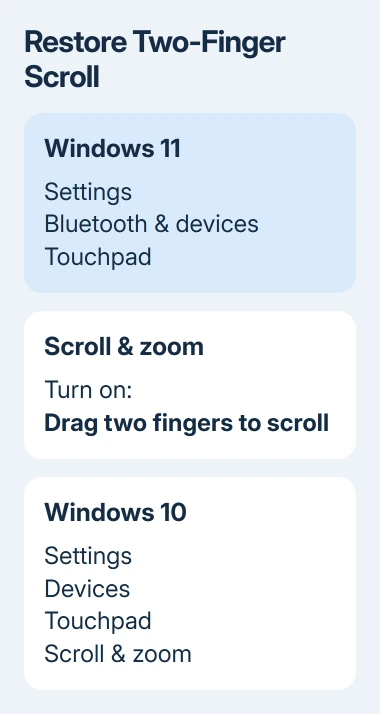
Microsoft's touch gesture instructions describe two-finger movement for horizontal and vertical scrolling. Some gestures require a precision touchpad with Windows gesture support. If the option is missing, continue to the driver checks.
Try it with the pointer over a long page and both fingers sliding together. The content should scroll without much pointer movement. Once that works, close Settings and retry the app that stopped scrolling.
Scrolling in the opposite direction is a different problem. Change Scrolling direction in the same section rather than reinstalling the driver. Choose the direction that feels natural, then leave the gesture enabled.
2. Check whether only one app ignores the gesture
Compare a long Settings page with a long webpage. Click inside each before scrolling, keeping the pointer over content instead of a toolbar or map. If the page is at its end, try the opposite direction.
If scrolling works in Settings but fails in a browser, start with the browser. Save any unfinished work, close it, reopen it and repeat the same test. When the gesture works in another app, leave the laptop's driver alone for now.
For a problem limited to Google's browser, use the Chrome touchpad checks. They cover extensions and browser behavior without treating every scrolling failure as a broken touchpad.
When every app ignores two-finger movement but a mouse wheel still scrolls those pages, continue with the laptop checks. That tells you the pages can scroll, but the touchpad gesture isn't working.
I'd make this comparison before resetting anything. It takes little effort, and it prevents a browser problem from turning into a set of changes across Windows.
3. Restart Windows and check the available controls
Save your work and choose Start > Power > Restart. After signing in, test scrolling before launching your other apps. Choose Restart instead of shutting the laptop lid, which can put the same Windows session to sleep.
Return to Touchpad settings. A full Scroll & zoom section lets you configure the gesture through Windows. If there are only a few controls, or no Touchpad page at all, check whether your laptop uses its own touchpad software.
Older laptops can use their maker's touchpad software. Search Start for the installed touchpad utility, or open Control Panel > Hardware and Sound > Mouse and look for a maker-specific tab if one exists.
The names vary with your laptop and its installed driver. Look for a scrolling or two-finger control in the utility; not every laptop has an extra Mouse tab. Use the model's manual to match the available controls.
Don't download a gesture utility meant for a different laptop just to get a missing tab. The right software must match your model and Windows version. Use the driver update steps in the next section instead.
4. Install the available touchpad driver updates
For Windows 11, open Settings > Windows Update and select Check for updates. Open Advanced options > Optional updates and inspect any Driver updates offered. Select a relevant touchpad update if one is listed, then install it.
Windows 10 puts the check in Settings > Update & Security > Windows Update. After checking, select View optional updates if offered. Look through the driver list for a touchpad update; other optional updates are for different devices.
Complete any requested restart, then repeat the scrolling gesture. If no touchpad update appears, Windows Update has nothing else to offer right now. The installed driver could still be wrong for your laptop.
The next route is Device Manager. Right-click Start, open it and expand Human Interface Devices. Also inspect Mice and other pointing devices. The touchpad can appear under either category, depending on its driver.
Right-click the touchpad entry and select Update driver > Search automatically for drivers. If that doesn't help, search the laptop maker's support site by model for its touchpad package and installation steps.
Record the model in Settings > System > About or on the laptop's label before asking the maker for help. A series name alone can cover several generations with different touchpad hardware.
5. Reinstall the identified touchpad device
Try reinstalling the touchpad when scrolling is switched on but driver updates haven't helped. Have a USB mouse ready, or be comfortable using Tab, Enter and the keyboard, because the touchpad can stop responding during removal.
In Device Manager, right-click the touchpad you identified and select Uninstall device. Confirm removal, then restart Windows. Let Windows detect the device again and check the Touchpad settings before testing scrolling.
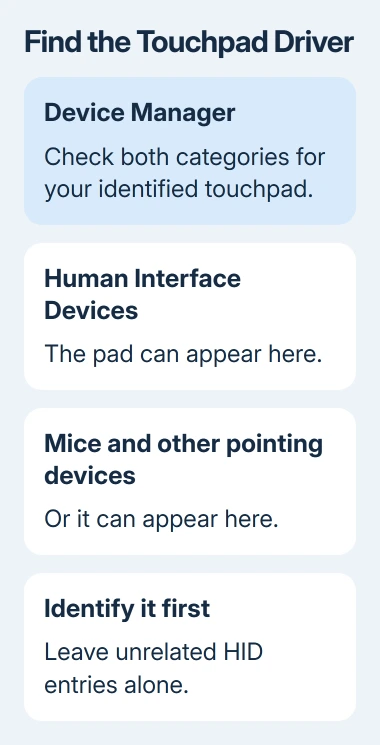
Leave unrelated HID-compliant entries alone. Several devices can have similar names, so don't remove them all. If you can't identify the touchpad entry, get the laptop maker's help choosing it.
If scrolling returns, the driver reinstallation was enough. If it still fails across apps, send the maker your model, Windows release and driver version. Tell them which apps wouldn't scroll and whether a mouse wheel worked.
Ask for the supported touchpad driver and a hardware diagnostic for that model. Reinstalling Windows goes much further than a scrolling fault calls for, especially while movement and clicks still work.
The Short Version
Enable two-finger scrolling, compare apps, then restart. If scrolling fails throughout Windows, update or reinstall that pad's driver. Ask the laptop maker about missing controls or continued failure.
Checked November 13, 2026.