The missing Teams add-in needs different repairs in classic and new Outlook. Classic Outlook can have a disabled or uninstalled meeting add-in; new Outlook has a built-in Teams meeting switch instead.
Check which app you're using before reinstalling anything, then follow its matching steps.
For new Outlook, the first repair is to close both apps, start Teams and sign in, then reopen Outlook using matching work or school sign-ins. For classic Outlook, check the add-in's status first.
In this guide
1. Identify the Outlook app and the missing control
Look for File > Options in Outlook. That route belongs to classic Outlook on Windows. Its Teams integration uses a COM add-in, a small component that loads inside the desktop app.
New Outlook uses a Teams meeting toggle in the calendar event window. It doesn't support that classic COM component, so an empty COM Add-ins list elsewhere won't explain its missing meeting switch.
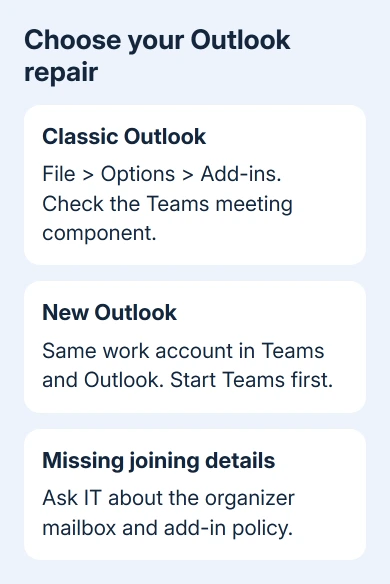
Create a new calendar event in the app you actually use and look for the Teams meeting control. If the control appears but an invitation has no joining details, keep that separate from the control being completely absent.
If Outlook won't start at all, use the Outlook startup guide first. You'll need Outlook open to check the add-in. A startup failure needs its own repair.
2. Reconnect Teams to new Outlook
Microsoft says the new Outlook integration repair requires the new Teams desktop app with matching work or school sign-ins across both apps. Compare the signed-in accounts before restarting them.
Close Outlook. In the Windows notification area, right-click the Teams icon and choose Quit Teams. Teams can keep running after its window closes. Quit the app through its icon so the next launch starts a new session.
Open Teams again and sign in. Wait until Teams is ready to use, then open Outlook. Create another calendar event and check for the Teams meeting toggle. Opening Teams first follows the restart order in the support instructions.
A personal account in one app and a company account in the other won't work for this setup. Select the matching work or school account rather than assuming two similar display names represent the same sign-in.
If the toggle still doesn't appear, give IT the two account addresses and the app versions. Don't install the classic Teams add-in as a repair for new Outlook. Continue with the remaining repairs only for classic Outlook running in Windows.
3. Enable the meeting add-in in classic Outlook
Open File > Options > Add-ins. Look for Microsoft Teams Meeting Add-in for Microsoft Office and check whether it is in the active, inactive or disabled list. Teams can open normally even when this add-in isn't active.
At the bottom, set Manage to COM Add-ins and click Go. Select the checkbox beside Microsoft Teams Meeting Add-in for Microsoft Office, then click OK to close the dialogs. Restart Outlook.
Return to the Add-ins page and confirm the component now appears under Active Application Add-ins. Open Calendar and create a meeting to check that the Teams command is available.
If the box stays checked but the command is still missing, keep going.
If the component isn't listed at all, checking unrelated add-ins won't install it. Check Settings > Apps > Installed apps in Windows for Microsoft Teams Meeting Add-in for Microsoft Office, then use the installation repair in section 5.
An add-in that immediately disables itself again can have a loading problem. Note that behavior for IT. If a recent Outlook sign-in problem led someone to disable Teams integration, explain that history too.
4. Repair an installed add-in's loader
The classic Outlook troubleshooting procedure includes registering its loader again. Use this branch when the files are installed but Outlook won't load the component. On a company-managed computer, ask IT to help.
First check Office's architecture in File > Office Account > About Outlook. Note whether it's 32-bit or 64-bit, then close Outlook and quit Teams.
Press Windows + R, enter %LocalAppData%\Microsoft\TeamsMeetingAddin, and open the version-number folder. Copy its actual path; the number in an example isn't necessarily the one installed on your PC.
Choose the command for Office's 32-bit or 64-bit edition. Your Windows edition can be different.
Open Command Prompt as administrator. For 64-bit Office, insert the version folder you copied into this example command:
%SystemRoot%\System32\regsvr32.exe /n /i:user "C:\actual-version-folder\x64\Microsoft.Teams.AddinLoader.dll"For 32-bit Office, use this version instead:
%SystemRoot%\SysWOW64\regsvr32.exe /n /i:user "C:\actual-version-folder\x86\Microsoft.Teams.AddinLoader.dll"Restart Teams, sign out and back in, then restart Outlook normally. Outlook itself shouldn't run as administrator for this check.
If the folder or DLL is missing, stop this branch and repair the installation rather than downloading a loose DLL.
5. Restore an add-in removed during the Teams upgrade
Removing classic Teams during an upgrade to new Teams can also remove the meeting component. Close Outlook and quit Teams, then search Settings > Apps > Installed apps for Teams Meeting Add-in and record its version if present.
For Windows 10, the corresponding installed-program page is Settings > Apps > Apps & features. The distinction is between the meeting component and the main Teams app, so check the full product name.
The classic troubleshooting page provides UninstallOldTMA.ps1 when the component is absent or its version starts with 1.23. Run that script in PowerShell as administrator.
Other versions use UninstallTMA.ps1 from an ordinary PowerShell window.
Ask IT to run the matching official cleanup script, then start new Teams. Wait until the meeting add-in appears in Windows' installed-app list before reopening Outlook.
These steps apply to Teams installed on your PC. If you use a hosted virtual desktop, ask its administrator for the matching procedure.
I'd use the installed version to choose this repair. Repairing that one missing component avoids reinstalling the entire Office suite after a Teams upgrade.
6. Escalate missing joining details or a repeated failure
If the meeting button works but the invitation has no joining details, check mailbox visibility rather than reinstalling the add-in.
If you're scheduling on someone else's behalf, ask the Exchange administrator whether the organizer's mailbox is hidden from the Global Address List.
For a loader that still fails, ask IT to check the add-in's LoadBehavior value and policies governing trusted add-ins or Outlook address access.
Describe exactly what fails so IT can check those settings.
Include your Outlook edition and whether it's 32-bit or 64-bit, Teams version, add-in version and whether another calendar can schedule a Teams meeting.
With that information, IT can separate a broken account connection from a missing add-in installation or a mailbox policy failure.
The Short Version
New Outlook needs the same work account and a Teams-first restart. Classic Outlook needs an active meeting add-in. Repair its loader only when the files exist, or use the matching upgrade-cleanup branch when installation is missing.
Send remaining account or policy failures to IT.
Checked November 13, 2026.