Steam can get stuck as a background process, fail on damaged client files or be blocked by another program on Windows 11. Restart Windows first.
If Steam runs without showing a window, clear its old compatibility settings and repair it in its current folder to keep your installed games. A game failing after the library opens needs game-specific checks instead.
In this guide
1. Restart Windows and check whether Steam is already open
Save your work and choose Start > Power > Restart. After signing back in, launch Steam once from its usual shortcut. Give it time to finish any visible update before opening more copies.
Check the taskbar's hidden icons too. If Steam is there, try opening its window from that icon. A client sitting in the notification area isn't the same as one that has failed to start.
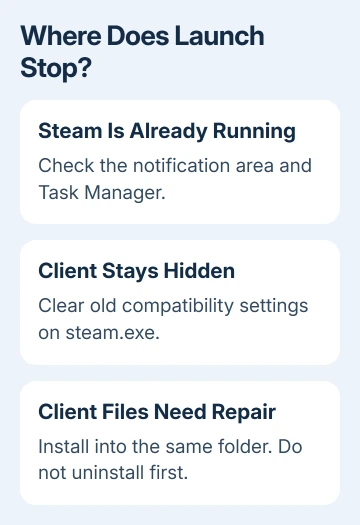
If the window never appears, press Ctrl+Shift+Esc to open Task Manager and check Processes for Steam. If it's listed, Steam started a process even though its window didn't load.
Valve's already-running instructions describe that exact case. The next check is the executable's compatibility settings, rather than assuming the shortcut is simply opening too slowly.
If Steam opens and only a game fails, note the game's own message instead. For a game process that stays hidden, the game running without a window guide covers that different stage of startup.
2. Remove compatibility settings from Steam itself
Open the actual Steam installation folder in File Explorer. The usual location is C:\Program Files (x86)\Steam, but use the folder you chose if you installed it elsewhere.
Right-click steam.exe, select Properties, then open Compatibility. Clear the checked compatibility options and click Apply. Use Change settings for all users and check that page for the same old options too.
Close both dialogs with OK, then try the executable again. These settings belong to Steam itself. Changing a game's compatibility options won't remove settings saved on steam.exe.
A setting left over from an older troubleshooting attempt can follow the client through later updates. Clearing it lets the current Steam client run without those extra compatibility rules.
Don't copy a game's Windows XP compatibility advice onto the Steam client. The client and the game are separate programs, and the client repair instructions call for clearing its compatibility features.
If the window now opens, check the library before changing anything else. If it stays hidden or closes immediately, repair the client files in place next.
3. Reinstall over the existing Steam folder
Download the Windows installer from the official Install Steam page. Run it and choose the same folder as the current Steam installation. Check the destination before continuing.
The client troubleshooting instructions say installing into the same location may repair client and service files while preserving installed games. You'll be installing over the copy that's already there.
Don't uninstall Steam first. The repair instructions warn that uninstalling by another method deletes game and user-data content. Copy local saves you need before any deeper repair, especially if their cloud-sync status is uncertain.
After installation finishes, open Steam from its installation folder. Let any client update complete, then check whether sign-in or the library appears. Check that Steam's window opens first, then try a game.
I'd use this repair before manually deleting folders. It follows the client repair route without asking you to decide which unfamiliar files are safe to remove.
If Windows instead shows This app can't run on your PC, use the Steam executable error guide. That warning means Windows is rejecting the file, which needs a different starting check from a process running invisibly.
4. Check the connection when updating or signing in stalls
Watch the last visible step. A Steam update window that stops or a sign-in attempt that fails points toward a connection problem more directly than an entirely absent window does.
Restart your router if other devices are also struggling, then retry. If another allowed internet connection is available, compare Steam there.
If Steam opens on the other network, check the first connection for filtering or connection problems.
Personal VPNs and proxies can change the route Steam uses to reach its servers. Try turning them off temporarily if you control the connection. On a managed network, ask the administrator whether Steam is permitted.
Keep the exact update or connection message. It tells support whether the failure happened while downloading the client, signing in or displaying the library.
A screenshot of that message is more useful than only reporting that Steam won't open.
5. Check interfering programs and recent system changes
Close nonessential recording tools, performance utilities and other programs that monitor or modify apps, disks or network traffic. After closing each program, try Steam again. If it opens, you'll know which change helped.
Review security software's alerts for a blocked Steam file. If there is a recorded block, verify the file belongs to the official installation and ask the security vendor about the correct exception.
Leave the firewall running while you check its records.
Disconnect any extra input devices, then try opening Steam again. Their drivers can interfere with the client. Leave your main mouse and keyboard connected; add the other equipment back after this comparison.
Install current updates through Settings > Windows Update > Check for updates, using the Windows update controls.
For graphics drivers, use the computer or graphics manufacturer's supported update route and skip unrelated driver-download utilities.
If the trouble began after a particular app or driver change, include that timing in the support request. That timing helps support tell whether Steam's files need repair or another program is interfering at startup.
6. Give Steam Support the failed startup stage
If the client still won't open, use Steam Support's help site and report a client startup problem. Include Windows version, any error text, whether Task Manager shows Steam and what happened after the same-folder repair.
Mention whether another connection worked and which background programs you compared.
Repeated crashes may need a Steam update or a closer check by support. Once you've tried reinstalling and recorded what happened, doing the same installation again won't tell them much more.
The Short Version
After a Windows restart, check for Steam's hidden window and clear its compatibility settings. Repair its current folder without uninstalling. Check connections and software conflicts before reporting the last startup stage to support.
Checked November 13, 2026.